

Find Your Symptom
Deploying
The Portal Shows a General Error
The Portal shows “Error creating container group deployment” or “Unable to start container group” when it can’t show a more specific message. The SaladCloud API returns the same request’s error with atype that names the cause. Common types:
Container group names must be 2–63 characters, use only lowercase letters, numbers, and hyphens, start with a letter,
and end with a letter or number. Shared memory must be at least 64 MiB and no more than half of the container’s memory.
I Hit My Replica Quota
Your organization’s quota limits the total number of replicas across all of its container groups, CPU and GPU combined.- A running container group counts its replica count.
- A container group with job queue autoscaling counts its maximum replicas, not its current replica count.
- Stopped and deleted container groups don’t count.
My Container Group Can’t Pull My Image
If your container group is unable to pull your container image, try the following steps:- Verify the image url is correct. Check for typos in the image name and registry.
- If using a private registry, ensure that the credentials provided are valid and have the necessary permissions, including inspecting the manifest and downloading all of the layers. Ensure there are no leading or trailing whitespace characters in your credentials.
- If using a private registry, ensure your account level supports an adequate rate limit for the number of container groups you are deploying. This is especially important if you are using Docker Hub, and deploying many single-replica container groups.
- Ensure the image is in Docker/OCI format and built for AMD64 architecture. Salad does not support ARM64 images.
- Ensure the image size is <= 35GB (compressed). Larger images will fail to pull.
- If using a custom registry, ensure that the registry is publicly accessible from the internet.
My Container Group Is Stuck Allocating
Instances stay in Allocating until a node that meets every requirement picks them up. Common reasons:- No node matches. A node must have one of your GPU classes, enough CPU, memory, and disk space, and be in an allowed country. Each extra requirement narrows the pool.
- Higher-priority work takes the nodes. Nodes go to higher priority workloads first, and a running instance can be interrupted by higher-priority work.
- Availability is an estimate. Availability shows roughly how many nodes match, not nodes reserved for you, so other customers can take them first.
My Container Group Loops Between Downloading and Allocating
If you see your container group repeatedly transitioning between “Downloading” and “Allocating”, this almost always indicates that the container is failing immediately when it starts. When an instance fails to start, SaladCloud moves it to a different node and avoids the failing node for that container group. Repeated failures are retried with an increasing delay, up to 20 minutes between attempts. To confirm this is what is happening, check the System Events tab for the container group, which shows when an instance started downloading, and its exit codes or start failures. Alternately you can use the log explorer to search forresource.type=instance_controller.
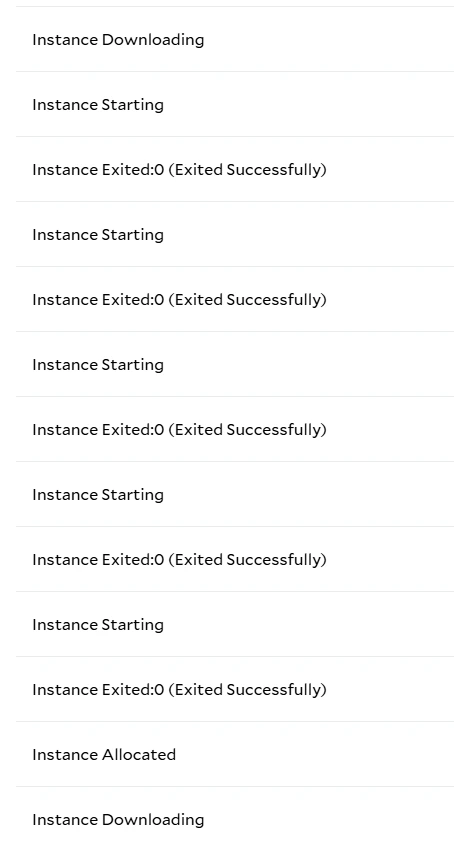
My Container Group Is Stuck Downloading
If the download barely moves or stops at 99 percent, first check the instances are not looping between downloading and allocating as above. However, if a single node has been in the “Downloading” state for a long time (more than 2 minutes per GB of image size), you may have landed on a node with below-average network performance. This can happen because Salad nodes often run on residential internet connections, where other household devices may share the bandwidth. Many of these nodes will eventually become healthy, but if high network performance is essential to your application, try reallocating the node. It will be placed on a different machine, with different network conditions. Note that the progress bar is a conservative estimate — actual download time may vary.Starting
Container Exit Troubleshooting
Exited:0: Successful Exit
An exit code of 0 indicates the container process completed successfully. This is expected behavior for many base
images (for example, ubuntu) which exit immediately if no long-running command is specified. Containers, unlike VMs,
require a long-running process to stay alive.
Recommended action: If the container is intended to remain running, specify a long-running command such as:
sleep infinity, or a large integer value for distributions where sleep does not support infinity (e.g. Alpine
Linux).
Exited:137: Container Killed (SIGKILL)
System Events show this as Instance Exited:137 (Likely Out of System Memory). Exit code 137 means the container was
terminated with SIGKILL by something other than SaladCloud, most often because it used more memory than the container
group allows and was killed as OOM (out of memory). Stops that SaladCloud starts, such as restarts, reallocations, and
priority interruptions, appear as Instance Interrupted or Instance Reallocated events instead.
Recommended actions: Check your application’s memory use, and increase the memory allocated to the container group.
Exited:<other>: Application-Specific Exit
Exit codes other than 0 or 137 are typically returned by the application running inside the container. For example,
1 is a common exit code for general application errors, and 2 is a common exit code for invalid arguments or
configuration.
Recommended actions: Inspect the container logs immediately preceding the exit to determine the root cause. Validate
application configuration, input files, and environment variables.
StartFailure:-1: Container Failed to Start
A StartFailure indicates that the container runtime was unable to start the container. In these cases, the container
process itself never executed. System Events show most start failures as Instance Start Failure: Other. Two causes
have their own events: Instance Start Failure: GPU Selected for non - GPU Workload and
Instance Start Failure: Conflicting NVIDIA Libraries.
Start failures may occasionally be caused by transient node-level issues, such as an image that fails to import on one
node. SaladCloud moves the instance to a different node automatically. However, repeated start failures across nodes
typically indicate a problem with the container image or container group configuration.
Image and Runtime Issues
- Invalid or missing container entrypoint
- Image built for an incompatible architecture
- GPU images with missing or incompatible CUDA or ROCm/HIP libraries
Command and Argument Errors
- Incorrect command or arguments. An invalid command fails on every node, so the instance keeps moving between nodes.
- Referenced files or binaries do not exist in the image
- Incorrect assumptions about the working directory
GPU and Resource Mismatches
- Using a non-GPU container image with a GPU container group
- Using a GPU-dependent image in a CPU-only container group
- Using a CUDA image with an AMD GPU class
- Using a ROCm image with an NVIDIA GPU class
- An incompatibility between the image’s GPU runtime, the host driver, the GPU architecture, and the application build
Debugging Start Failures
To systematically debug start failures:- Verify the container image works locally with a similar runtime environment (e.g. Docker Desktop).
- Ensure the container image is intended for GPU workloads if deploying to a GPU container group, or vice versa.
- Start the container with a minimal long-running command such as
sleep infinityand connect via the terminal in the Portal or with SSH. Once connected, manually verify that the expected files, binaries, and environment variables are present and correct. Also verify that the intended entrypoint or command run successfully. For the full steps, including which probes to remove first, see Cold Starts and Iterating Quickly.
GPU Compatibility Checks
First, confirm the vendor of every GPU class selected for the container group. A vendor-specific image should select classes from only that vendor:- NVIDIA workloads need a compatible CUDA image.
- AMD workloads need a compatible ROCm image built for the selected GPU architecture. See AMD GPUs and ROCm.
- NVIDIA: Run
nvidia-smiand inspect the application logs for CUDA, cuDNN, NCCL, or kernel compatibility errors. - AMD: If the image includes them, run
rocminfoandamd-smi list, and inspect the application logs for ROCm, HIP, orgfxcompatibility errors.
/dev/dri, so software that
needs a DRM render node won’t find one.
Running
My Container Group Is Running But Never Ready
An instance is Running once its container starts, and Ready once its readiness probe passes. The Container Gateway only sends traffic to instances that are ready.- If an instance never becomes ready, the readiness probe is failing. Check that the probe’s path, port, or command matches your application, and that its timeout gives your application enough time to respond.
- If you don’t configure any probes, the gateway sends traffic as soon as the container process starts, even if your server isn’t listening yet. Add a readiness probe so traffic waits until your application can handle it.
- Instances that repeatedly fail a startup or liveness probe are restarted, and System Events show
Instance Interrupted (Startup Probe Failure)orInstance Interrupted (Liveness Probe Failure).
My Container Group Stopped on Its Own
System Events showContainer Group Stopped whether you stopped the container group or SaladCloud did. SaladCloud stops
container groups when:
- The organization runs out of credits. All running container groups stop. Add credits or turn on auto-recharge, then start them again.
- The payment method is removed. Container groups stop after a waiting period, and the replica quota is set to 0. Add a payment method, then contact support if your quota isn’t restored.
One Instance Is Much Slower Than the Others
Nodes differ in network speed, CPU, and GPU, even within one GPU class. If you select several GPU classes, each instance can run on any of them, so check which GPU an instance has (for example, withnvidia-smi) before comparing
performance. If one instance is consistently much slower than others on the same GPU class, reallocate it to move it to
a different node. A single slow run on its own isn’t a reason to reallocate.
Networking
My Container Group Is Running But I Get 503 Errors With The Container Gateway
The gateway returns 503 when no ready instance can take the request.- Ensure your container is listening on the correct port. The port you specify in the Salad configuration must match the port your application is listening on inside the container.
- Ensure your container listens on IPv6. The
Container Gateway reaches your container over IPv6, so a server bound only to
0.0.0.0gets 503 errors. Set your host to::instead, which accepts IPv4 and IPv6. - Ensure your readiness probe does not pass until the server is able to accept traffic. If the readiness probe passes before the server is ready, Salad Gateway will route traffic to the container, but the container may not be able to handle it yet, resulting in 503 errors.
- Ensure at least one node is running and “ready” in the Salad portal. If all nodes are down, or not ready, the gateway will return 503 errors.
- If the instance has only just become ready, there may be a short delay, typically a few seconds, before the gateway starts routing traffic to it.
My Container Group Is Running But I Get 403 Errors With The Container Gateway
- If your container group has Authentication enabled, ensure that your Salad API Key is valid, and included in the
Salad-Api-Keyheader of your requests. The key’s user must be a member of the organization that owns the container group. After you fix the key, the gateway can take up to 5 minutes to accept it. - If your container group does not have Authentication enabled but you are getting 403 errors, this issue can occur in rare cases due to an internal delay creating the necessary route tables. This usually resolves itself within a few minutes. If it does not, please contact support. In this scenario, duplicating the container group will almost always resolve the issue, but please contact support anyway, so we can track the issue and continue to improve.
My Requests Time Out or Long Connections Drop
- Timeouts: The gateway waits up to 100 seconds for your application to respond, or less if you set a lower server response timeout in the load balancer options. Longer requests fail with a 504 from the gateway or a 524 from the edge network. Stream the response, or move long work to a job queue.
- WebSockets and streams: The same timeout applies to idle connections, so send data or a ping more often than every 100 seconds. Long-lived connections can also be dropped during gateway maintenance, so clients should reconnect automatically.
Access and Logs
My Container Group Is Running But I Can’t Access It With The Web Terminal
- Wait a few seconds after the terminal page loads, as it sometimes takes a moment to establish a connection.
- Refresh the page if it does not connect after a few seconds.
- The terminal runs
/bin/sh, so your image must include it. - If the Portal shows “Unable to connect to the terminal”, reallocate the instance to move it to a node with terminal access.
- You may also gain terminal access to nodes using tools like tailscale ssh, or even installing the VS Code server or JupyterLab in your container image.
I Can’t Connect Over SSH
- Key not accepted: SaladCloud accepts Ed25519 and RSA keys only, and each user holds one key. Check that the key saved in the Portal matches the key your SSH client uses.
- “SSH key already registered”: A public key can belong to only one user. Each teammate needs their own key pair.
- Unknown user: The user in
ssh <user>@...must exist in your image.rootalways works. - No SSH command shown yet: An instance gets its SSH endpoint after it’s scheduled on a node, which can take a little longer than the Running state.
- A command over SSH reports failure: One-off commands such as
ssh ... -- lsalways return exit code 1, even when they succeed, and their errors are mixed into standard output. Check the output instead of the exit code.
My Logs Are Empty or Missing
- SaladCloud only collects what your application writes to standard output and standard error. Logs written to files inside the container aren’t collected.
- System Events are stored separately from container logs. In the log explorer, filter with
resource.type=containerfor your application’s output. - Logs are filed by the time your application wrote them, so a late-arriving log line appears in an earlier time window. Widen the time range if you expect a line that isn’t there.
Job Queues
My Job Queue Jobs Aren’t Processed
Jobs go to instances that have a Job Queue Worker connected. If jobs stay pending:- Check that the container group has a queue connection to this queue. The worker can’t receive jobs without one.
- Check that the worker is running in your image, with the port and path of your application’s job endpoint.
- Check that at least one instance is running. With no running instances, jobs wait in the queue.
My Job Queue Doesn’t Scale
- Set
queue_autoscalerby updating the container group after you create it. The SaladCloud API ignoresqueue_autoscalerin create requests. - Your replica quota must cover the autoscaler’s maximum replicas, not just its current replicas.
- The autoscaler adjusts replicas after queue activity, such as jobs being added or completed, rather than on a fixed schedule.