

How SaladCloud Is Different
Instances Can Be Interrupted
SaladCloud works to keep your instances running with high uptime. Still, we don’t have physical control of the machines, so a node can go offline, and instances at a lower priority can be replaced by higher-priority work. When that happens, SaladCloud automatically starts a replacement instance on another node. Any cloud can lose a machine, so robust applications handle it anyway. On SaladCloud it’s worth planning for from the start:- Run at least 2 replicas, so another instance keeps serving while one is replaced.
- Retry failed requests in your clients.
- Save progress from long jobs regularly. See Long-Running Tasks.
Storage Is Temporary
Each instance gets its own disk space, up to 250 GB. It’s kept while the instance runs and restarts, but a replacement instance on another node starts with an empty disk. Keep anything you need to keep, such as results, checkpoints, or model weights you download at startup, in external storage like Amazon S3, Google Cloud Storage, or Azure Blob Storage. Because nodes are spread around the world, a provider that doesn’t charge egress fees, such as Cloudflare R2, can save a lot.Cold Starts Take Longer
Each node downloads your container image before it starts. Many nodes are on residential internet connections, which are usually slower than a data center’s. Plenty of nodes have fast connections, and SaladCloud caches images to speed up downloads, but large images still take a while to arrive, especially on a new node. Images are limited to 35 GB (compressed). You aren’t billed while an instance is downloading its image. Billing starts when the container starts running, so a slow download costs time, not money. To start faster, keep images small, especially when you’re first iterating or debugging. See Cold Starts and Iterating Quickly.Updates Restart Every Replica
When you change the image, command, environment variables, or resources, every replica restarts on the new version at about the same time. There’s no built-in rolling update. Customers keep services available during updates with patterns like running the new version as a second container group, described in Deployment Strategies. If rolling updates are important for your workload, contact us so we know.Performance Variability
Nodes that match the same requirements still differ in network speed, CPU, and storage. For example, a container group that requests 2 vCPU, 12 GB RAM, and an RTX 4090 can land on nodes with quite different network performance. Monitor your application’s performance over time, and reallocate instances that consistently underperform.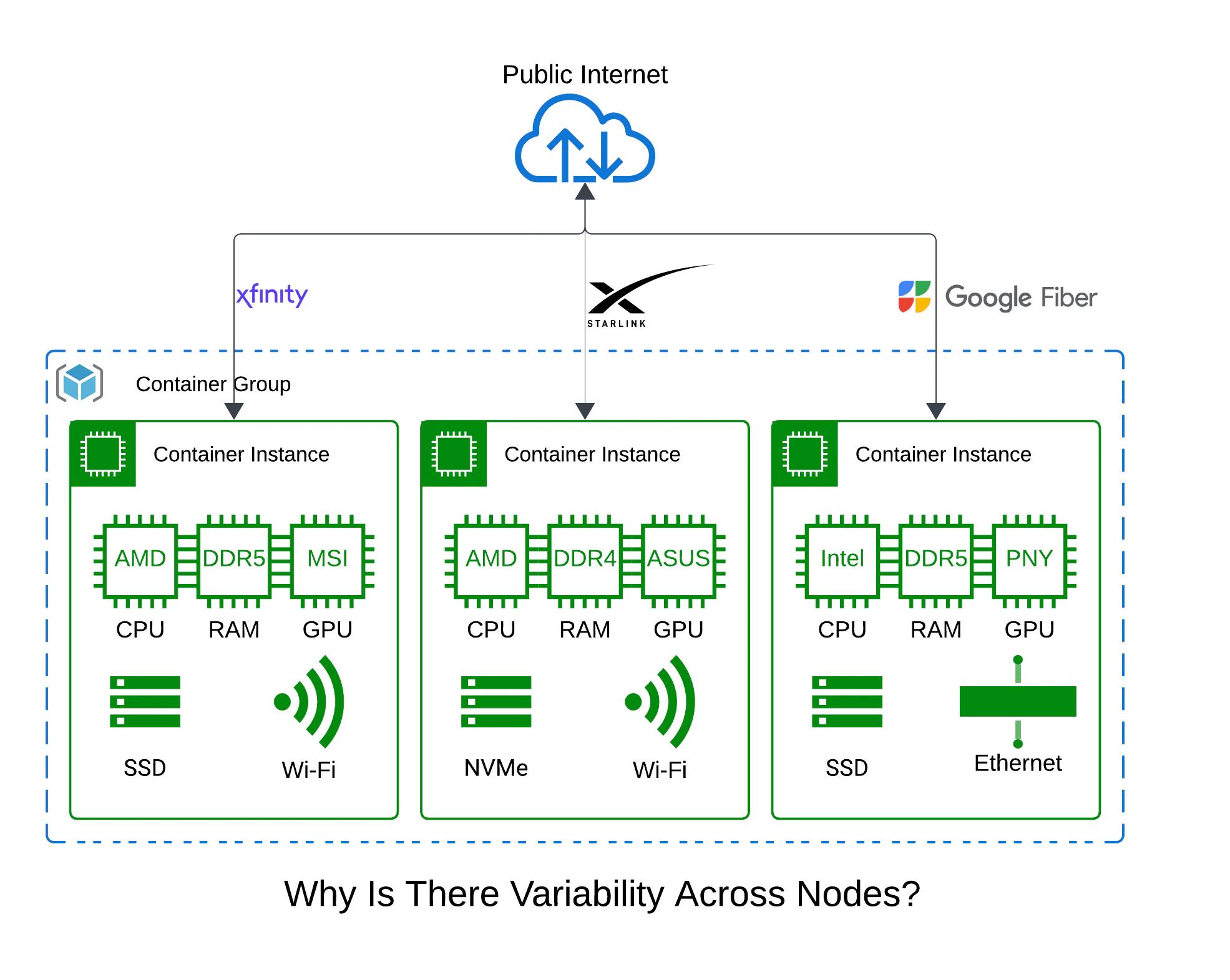
Capacity Is Shared
Nodes are shared by all SaladCloud customers. The availability shown when you create a container group is an estimate, not a reservation, and higher priority levels get nodes first. Selecting more than one GPU class makes it easier to find nodes. Your organization also has a replica quota, which you can ask to increase.Networking Goes Through the Container Gateway
To receive requests from the internet, enable the Container Gateway. It gives your container group a public URL and load-balances requests across ready instances. Your application must listen on IPv6 (::) on the one
port you configure. A request fails if your application sends nothing back for 100 seconds, so stream long responses, or
use a job queue for long-running work.
Containers Run in WSL2
Nodes run Windows, and your container runs in a Linux environment under the Windows Subsystem for Linux (WSL2). Your image must be a Linux image built for AMD64 (x86-64); ARM images and Windows containers aren’t supported. If you build on an ARM-based Mac, build for AMD64:Logs Come From Standard Output
SaladCloud collects what your application writes to standard output and standard error. See Container Logs.Data-Sensitivity Compliance
Customers in specialized industries may be legally obligated to protect sensitive data such as medical records or private financial information. While SaladCloud takes precautions to secure every workload on our network, we cannot guarantee that our solutions are considered compliant with requirements outlined by select regulatory commissions or legislative authorities (including but not limited to HIPAA and the Financial Modernization Act of 1999).Key Concepts
A container group is a container image, the hardware it needs, and the number of replicas to run. SCE creates or replaces container instances as needed to keep that many running. A container instance is one run of your container on one node. Each instance has a unique ID and its own logs. When an instance is moved to a different node, it gets a new instance ID.Ways to Deploy
- SaladCloud Portal: Create, edit, and monitor container groups in your browser, and manage your organization, billing, and support.
- SaladCloud API: Manage container groups from your own code or pipelines. New features sometimes reach the API before the Portal.
Scaling
You can change the replica count at any time in the Portal or the API. SCE can also scale for you:- Job queue autoscaling adds and removes replicas based on the number of jobs waiting in a queue.
- Scheduled scaling changes replicas on a schedule.
Next Steps
- Quickstart: Deploy your first container group.
- Architectural Overview: How SCE works under the hood.
- Troubleshooting: Fix common problems.
- FAQs: Answers to common questions.