Overview
To work with a job queue, you’ll need to customize the container that you deploy on SaladCloud to include some way to receive jobs from the Job Queue, pass them to your application, then receive the results from your application and return them to the Queue. For this purpose, we provide a Job Queue Worker as a precompiled go binary which can be included and run inside your container. You can download it from Github. The binary is namedsalad-http-job-queue-worker, and it works in any Linux-based image that runs on x86_64 (amd64).
⚠️ Architecture and where it runs
- The release ships a single x86_64 (amd64) build. There is no arm64 build. If you build your image on Apple silicon, build with
docker build --platform linux/amd64.- The worker runs only on SaladCloud. It depends on the Instance Metadata Service, so it cannot run on your workstation. If you start it elsewhere it logs
failed to fetch workload instance status … connection refusedover and over. Test your application’s HTTP endpoint locally, and test the worker only in a deployed container group.
📘 Prerequisites
The examples that follow can be found on GitHub.
If you want to follow along with the sample images, download them to your pc with
git clone https://github.com/SaladTechnologies/salad-cloud-job-queue-worker.git
Managing Multiple Processes
To configure your container to receive Jobs from a Job Queue, you’ll be running two processes in the same container - your application, as well as the Job Queue Worker. There are many ways to manage multiple processes in a single container, and we outline two such methods for you below.Build a wrapper image with s6-overlay
In this example, we are going to build a new image which usess6-overlay to serve as a hypervisor for both your
primary application and the Job Queue Worker process. Here’s how to do it.
-
You’ll need to include the Job Queue Worker in your container. In this example, we first download the binary to our
local machine and build it into our container image by adding a
COPYcommand to the Dockerfile.- Alternatively, you may choose to download and unpack the SDK when your container is built by including
ADDandRUNcommands in your Dockerfile, or expand your entrypoint to include the download/unpack process. - You may compare the SHA256 checksum of your downloaded file with the one found on the Github releases page.
- Alternatively, you may choose to download and unpack the SDK when your container is built by including
-
Now we will build your original image. As an example, see
samples/mandelbrot/base/ -
this is a simple container that receives requests and returns images of the mandelbrot set. It uses
uvicornto listen on port 80 on the/generatepath for requests to be handled by the mandelbrot generation code.dockerfile- Navigate to the
samples/mandelbrot/base/
directory and run
docker build -t foobar . - Notice that the name of the output container image in this case is
foobar; you may substitute any name you like. The image with that name will not be pushed to any registry and will remain solely on your local disk.
- Navigate to the
samples/mandelbrot/base/
directory and run
-
Because the resulting container will run two processes, we will use the
s6-overlayhypervisor to manage them. It has to be configured with the way to start your application, as probably indicated in CMD or ENTRYPOINT lines in the original Dockerfile. As an example, see samples/mandelbrot/with-s6-overlay/- The s6 configuration files are stored in samples/mandelbrot/with-s6-overlay/s6/s6-overlay/s6-rc.d/. You’ll find the configuration for the sample service already there. The configuration must have two files, type and run. You can copy over the type from the provided sample, but the run **must **contain the command which starts your application: it is equivalent to the CMD or ENTRYPOINT in your original Dockerfile.
-
Next, build the wrapper image. First locate the line
FROM foobarand replacefoobarwith whatever name you used in the previous step, save the file, and build the wrapper image:docker build -t my-company/my-image -f docker/Dockerfile .- Note that the the name of the image here is important. That is what you are going to deploy to the SaladCloud .
- Replace
my-company/my-imagewith whatever name you want the resulting image to have.
dockerfile
- You will need to note the port and path of your application within the container for use in the next step, when
you’re configuring your container group to include a connection to a job queue. This port and path are where the
queue worker SDK will be sending the jobs to. In our example, we have the following values:
- Port: 80
- Path: /generate
Build a wrapper image with a shell script
In order to add the salad-queue-client into the image we are going to build a new image which uses a shell script. Here’s how to do it.-
First, you’ll need to include the job queue worker SDK in your container. In this example, we first download the
binary to our local machine and build it into our container image by adding a
COPYcommand to the Dockerfile. Alternatively, you may choose to download and unpack the SDK when your container starts by includingADDandRUNcommands in your Dockerfile.- The binary works on any x86_64 (amd64) Linux-based base image.
-
Now we will build your original image. As an example, see
samples/mandelbrot/base/ -
this is a simple container that receives JSON requests on port 80 at the
/generatepath and returns images of the mandelbrot set. It usesuvicornto listen on port 80 for requests to be handled by the mandelbrot generation code.dockerfile- Navigate to the
samples/mandelbrot/base/
directory and run
docker build -t foobar . - Notice that the name of the output container image in this case is
foobar; you may substitute any name you like. The image with that name will not be pushed to any registry and will remain solely on your local disk.
- Navigate to the
samples/mandelbrot/base/
directory and run
-
Because the resulting container will run two processes we will use a shell script run.sh to manage the multiple
processes. The relevant sample is in the
samples/mandelbrot/with-shell-script/:
dockerfile
-
Locate the line
FROM foobarand replacefoobarwith whatever name you used in the previous step. - Save the file.
-
Open the shell script
run.sh: -
Locate the line
uvicorn main:app --host '\*' --port 80 &and replace the start command with whatever is required to start your application, it is indicated in eitherENTRYPOINTorCMDdirective in the original Dockerfile. In our example, we can leave it as-is.
-
Locate the line
-
Now, build the wrapper image with
docker build -t my-company/my-image -f docker/Dockerfile .Note that the the name of the image here is important. That is what you are going to deploy to the SaladCloud . Replacemy-company/my-imagewith whatever the name you want the resulting image to have. -
You will need to note the port and path of your application within the container for use in the next step, when
you’re configuring your container group to include a connection to a job queue. This port and path are where the
queue worker SDK will be sending the jobs to. In our example, we have the following values:
- Port: 80
- Path: /generate
Make sure your application is ready before the worker takes jobs
Both examples above start the worker and your application together. The worker starts asking for jobs as soon as it runs, and it does not wait for your application. If your application is not listening yet, the worker still takes a waiting job, getsconnection refused on your port, and retries it straight away. In our testing, a worker that started
before its application used all four attempts of a waiting job within seconds, and the job was marked failed for good.
Pick one of these:
-
Add a readiness probe (recommended). Configure an HTTP
readiness probe on your application’s port
when you create the container group. The worker waits for the probe to pass before it takes jobs. In the same test
with a probe in place, the worker logged
readiness changed ready=trueonly after the application was up, then took the jobs with no failed attempts. See Creating a Job Queue for an example. -
Start the worker only after your application answers. If your image cannot have a probe, have the wrapper script
wait for the port before it starts the worker. In
run.sh, start your application first, then wait for it:
Pushing the image to a Registry
Regardless of which path you chose, you should now have an image built with your application, the Job Queue Worker, and some way of managing both processes. It’s time to push it to the container registry of your choice. Learn more about the registries supported by SaladCloud at Container Registries.Additional notes about the SaladCloud Job Queue Worker
- The worker connects to a local HTTP server running inside of SEL, our special version of Linux running on the host machine behind your container replica. This means you can’t run the worker locally.
- Your application’s response. The worker returns your application’s response body to the queue as the job’s output. It must be valid JSON and cannot exceed 10 MB. A larger reply counts as a failed attempt: the job runs again in full, up to four times in total, and then fails. The job does not record why. To return large results, write them to external storage and return a link.
- Without a startup or readiness probe the worker takes jobs before your application may be ready, and those jobs can fail. See Make sure your application is ready before the worker takes jobs. Read more about health probes here.
Logging
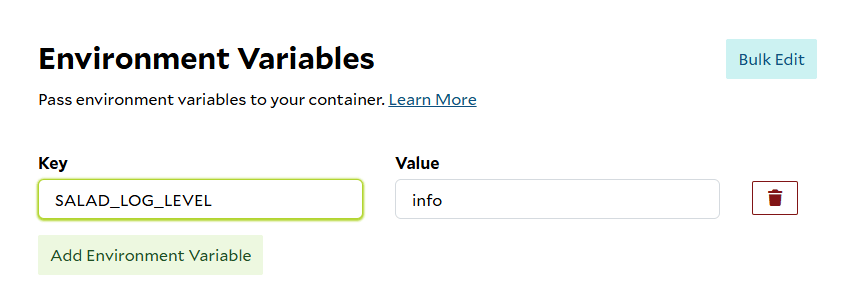
By default, the worker logs only at theerror level. Logs are sent to the
SaladCloud Container Logs or your
external logging tools. To change the level,
add a SALAD_LOG_LEVEL environment variable with the value
debug, info, warn, or error. An invalid value stops the worker at startup.