

SSH Access
Use SSH to open a shell on a running container instance after adding your public key in the SaladCloud Portal.1. Create or Obtain an SSH Key
If you already have an SSH key pair, you can skip this step. To check for existing keys:id_ed25519.pub or id_rsa.pub. SaladCloud accepts Ed25519 (ssh-ed25519) and RSA (ssh-rsa)
keys only, so an ECDSA key such as id_ecdsa.pub won’t work.
To create a new SSH key:
~/.ssh/id_ed25519 (private key) and ~/.ssh/id_ed25519.pub (public key). Your public key will look
similar to this:
2. Copy Your Public Key
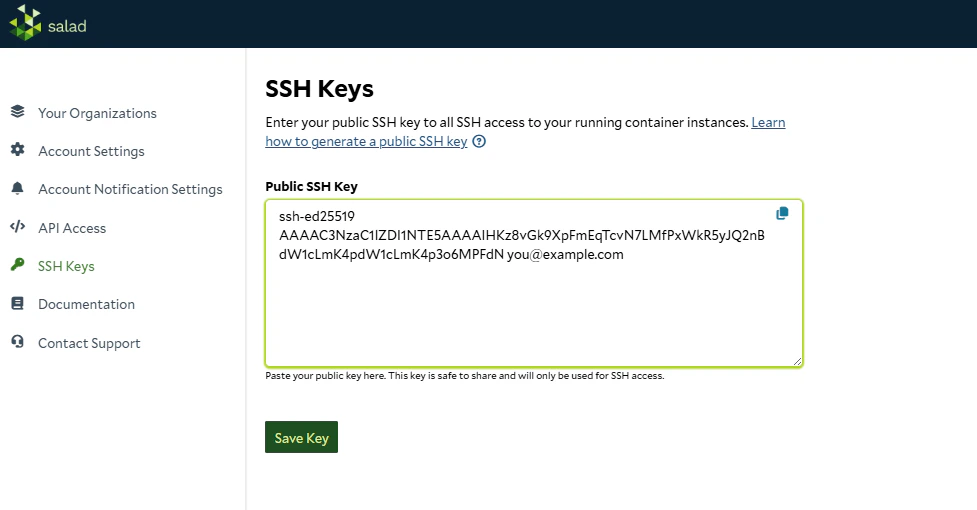
3. Add the Key in the Portal
There are two ways to access the SSH key settings:- Click your username in the upper-right corner and select SSH Keys, or
- Click SSH Keys in the left sidebar menu
Each user holds one SSH public key, and saving a new key replaces the existing one. If you connect from more than one
machine, use the same key pair on each. A public key can belong to only one user, so teammates each need their own key
pair. Saving a key that another user has already registered fails with “SSH key already registered”.
4. Connect to a Container Instance
- Open your container group in the Portal and click on a running instance.
-
You will see an SSH command displayed in a text box above the terminal. Command will look something like this:
- Copy the command and paste it into your terminal.
- The Portal also displays the key fingerprint for verification, so you can confirm you’re connecting with the correct key.
~/.ssh/ (such as id_ed25519 and id_rsa), so the command shown in
the Portal works without modification for most users.
If your key has a custom name or is stored in a non-standard location, add the -i flag to specify your key name and
location:
Connecting as Another User
The user in the SSH command must exist in your container image.root always works. To connect as another user, create
it in your image (for example, with useradd in your Dockerfile) and replace root in the command. Sessions start in
/bin/sh, so your image must include it.
Running One-Off Commands
You can run a single command without opening an interactive session:1 for one-off commands, even when the command succeeds, and the command’s
errors are mixed into its standard output. Check the output instead of the exit code, especially in scripts.
Copying Files
SFTP is supported, sosftp and modern scp (which uses SFTP by default in OpenSSH 9 and later) can copy files to and
from an instance:
Terminal Access
The web-based terminal provides quick access directly from your browser without any SSH setup.- Open the SaladCloud Portal and navigate to your container group.
- Click on a running instance.
- Click on the Terminal tab to open an interactive shell.
/bin/sh as root. If it doesn’t connect, see
Troubleshooting.