Prepaid Billing
SaladCloud uses prepaid billing. Billing, payment methods, and credits are managed at the organization level. All credit purchases are final, non-transferable between organizations, and expire 12 months from the purchase date. To keep your organization’s workloads active you must purchase credits as needed to maintain a positive credit balance. There are two options to purchase credits: Auto Recharge and Manual Recharge. For production workloads, SaladCloud strongly recommends enabling Auto Recharge to maintain a positive credit balance and ensure uninterrupted service. For testing or non-production workloads, such as long-running batch jobs, either option may be suitable.Auto Recharge
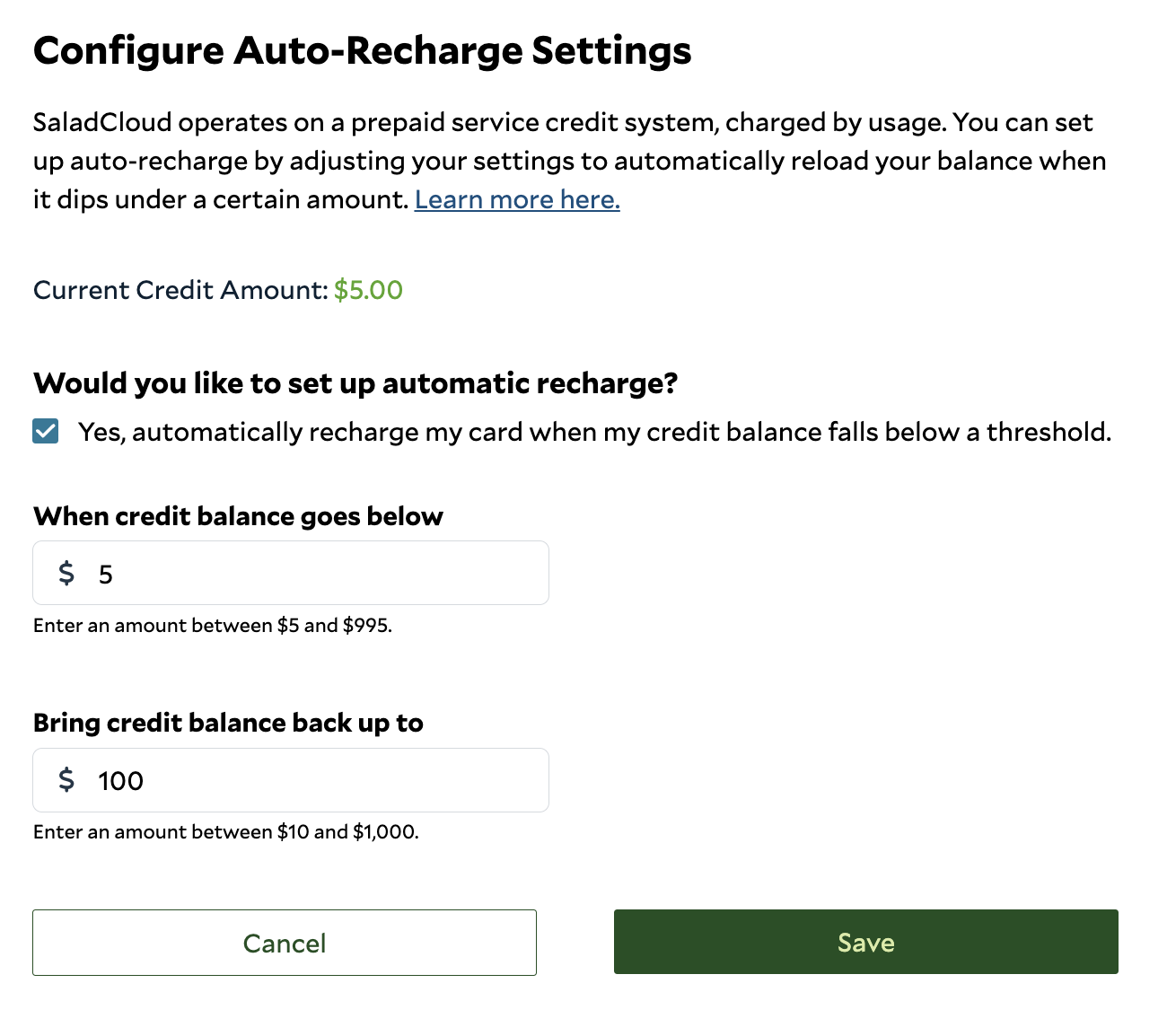
With auto recharge, configure a threshold and recharge amount, allowing SaladCloud to automatically replenish your organization’s credit balance when needed with a saved payment method.- Recharge Threshold: The balance level that triggers an auto recharge (“when my balance falls below”). We recommend setting this to 10% of your recharge amount (e.g., a $100 threshold for a $1,000 top-up). Adjust proportionally as your usage grows.
- Recharge Amount: The amount SaladCloud will add to your balance when the threshold is reached.
Manual Recharge
At any time, you can add between $5 and $10,000 in credits by clicking Add Credits on the Billing & Usage page. For amounts exceeding $10,000, or to receive a volume discount, contact our sales team. See Volume Discounts below. If your balance reaches $0.00, usage will be shut down as soon as possible. If charges are incurred beyond your available balance, you will receive an invoice at the start of the following month.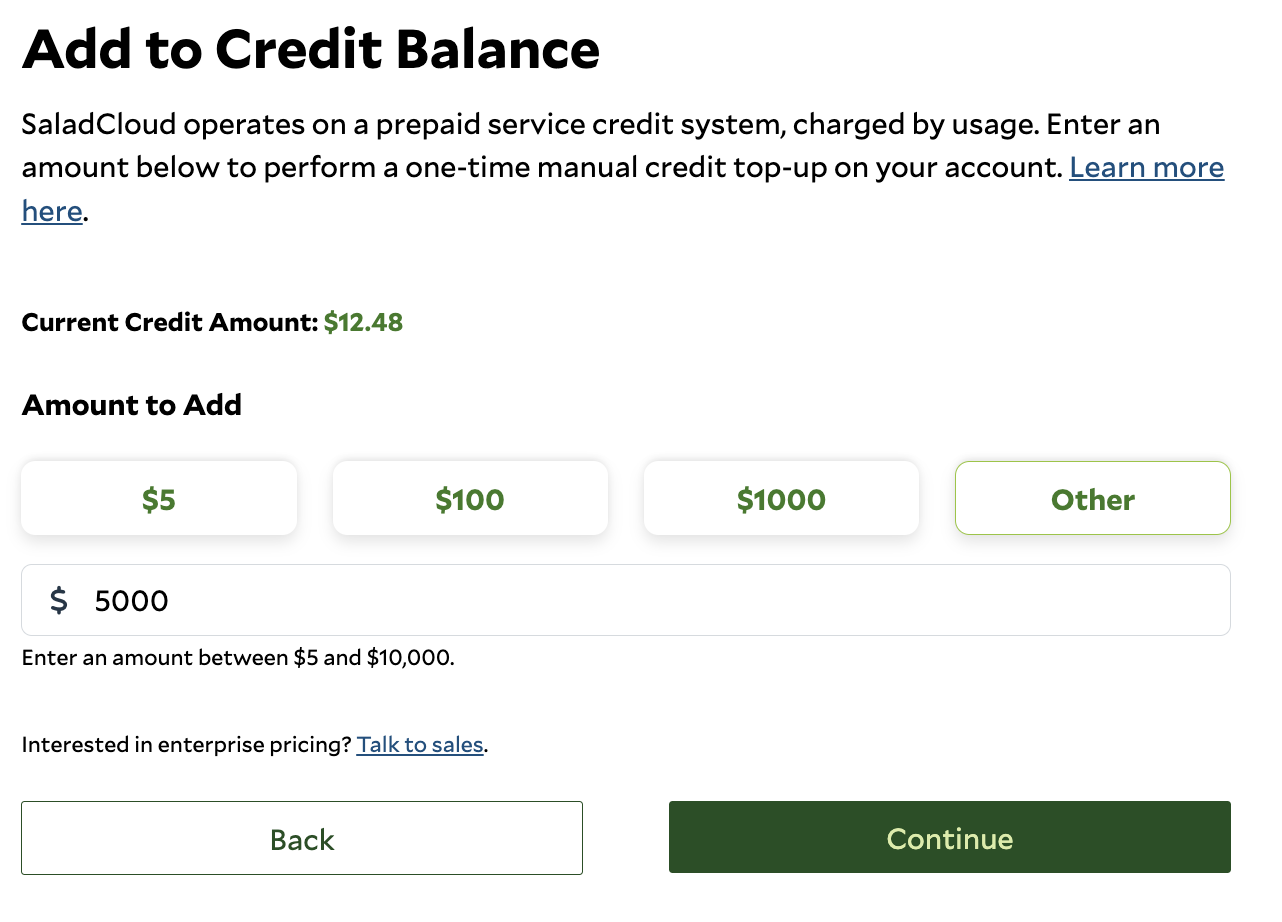
Accepted Payment Types
We accept:- Credit and debit cards: Standard payment method for most customers and for automatic recharges.
- Crypto on Solana: USDC, USDT, and RENDER, for manual credit purchases. See Pay with Crypto.
Pay with Crypto
You can buy credits with USDC, USDT, or RENDER on the Solana network directly from the Portal, using a Phantom or Solflare wallet. You don’t need SOL for network fees.- In the Portal, go to Billing & Usage and click Add Credits.
- Choose USDC, USDT, or RENDER, and enter the amount of credits to buy ($5 to $10,000).
- Enter your billing address, which is used to calculate tax.
- Review the payment, connect your wallet, and approve the transaction.
For larger purchases or other tokens, contact support.
Volume Discounts
Prepaid credit purchases of $10,000 or more may be eligible for the discounts listed below.Volume discounts aren’t applied automatically. To receive a discount, contact us at
[email protected] before you make your purchase.
For purchases above $150,000 or enterprise billing arrangements, also contact us at
[email protected].
Managing Billing and Usage
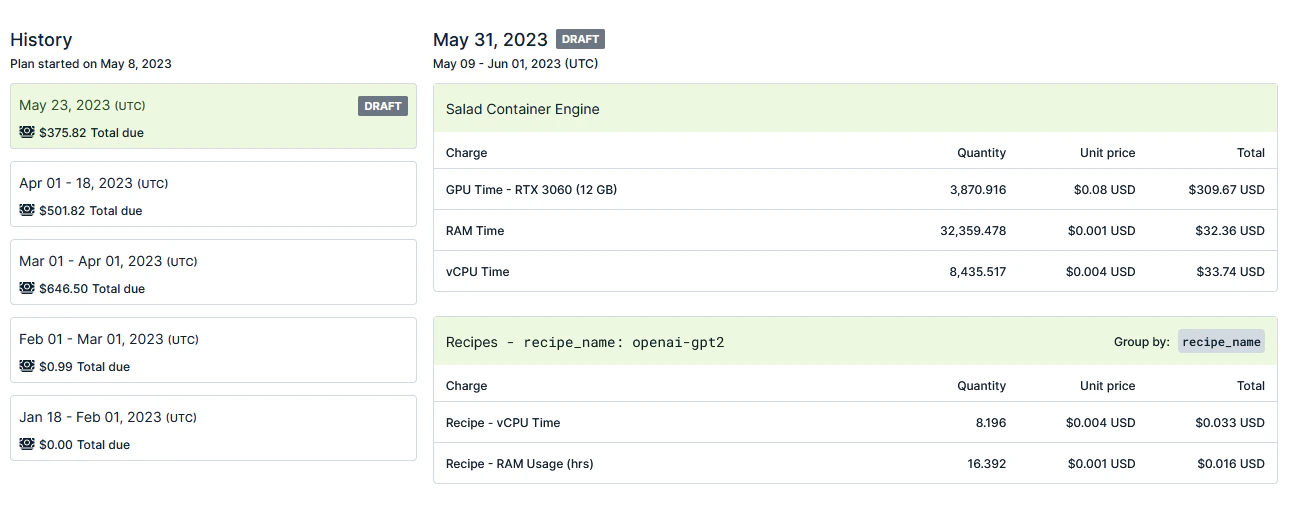
The SaladCloud Portal Billing & Usage page displays your current credit amount and allows you to view and manage billing information for your organization. Your current credit balance is displayed at the top of the page so you can quickly see how much credit is available for your organization. Note any negative balance that has been invoiced will not be reflected in this amount. From the Billing Information tab you can add or update your payment card, add to your credit balance, and edit auto recharge settings. You can also manage billing contact information and historical payment invoices. The Invoice tab provides access to current and historical invoices for your organization.