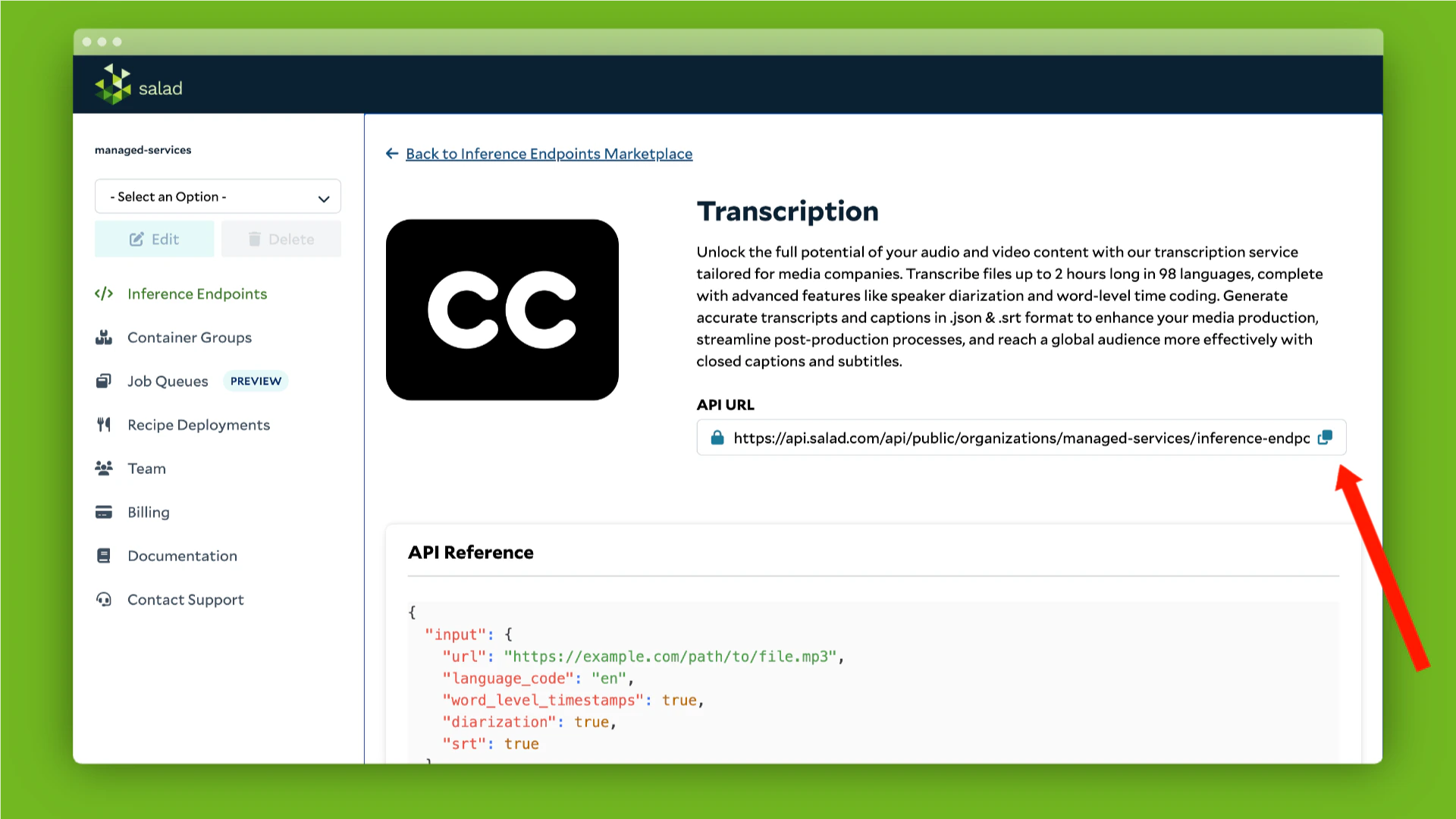
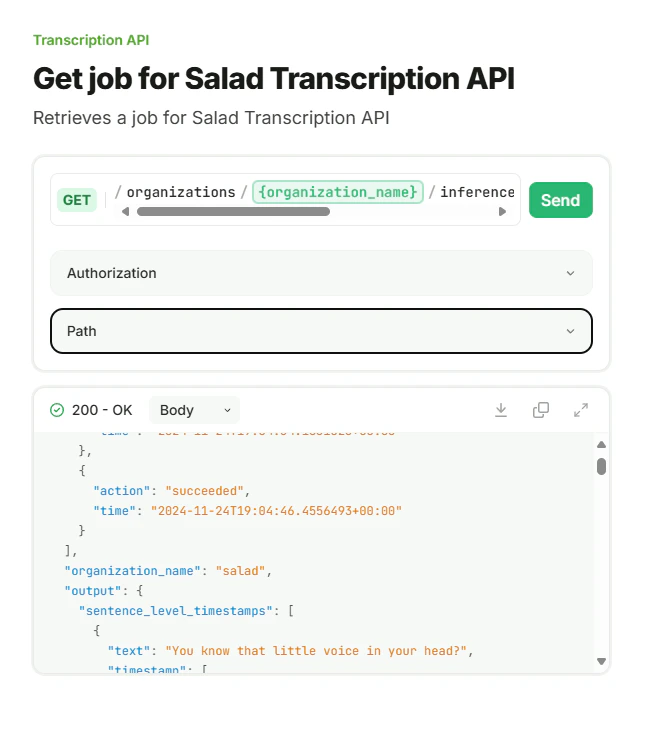
{
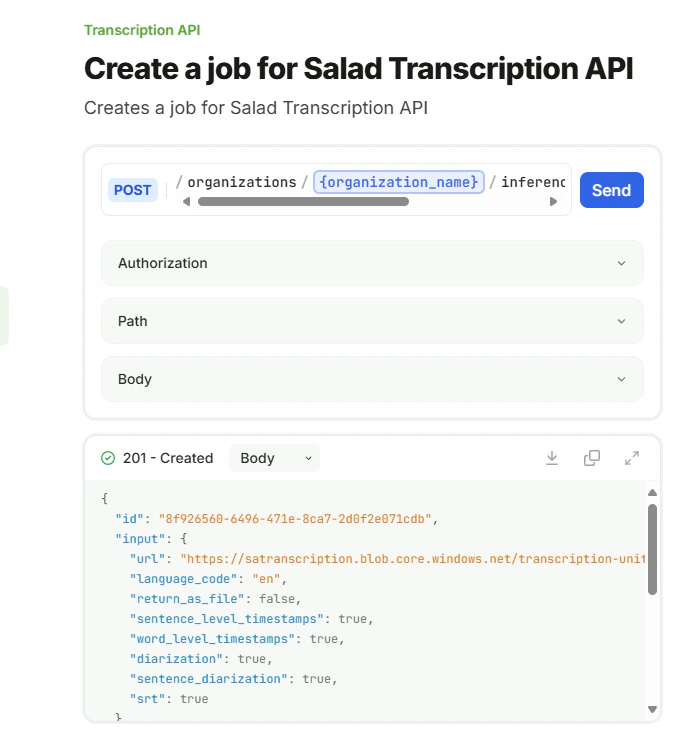
    "id": "fb724cc9-d0f7-44a1-86c4-180c7fab975e",
    "input": {
        "url": "https://example.com/path/to/file.mp3",
        "language_code": "en",
        "word_level_timestamps": true,
        "return_as_file": false,
        "diarization": true,
        "sentence_diarization": true,
        "srt": true,
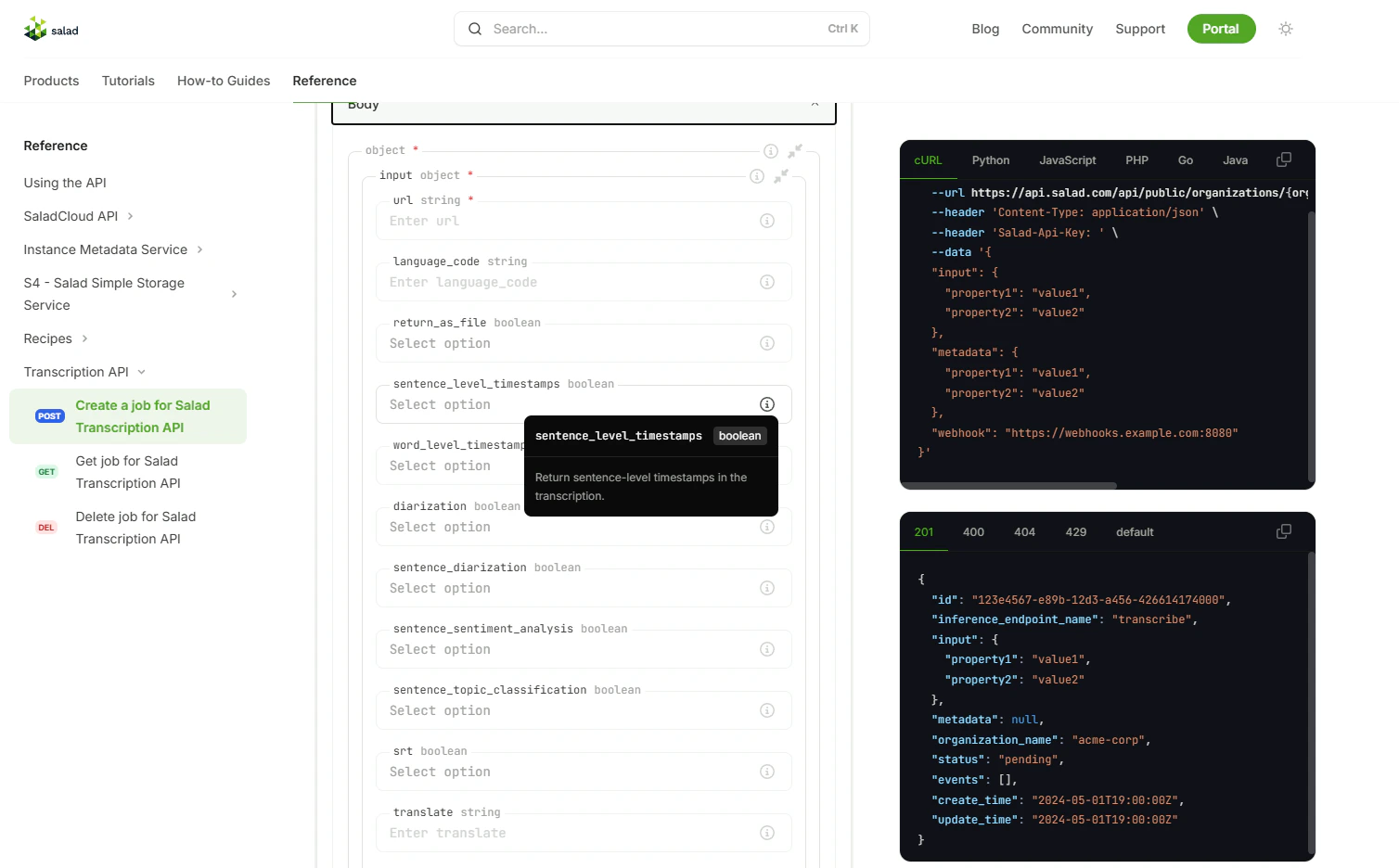
        "sentence_level_timestamps": true,
        "summarize": 50,
        "llm_translation": "french, german, portuguese",
        "srt_translation": "spanish, Hindi"
    },
    "status": "succeeded",
    "events": [
        {
            "action": "created",
            "time": "2024-10-05T19:22:20.1115308+00:00"
        },
        {
            "action": "started",
            "time": "2024-10-05T21:38:40.1424816+00:00"
        },
        {
            "action": "succeeded",
            "time": "2024-10-05T21:39:49.1000268+00:00"
        }
    ],
    "output": {
        "sentence_level_timestamps": [
            {
                "text": "You know that little voice in your head?",
                "timestamp": [
                    0.0,
                    5.9
                ],
                "start": 0.0,
                "end": 5.9,
                "speaker": "SPEAKER_02"
            },
            ...
            {
                "text": "Because when we change the dialogue, we can change our world.",
                "timestamp": [
                    115.14,
                    121.42
                ],
                "start": 115.14,
                "end": 121.42,
                "speaker": "SPEAKER_02"
            }
        ],
        "word_segments": [
            {
                "word": "You",
                "start": 4.274,
                "end": 4.395,
                "score": 0.89,
                "speaker": "SPEAKER_02"
            },
            {
                "word": "know",
                "start": 4.435,
                "end": 4.555,
                "score": 0.87,
                "speaker": "SPEAKER_02"
            },
            {
                "word": "that",
                "start": 4.576,
                "end": 4.696,
                "score": 0.773,
                "speaker": "SPEAKER_02"
            },
            {
                "word": "little",
                "start": 4.756,
                "end": 4.977,
                "score": 0.833,
                "speaker": "SPEAKER_02"
            },
            {
                "word": "voice",
                "start": 5.037,
                "end": 5.378,
                "score": 0.869,
                "speaker": "SPEAKER_02"
            }
            ...
            {
                "word": "world.",
                "start": 120.938,
                "end": 121.199,
                "score": 0.219,
                "speaker": "SPEAKER_02"
            }
        ],
        "srt_content": "1\n00:00:04,274 --> 00:00:05,880\nYou know that little voice in your head?\n\n2\n00:00:10,506 --> 00:00:13,240\nThe one that tells you to ignore a tasteless joke?\n\n3\n00:00:21,650 --> 00:00:25,920\nThe one that tells you to keep quiet when a client makes a racist comment?\n\n4\n00:00:31,604 --> 00:00:36,197\nThe little voice that tells you you're not smart enough because English isn't your\n\n5\n00:00:36,278 --> 00:00:37,100\nfirst language.\n\n6\n00:00:46,284 --> 00:00:50,138\nOr that it's okay to judge someone for leaving early because they have family\n\n7\n00:00:50,158 --> 00:00:50,660\ncommitments.\n\n8\n00:01:07,800 --> 00:01:11,880\nOr that it's not a big deal when everyone's opinion isn't considered.\n\n9\n00:01:21,129 --> 00:01:23,880\nYou may think you're the only one that hears that voice.\n\n10\n00:01:24,901 --> 00:01:27,659\nBut that voice also speaks to other people.\n\n11\n00:01:28,601 --> 00:01:30,819\nIt says, You're different.\n\n12\n00:01:32,202 --> 00:01:33,177\nYou're an outsider.\n\n13\n00:01:34,843 --> 00:01:35,899\nYou lack commitment.\n\n14\n00:01:37,020 --> 00:01:38,719\nYour opinion doesn't matter.\n\n15\n00:01:39,881 --> 00:01:45,619\nInstead of listening to that little voice, you need to find yours and make it heard.\n\n16\n00:01:51,651 --> 00:01:53,438\nIt's time for all of us to speak up.\n\n17\n00:01:56,143 --> 00:02:01,199\nBecause when we change the dialogue, we can change our world.\n\n",
        "summary": "Silence oppressive voices; amplify your own.",
        "llm_translation": {
            "French": "Connaissez-vous cette petite voix dans votre tête ? \n\nLa voix qui vous dit de ignorer une blague de mauvais goût ?\n\nLa voix qui vous dit de garder le silence quand un client fait un commentaire raciste ?\n\nLa voix qui vous dit que vous ne êtes pas intelligent(e) car l'anglais n'est pas votre langue maternelle ?\n\nOu que c'est normal de juger quelqu'un pour être parti tôt parce qu'il a des engagements familiaux ?\n\nLa voix qui vous dit de ne rien dire quand les autres sont réduits à des stéréotypes ?\n\nOu que ce n'est pas important de prendre en compte toutes les opinions ?\n\nVous pensez peut-être que vous êtes le seul à entendre cette voix. Mais cette voix parle également aux autres.\n\nElle dit : Vous êtes différent(e). Vous êtes un(e) extérieur(e). Vous manquez de détermination. Votre opinion n'a pas d'importance.\n\nAu lieu d'écouter cette petite voice, vous devez trouver la vôtre et faire entendre votre voix. \n\nC'est l'heure pour nous tous de parler. \n\nCar lorsque nous changeons le dialogue, nous pouvons changer notre monde.",
            "German": "Du weißt, diese kleine Stimme in deinem Kopf? Die eine, die dir sagt, ein unfassbarer Witz zu ignorieren? Die eine, die dich auffordert, leise zu sein, wenn jemand einen rassistischen Kommentar abgibt? Die kleine Stimme, die dir sagt, du seist nicht intelligent genug, weil Englisch nicht deine Muttersprache ist. Oder dass es in Ordnung ist, jemanden für früh zu gehen zu verurteilen, weil er Familienverpflichtungen hat. Die eine, die sagt, nichts sagen zu sollen, wenn andere zu Stereotypen reduziert werden. Oder dass das nicht großes Problem ist, wenn nicht alle Meinungen berücksichtigt werden. Du denkst vielleicht, du wärst der Einzige, der diese Stimme hört. Aber diese Stimme spricht auch andere Menschen an. Sie sagt: \"Du bist anders.\" \"Du bist ein Außenseiter.\" \"Du hast keine Verpflichtung.\" \"Deine Meinung zählt nicht.\" Anstatt dieser kleinen Stimme zu lauschen, musst du deine eigene finden und laut werden lassen. Es ist Zeit für uns alle aufzuschreien. Denn wenn wir die Konversation ändern, können wir unsere Welt verändern. Danke.",
            "Portuguese": "Você sabe aquele pequeno voz na sua cabeça? A que diz para ignorar uma piada sem graça? A que diz para ficar calado quando um cliente faz um comentário racista? A pequena voz que diz você não é inteligente o suficiente porque inglês não é a sua língua materna. Ou que está bem julgar alguém por sair cedo porque têm compromissos familiares. A que diz para não dizer nada quando os outros são reduzidos a estereótipos. Ou que não é um grande problema quando nenhuma opinião é considerada. Você pode pensar que você é o único que ouve aquela voz. Mas essa voz também fala com outras pessoas. Diz: Você é diferente. Você é estranho. Você falta de compromisso. Sua opinião não importa. Em vez de ouvir aquele pequeno voz, você precisa encontrar a sua e fazê-la ser ouvida. É hora para todos nós falarmos alto. Porque quando mudamos o diálogo, podemos mudar nosso mundo. Obrigado."
        },
        "srt_translation": {
            "Spanish": "1\n00:00:04,274 --> 00:00:05,880\n¿Sabes esa pequeña voz en tu cabeza?\n\n2\n00:00:10,506 --> 00:00:13,240\nLa que te dice ignorar un chiste de mal gusto?\n\n3\n00:00:21,650 --> 00:00:25,920\nLa que te dice callar cuando alguien hace un comentario racista?\n\n4\n00:00:31,604 --> 00:00:36,197\nEsa voz pequeña que te dice que no eres lo suficientemente inteligente porque el inglés no es tu\n\n5\n00:00:36,278 --> 00:00:37,100\nprimer idioma.\n\n6\n00:00:46,284 --> 00:00:50,138\nO que está bien juzgar a alguien por irse temprano porque tienen compromisos familiares.\n\n7\n00:00:50,158 --> 00:00:50,660\nO que no es un gran problema cuando no se considera la opinión de todos.\n\n8\n00:01:07,800 --> 00:01:11,880\nO que está bien con que nadie tenga la última palabra.\n\n9\n00:01:21,129 --> 00:01:23,880\nPuede parecer que solo tú escuchas esa voz.\n\n10\n00:01:24,901 --> 00:01:27,659\nPero esa voz también habla a otras personas.\n\n11\n00:01:28,601 --> 00:01:30,819\nDice: Eres diferente.\n\n12\n00:01:32,202 --> 00:01:33,177\nEres un forastero.\n\n13\n00:01:34,843 --> 00:01:35,899\nFaltas de compromiso.\n\n14\n00:01:37,020 --> 00:01:38,719\nTu opinión no importa.\n\n15\n00:01:39,881 --> 00:01:45,619\nEn lugar de escuchar esa voz pequeña, necesitas encontrar la tuya y hacer que se escuche.\n\n16\n00:01:51,651 --> 00:01:53,438\nEs hora de que todos hablamos.\n\n17\n00:01:56,143 --> 00:02:01,199\nPorque cuando cambiamos el diálogo, podemos cambiar nuestro mundo.",
        },
        "text": " You know that little voice in your head? The one that tells you to ignore a tasteless joke? The one that tells you to keep quiet when a client makes a racist comment? The little voice that tells you you're not smart enough because English isn't your first language. Or that it's okay to judge someone for leaving early because they have family commitments. The one that tells you not to say anything when others are being reduced to stereotypes. Or that it's not a big deal when everyone's opinion isn't considered. You may think you're the only one that hears that voice. But that voice also speaks to other people. It says, You're different. You're an outsider. You lack commitment. Your opinion doesn't matter. Instead of listening to that little voice, you need to find yours and make it heard. It's time for all of us to speak up. Because when we change the dialogue, we can change our world. Thank you.",
        "duration": 0.04,
        "processing_time": 68.46978211402893
    },
    "create_time": "2024-10-05T19:22:20.1115308+00:00",
    "update_time": "2024-10-05T21:39:49.1000268+00:00"
}