> ## Documentation Index
> Fetch the complete documentation index at: https://docs.salad.com/llms.txt
> Use this file to discover all available pages before exploring further.
# VS Code Remote Development on SaladCloud
> Run, test and debug your AI applications on live Salad GPU nodes
## Introduction
AI developers using macOS or Windows can seamlessly connect to over 30 types of Salad GPU nodes via VS Code, enabling
real-time testing and debugging in live environments — before moving to production. This gives them full access to GPU
resources, [environment variables](/container-engine/how-to-guides/environment-variables),
[IMDS endpoints](/container-engine/explanation/infrastructure-platform/imds), and more. Developers can validate VRAM
usage, network behavior, and external resource access; fine-tune application parameters such as local queue lengths,
batch sizes, and thread counts; and catch rare, real-world edge cases that static testing often misses.
There are several ways to enable VS Code remote development on SaladCloud.
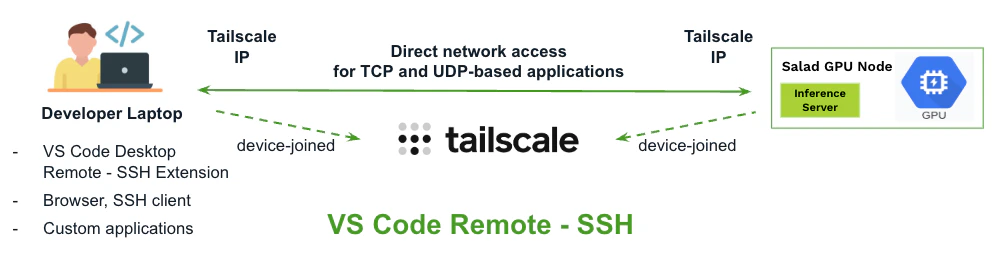
Tailscale can provide secure, direct network access between your developer laptop and Salad nodes, supporting both TCP
and UDP-based applications. Using the [Remote - SSH extension](https://code.visualstudio.com/docs/remote/ssh) in VS Code
Desktop, you can connect to a Salad node over its Tailscale IP, which launches a VS Code Server on the node. This allows
you to easily open remote folders or clone GitHub repositories to begin development and testing directly on the node.
**This solution is simple to deploy, scales greatly, and is highly recommended.** For more details on integrating
Tailscale with workloads on SaladCloud, please refer to
[this guide](/container-engine/explanation/platform-integrations/tailscale-integration).
 You can also leverage [VS Code Remote - Tunnels](https://code.visualstudio.com/docs/remote/tunnels), powered by
[Microsoft Dev Tunnels](https://learn.microsoft.com/en-us/azure/developer/dev-tunnels/overview), which supports two
integration modes with SaladCloud — **automatic** and **interactive** — each tailored to different use cases. Both modes
are covered in this guide.
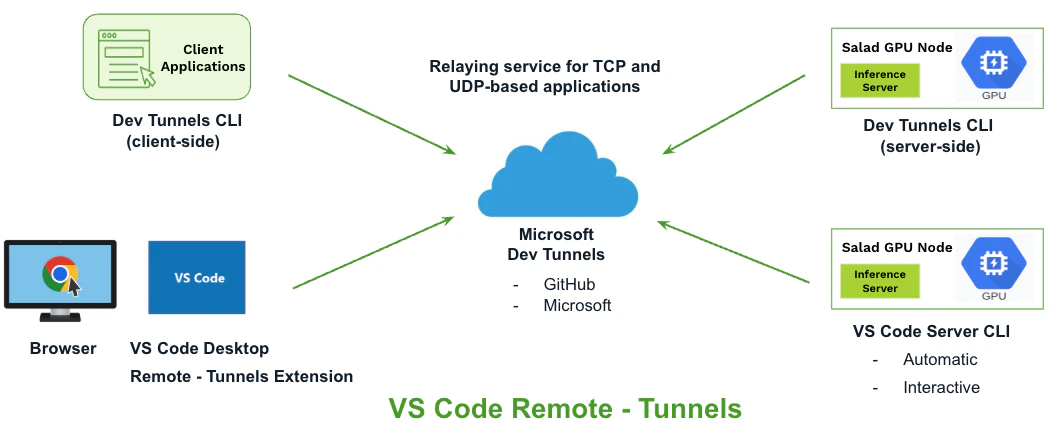
You can also leverage [VS Code Remote - Tunnels](https://code.visualstudio.com/docs/remote/tunnels), powered by
[Microsoft Dev Tunnels](https://learn.microsoft.com/en-us/azure/developer/dev-tunnels/overview), which supports two
integration modes with SaladCloud — **automatic** and **interactive** — each tailored to different use cases. Both modes
are covered in this guide.
 **Notes:** Since Salad nodes are interruptible and may shut down unexpectedly, it's crucial to commit your changes
regularly to your repositories via VS Code or back them up to the cloud using the appropriate SDKs or APIs.
## Solution Comparison and Use Cases
| | Remote - SSH | Automatic Mode
**Notes:** Since Salad nodes are interruptible and may shut down unexpectedly, it's crucial to commit your changes
regularly to your repositories via VS Code or back them up to the cloud using the appropriate SDKs or APIs.
## Solution Comparison and Use Cases
| | Remote - SSH | Automatic Mode
Remote - Tunnels | Interactive Mode
Remote - Tunnels |
| :-------------------------------------------------------------------- | :-------------------------------------------------------------------------------------------------------------------------------- | :--------------------------------------------------------------------------------------------------------------------------------------------------------------------------------------------------------------------------------------------------- | ---------------------------------------------------------------------------------------------------------------------------------------------------------------------------------------------------------------------------------------------------- |
| Container Image Modifications | Join the Salad node to the tailnet with a generated auth key. | Launch the VS Code Server with an existing tunnel (tunnel ID and access token). | Non-intrusive |
| Supported Clients and Applications | Your developer laptop must be added to the tailnet, supporting all TCP and UDP-based applications. | VS Code Desktop and a browser from anywhere over the Internet. | VS Code Desktop and a browser from anywhere over the Internet. |
| Cost-Effectiveness and Scalability | No additional cost.
A free Tailscale personal account supports up to 100 devices, with no limits on speed or data transfer. | No additional cost.
Each account (Github or Microsoft) supports up to 10 active tunnels for simultaneous access to 10 Salad nodes, with each tunnel offering speeds up to 20 MB/s and a total monthly data transfer limit of 5 GB per account. | No additional cost.
Each account (Github or Microsoft) supports up to 10 active tunnels for simultaneous access to 10 Salad nodes, with each tunnel offering speeds up to 20 MB/s and a total monthly data transfer limit of 5 GB per account. |
| User Experience (after node reallocation or container group restarts) | Retrieve the Tailscale IP of the selected instance, then connect to it. | Refresh clients to reconnect automatically. | Open the terminal of the selected instance in the SaladCloud Portal and run scripts manually. And then connect to it. |
| Suggested Use Case | Need access to all Salad nodes of a workload for testing or debugging with VS Code. | Develop applications over Salad GPU nodes with VS Code for a while.
This setup only supports single-replica container groups on SaladCloud. | Occasionally access any Salad node for testing or debugging with VS Code. |
## Microsoft Dev Tunnels
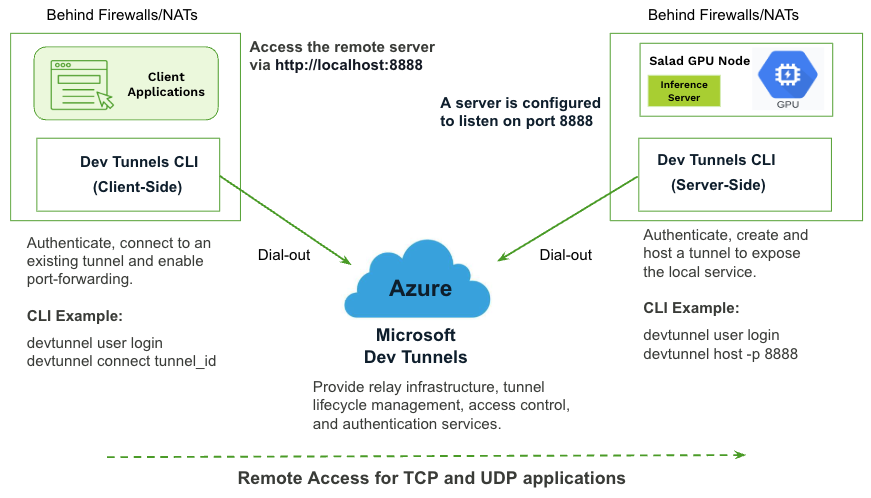
[Dev Tunnels](https://learn.microsoft.com/en-us/azure/developer/dev-tunnels/overview) enable secure, authenticated
connections over the Internet, allowing developers to expose local services — such as applications running on Salad
nodes — to remote clients, including browsers and custom applications. Both clients and servers can remain behind
firewalls and NATs; they only need to initiate outbound connections to Azure, which handles secure relaying, identity
and management services.
Each server requires a dedicated tunnel, which can be accessed by multiple clients. While tunnels are primarily for TCP
connections, UDP-based protocols are also supported by Dev Tunnels.
Currently in public preview and free to use, Dev Tunnels require either a GitHub or Microsoft account for access. Each
account supports up to 10 tunnels, with each tunnel offering speeds of up to 20 MB/s and a total monthly data transfer
limit of 5.0 GB per account. Please check
[the link](https://learn.microsoft.com/en-us/azure/azure-resource-manager/management/azure-subscription-service-limits#dev-tunnels-limits)
for more details.
Below is an illustration of how applications leverage Dev Tunnels on SaladCloud:
 Follow [this link](https://learn.microsoft.com/en-us/azure/developer/dev-tunnels/get-started?tabs=linux#install) to
install the Dev Tunnels CLI on any machine and familiarize yourself with its features.
```bash Dev Tunnels CLI theme={null}
# Sign in interactively using a Github account and a device code
ubuntu@wsl-nuc:~$ devtunnel user login --github --use-device-code-auth
Browse to https://github.com/login/device and enter the code: EAD8-CC93
Logged in as xxxxxx using GitHub.
# Open a browser, navigate to the provided URL, enter the code, authorize access, and then return to continue.
# Show the current usage and limits in this account
ubuntu@wsl-nuc:~$ devtunnel limits
Name Current Limit Resets After Description
BandwidthPerUser 9.8 MB (0%) 5.0 GB 2025-05-16 5:21 PM User Bandwidth Consumption
More information on limits: https://aka.ms/devtunnels/limits
```
## VS Code Remote - Tunnels
[VS Code Remote - Tunnels](https://code.visualstudio.com/docs/remote/tunnels) is built on Microsoft Dev Tunnels to
simplify remote development. It allows developers to connect to remote VS Code Servers (such as those running on
SaladCloud) using the Remote - Tunnels extension in VS Code Desktop or a browser, without requiring direct network
access between the local and remote environments.
To enable access, the remote environment must launch the VS Code Server in tunnel mode — either by creating a new tunnel
or using an existing one to expose it. This can be done by running
[the VS Code Server CLI](https://code.visualstudio.com/docs/remote/tunnels#_using-the-code-cli) (ideal for headless
environments like Salad nodes) or by enabling
[the Remote Tunnel Access](https://code.visualstudio.com/docs/remote/tunnels#_using-the-vs-code-ui) from an existing VS
Code Desktop installation. Once the tunnel is active, developers can connect to the remote VS Code Server through it.
Similar to Dev Tunnels, this solution requires a GitHub or Microsoft account, and all Dev Tunnels specifications and
limitations still apply. For instance, each Salad node must have its own dedicated tunnel, but multiple clients — using
either VS Code Desktop or a browser — can connect to the same node through that tunnel.
There are two ways to use this solution on SaladCloud:
* **Automatic Mode** – This mode supports only single-replica container group deployments on SaladCloud, and the
container image must be modified to launch the VS Code Server using an existing tunnel. You can manually create a
tunnel and generate an access token using the Dev Tunnels CLI, which requires interactive browser-based authentication
and must be done outside of SaladCloud. Both the tunnel ID and access token can then be passed as environment
variables to a single-replica container group on SaladCloud. Once the container starts — or after a node reallocation
— the VS Code Server automatically starts and connects using the provided tunnel and token, without requiring any
manual intervention at runtime.
* **Interactive Mode** – Non-intrusive, requiring no changes to the container image. You can access any running Salad
node through the terminal in the SaladCloud Portal, then manually install and launch the VS Code Server in tunnel
mode. This process requires interactive browser-based authentication, which can be completed on your developer laptop.
## Automatic Mode
### Prepare Your Container Image
Here is [an example application](https://github.com/SaladTechnologies/vscode-remote-tunnels/tree/main/automatic) that
demonstrates how to enable the automatic mode for container images running on SaladCloud.
The [Dockerfile](https://github.com/SaladTechnologies/vscode-remote-tunnels/blob/main/automatic/Dockerfile) creates a
containerized environment by using a base image, then installing essential utilities and required dependencies including
the VS Code Server CLI. It also copies the required Python code and startup script into the image.
```Dockerfile Dockerfile theme={null}
# Base image selection
FROM docker.io/python:3.12.3
#FROM docker.io/pytorch/pytorch:2.6.0-cuda12.4-cudnn9-runtime
# Install essential utilities
RUN apt-get update && apt-get install -y curl net-tools iputils-ping
# Upgrade pip and install Python packages
RUN pip install --upgrade pip
RUN pip install flask python-dotenv
# Install VS Code Server CLI
RUN curl -Lk 'https://code.visualstudio.com/sha/download?build=stable&os=cli-alpine-x64' -o vscode_cli.tar.gz && \
tar -xf vscode_cli.tar.gz && \
mv code /usr/local/bin/code && \
rm vscode_cli.tar.gz
# Set working directory and copy application files
WORKDIR /app
COPY hello.py /app
COPY start.sh /app
RUN chmod +x /app/start.sh
# Default startup command
CMD ["./start.sh"]
# the pre-built image: docker.io/saladtechnologies/vscode-remote-tunnels:0.0.1-vscode-remote-tunnels:0.0.1-automatic
```
When the image runs on a Salad node, the
[startup.sh](https://github.com/SaladTechnologies/vscode-remote-tunnels/blob/main/automatic/start.sh) script launches
the VS Code Server using an existing tunnel.
```bash start.sh theme={null}
#!/bin/bash
echo -e "\nLaunch the VS Code Server using an existing tunnel..."
# SALAD_CONTAINER_GROUP_ID as the tunnel name
code tunnel --accept-server-license-terms --name $SALAD_CONTAINER_GROUP_ID --tunnel-id $TUNNEL_ID --host-token $ACCESS_TOKEN
# SALAD_MACHINE_ID as the tunnel name
#code tunnel --accept-server-license-terms --name $SALAD_MACHINE_ID --tunnel-id $TUNNEL_ID --host-token $ACCESS_TOKEN
# You may also launch the VS Code Server in the background, then run your original command — such as python hello.py
# code tunnel --accept-server-license-terms --name $SALAD_CONTAINER_GROUP_ID --tunnel-id $TUNNEL_ID --host-token $ACCESS_TOKEN &
# python hello.py
# The containers running on SaladCloud must have a continuously running process; and if the process completes, SaladCloud will automatically reallocate the instances to rerun the image.
# Sometimes, you can keep the container running with a simple command like this:
# sleep infinity
```
The `--name` parameter assigns a user-friendly name for the tunnel (uniquely associated with the Salad node), which is
used when connecting from a browser:
```
https://vscode.dev/tunnel/name_of_tunnel
```
`SALAD_MACHINE_ID` is a unique identifier for each Salad node and is easily viewable in the SaladCloud Portal.
`SALAD_CONTAINER_GROUP_ID` is available through the SaladCloud APIs or SDKs, and can also be retrieved by running
**env** inside the terminal of a container instance or checking the container logs in the SaladCloud Portal. Currently,
all instances (or replicas) within a container group share the same hostname, which is set to the value of
`SALAD_CONTAINER_GROUP_ID`.
You can use either `SALAD_MACHINE_ID` or `SALAD_CONTAINER_GROUP_ID` as the value for the `--name` parameter.
* With `SALAD_MACHINE_ID`, you can easily connect to a specific node from clients, as the ID is readily accessible from
the SaladCloud Portal.
* Using `SALAD_CONTAINER_GROUP_ID` (as demonstrated in this example) helps avoid client-side reconfiguration -- such as
refreshing clients to reconnect automatically -- after node reallocation or container group restarts, since the value
remains consistent across instances launched at different time within the same container group.
**Note:** Each node requires its own dedicated tunnel, so this image must be run using a single-replica container group
with a unique tunnel. If multiple instances share the same tunnel, they will conflict with each other — resulting in
unstable behavior or failure to connect.
### Create a Tunnel and Generate Access Tokens
Let's create a tunnel with an access token using the Dev Tunnels CLI:
```bash Dev Tunnels CLI theme={null}
# Create a tunnel
ubuntu@wsl-nuc:~$ devtunnel create
Tunnel ID : joyful-field-ct6cnqj.usw3
Description :
Labels :
Access control : {}
Host connections : 0
Client connections : 0
Current upload rate : 0 MB/s (limit: 20 MB/s)
Current download rate : 0 MB/s (limit: 20 MB/s)
Tunnel Expiration : 30 days
ubuntu@wsl-nuc:~$ devtunnel list
Found 1 tunnel.
Tunnel ID Host Connections Labels Ports Expiration Description
joyful-field-ct6cnqj.usw3 0 0 30 days
# Generate an access token for the tunnel
ubuntu@wsl-nuc:~$ devtunnel token joyful-field-ct6cnqj.usw3 --scope manage --scope host
Token tunnel ID: joyful-field-ct6cnqj.usw3
Token scopes: manage host
Token lifetime: 1.00:00:01
Token expiration: 2025-04-18 22:02:07 UTC
Token: eyJhbGciOiJFUzI1NiIsImtpZCI6IkM3NDYxNEM5OTE0NjUwNzI2REI1RUZBM0M1OTBDQzdGNjJFOUI4QzQiLCJ0eXAiOiJKV1QifQ.eyJjbHVzdGVySWQiOiJ1c3czIiwidHVubmVsSWQiOiJqb3lmdWwtZmllbGQtY3Q2Y25xaiIsInNjcCI6Im1hbmFnZSBob3N0IiwiZXhwIjoxNzQ1MDEzNzI3LCJpc3MiOiJodHRwczovL3R1bm5lbHMuYXBpLnZpc3VhbHN0dWRpby5jb20vIiwibmJmIjoxNzQ0OTI2NDI3fQ.z-tv08Co7DBZvBjBtSXRExx5hef73vSApsgp3DQBrdDRTGvm4-yYBqanL-XCCEwcOjfE3v5acTfhCnexnPHXrg
```
The default tunnel expiration time is **30 days**, while the token expiration time is limited to **24 hours**. Once a
token expires, it can no longer be used to authenticate a new VS Code Server session. However, any existing session
established before the expiration will typically remain valid.
### Deploy the Container Group
Now your can create a container group with the following parameters using the SaladCloud Portal. For deployment using
SaladCloud APIs/SDKs, please refer to
[this link](/container-engine/how-to-guides/platform-integrations/application-deployment#using-saladcloud-apis%2Fsdks).
```
Image Source: docker.io/saladtechnologies/vscode-remote-tunnels:0.0.1-vscode-remote-tunnels:0.0.1-automatic
Resource: 4 vCPUs, 4GB Memory
Replica Count: Must be 1 (single-replica)
Environment Variable: TUNNEL_ID, ACCESS_TOKEN
```
Follow [this link](https://learn.microsoft.com/en-us/azure/developer/dev-tunnels/get-started?tabs=linux#install) to
install the Dev Tunnels CLI on any machine and familiarize yourself with its features.
```bash Dev Tunnels CLI theme={null}
# Sign in interactively using a Github account and a device code
ubuntu@wsl-nuc:~$ devtunnel user login --github --use-device-code-auth
Browse to https://github.com/login/device and enter the code: EAD8-CC93
Logged in as xxxxxx using GitHub.
# Open a browser, navigate to the provided URL, enter the code, authorize access, and then return to continue.
# Show the current usage and limits in this account
ubuntu@wsl-nuc:~$ devtunnel limits
Name Current Limit Resets After Description
BandwidthPerUser 9.8 MB (0%) 5.0 GB 2025-05-16 5:21 PM User Bandwidth Consumption
More information on limits: https://aka.ms/devtunnels/limits
```
## VS Code Remote - Tunnels
[VS Code Remote - Tunnels](https://code.visualstudio.com/docs/remote/tunnels) is built on Microsoft Dev Tunnels to
simplify remote development. It allows developers to connect to remote VS Code Servers (such as those running on
SaladCloud) using the Remote - Tunnels extension in VS Code Desktop or a browser, without requiring direct network
access between the local and remote environments.
To enable access, the remote environment must launch the VS Code Server in tunnel mode — either by creating a new tunnel
or using an existing one to expose it. This can be done by running
[the VS Code Server CLI](https://code.visualstudio.com/docs/remote/tunnels#_using-the-code-cli) (ideal for headless
environments like Salad nodes) or by enabling
[the Remote Tunnel Access](https://code.visualstudio.com/docs/remote/tunnels#_using-the-vs-code-ui) from an existing VS
Code Desktop installation. Once the tunnel is active, developers can connect to the remote VS Code Server through it.
Similar to Dev Tunnels, this solution requires a GitHub or Microsoft account, and all Dev Tunnels specifications and
limitations still apply. For instance, each Salad node must have its own dedicated tunnel, but multiple clients — using
either VS Code Desktop or a browser — can connect to the same node through that tunnel.
There are two ways to use this solution on SaladCloud:
* **Automatic Mode** – This mode supports only single-replica container group deployments on SaladCloud, and the
container image must be modified to launch the VS Code Server using an existing tunnel. You can manually create a
tunnel and generate an access token using the Dev Tunnels CLI, which requires interactive browser-based authentication
and must be done outside of SaladCloud. Both the tunnel ID and access token can then be passed as environment
variables to a single-replica container group on SaladCloud. Once the container starts — or after a node reallocation
— the VS Code Server automatically starts and connects using the provided tunnel and token, without requiring any
manual intervention at runtime.
* **Interactive Mode** – Non-intrusive, requiring no changes to the container image. You can access any running Salad
node through the terminal in the SaladCloud Portal, then manually install and launch the VS Code Server in tunnel
mode. This process requires interactive browser-based authentication, which can be completed on your developer laptop.
## Automatic Mode
### Prepare Your Container Image
Here is [an example application](https://github.com/SaladTechnologies/vscode-remote-tunnels/tree/main/automatic) that
demonstrates how to enable the automatic mode for container images running on SaladCloud.
The [Dockerfile](https://github.com/SaladTechnologies/vscode-remote-tunnels/blob/main/automatic/Dockerfile) creates a
containerized environment by using a base image, then installing essential utilities and required dependencies including
the VS Code Server CLI. It also copies the required Python code and startup script into the image.
```Dockerfile Dockerfile theme={null}
# Base image selection
FROM docker.io/python:3.12.3
#FROM docker.io/pytorch/pytorch:2.6.0-cuda12.4-cudnn9-runtime
# Install essential utilities
RUN apt-get update && apt-get install -y curl net-tools iputils-ping
# Upgrade pip and install Python packages
RUN pip install --upgrade pip
RUN pip install flask python-dotenv
# Install VS Code Server CLI
RUN curl -Lk 'https://code.visualstudio.com/sha/download?build=stable&os=cli-alpine-x64' -o vscode_cli.tar.gz && \
tar -xf vscode_cli.tar.gz && \
mv code /usr/local/bin/code && \
rm vscode_cli.tar.gz
# Set working directory and copy application files
WORKDIR /app
COPY hello.py /app
COPY start.sh /app
RUN chmod +x /app/start.sh
# Default startup command
CMD ["./start.sh"]
# the pre-built image: docker.io/saladtechnologies/vscode-remote-tunnels:0.0.1-vscode-remote-tunnels:0.0.1-automatic
```
When the image runs on a Salad node, the
[startup.sh](https://github.com/SaladTechnologies/vscode-remote-tunnels/blob/main/automatic/start.sh) script launches
the VS Code Server using an existing tunnel.
```bash start.sh theme={null}
#!/bin/bash
echo -e "\nLaunch the VS Code Server using an existing tunnel..."
# SALAD_CONTAINER_GROUP_ID as the tunnel name
code tunnel --accept-server-license-terms --name $SALAD_CONTAINER_GROUP_ID --tunnel-id $TUNNEL_ID --host-token $ACCESS_TOKEN
# SALAD_MACHINE_ID as the tunnel name
#code tunnel --accept-server-license-terms --name $SALAD_MACHINE_ID --tunnel-id $TUNNEL_ID --host-token $ACCESS_TOKEN
# You may also launch the VS Code Server in the background, then run your original command — such as python hello.py
# code tunnel --accept-server-license-terms --name $SALAD_CONTAINER_GROUP_ID --tunnel-id $TUNNEL_ID --host-token $ACCESS_TOKEN &
# python hello.py
# The containers running on SaladCloud must have a continuously running process; and if the process completes, SaladCloud will automatically reallocate the instances to rerun the image.
# Sometimes, you can keep the container running with a simple command like this:
# sleep infinity
```
The `--name` parameter assigns a user-friendly name for the tunnel (uniquely associated with the Salad node), which is
used when connecting from a browser:
```
https://vscode.dev/tunnel/name_of_tunnel
```
`SALAD_MACHINE_ID` is a unique identifier for each Salad node and is easily viewable in the SaladCloud Portal.
`SALAD_CONTAINER_GROUP_ID` is available through the SaladCloud APIs or SDKs, and can also be retrieved by running
**env** inside the terminal of a container instance or checking the container logs in the SaladCloud Portal. Currently,
all instances (or replicas) within a container group share the same hostname, which is set to the value of
`SALAD_CONTAINER_GROUP_ID`.
You can use either `SALAD_MACHINE_ID` or `SALAD_CONTAINER_GROUP_ID` as the value for the `--name` parameter.
* With `SALAD_MACHINE_ID`, you can easily connect to a specific node from clients, as the ID is readily accessible from
the SaladCloud Portal.
* Using `SALAD_CONTAINER_GROUP_ID` (as demonstrated in this example) helps avoid client-side reconfiguration -- such as
refreshing clients to reconnect automatically -- after node reallocation or container group restarts, since the value
remains consistent across instances launched at different time within the same container group.
**Note:** Each node requires its own dedicated tunnel, so this image must be run using a single-replica container group
with a unique tunnel. If multiple instances share the same tunnel, they will conflict with each other — resulting in
unstable behavior or failure to connect.
### Create a Tunnel and Generate Access Tokens
Let's create a tunnel with an access token using the Dev Tunnels CLI:
```bash Dev Tunnels CLI theme={null}
# Create a tunnel
ubuntu@wsl-nuc:~$ devtunnel create
Tunnel ID : joyful-field-ct6cnqj.usw3
Description :
Labels :
Access control : {}
Host connections : 0
Client connections : 0
Current upload rate : 0 MB/s (limit: 20 MB/s)
Current download rate : 0 MB/s (limit: 20 MB/s)
Tunnel Expiration : 30 days
ubuntu@wsl-nuc:~$ devtunnel list
Found 1 tunnel.
Tunnel ID Host Connections Labels Ports Expiration Description
joyful-field-ct6cnqj.usw3 0 0 30 days
# Generate an access token for the tunnel
ubuntu@wsl-nuc:~$ devtunnel token joyful-field-ct6cnqj.usw3 --scope manage --scope host
Token tunnel ID: joyful-field-ct6cnqj.usw3
Token scopes: manage host
Token lifetime: 1.00:00:01
Token expiration: 2025-04-18 22:02:07 UTC
Token: eyJhbGciOiJFUzI1NiIsImtpZCI6IkM3NDYxNEM5OTE0NjUwNzI2REI1RUZBM0M1OTBDQzdGNjJFOUI4QzQiLCJ0eXAiOiJKV1QifQ.eyJjbHVzdGVySWQiOiJ1c3czIiwidHVubmVsSWQiOiJqb3lmdWwtZmllbGQtY3Q2Y25xaiIsInNjcCI6Im1hbmFnZSBob3N0IiwiZXhwIjoxNzQ1MDEzNzI3LCJpc3MiOiJodHRwczovL3R1bm5lbHMuYXBpLnZpc3VhbHN0dWRpby5jb20vIiwibmJmIjoxNzQ0OTI2NDI3fQ.z-tv08Co7DBZvBjBtSXRExx5hef73vSApsgp3DQBrdDRTGvm4-yYBqanL-XCCEwcOjfE3v5acTfhCnexnPHXrg
```
The default tunnel expiration time is **30 days**, while the token expiration time is limited to **24 hours**. Once a
token expires, it can no longer be used to authenticate a new VS Code Server session. However, any existing session
established before the expiration will typically remain valid.
### Deploy the Container Group
Now your can create a container group with the following parameters using the SaladCloud Portal. For deployment using
SaladCloud APIs/SDKs, please refer to
[this link](/container-engine/how-to-guides/platform-integrations/application-deployment#using-saladcloud-apis%2Fsdks).
```
Image Source: docker.io/saladtechnologies/vscode-remote-tunnels:0.0.1-vscode-remote-tunnels:0.0.1-automatic
Resource: 4 vCPUs, 4GB Memory
Replica Count: Must be 1 (single-replica)
Environment Variable: TUNNEL_ID, ACCESS_TOKEN
```
 ### Connect to the Salad Node
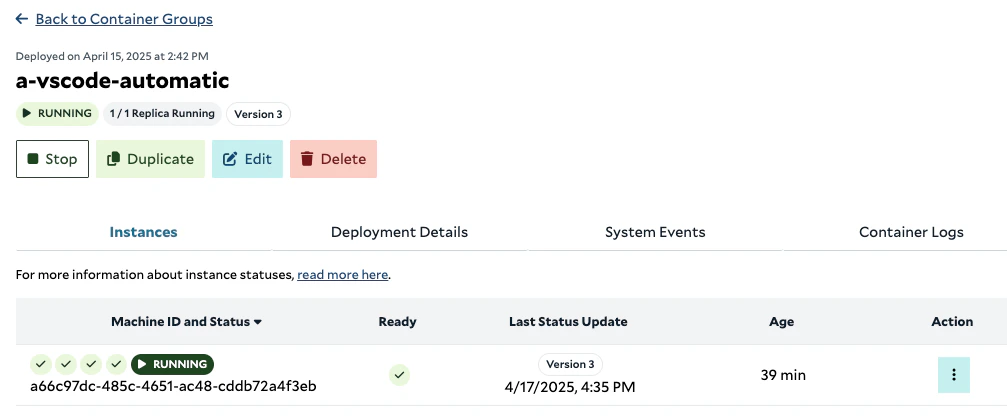
Once the instance is running, you can retrieve the `SALAD_CONTAINER_GROUP_ID` and connect to it using both VS Code
Desktop and a browser.
```
https://vscode.dev/tunnel/SALAD_CONTAINER_GROUP_ID
```
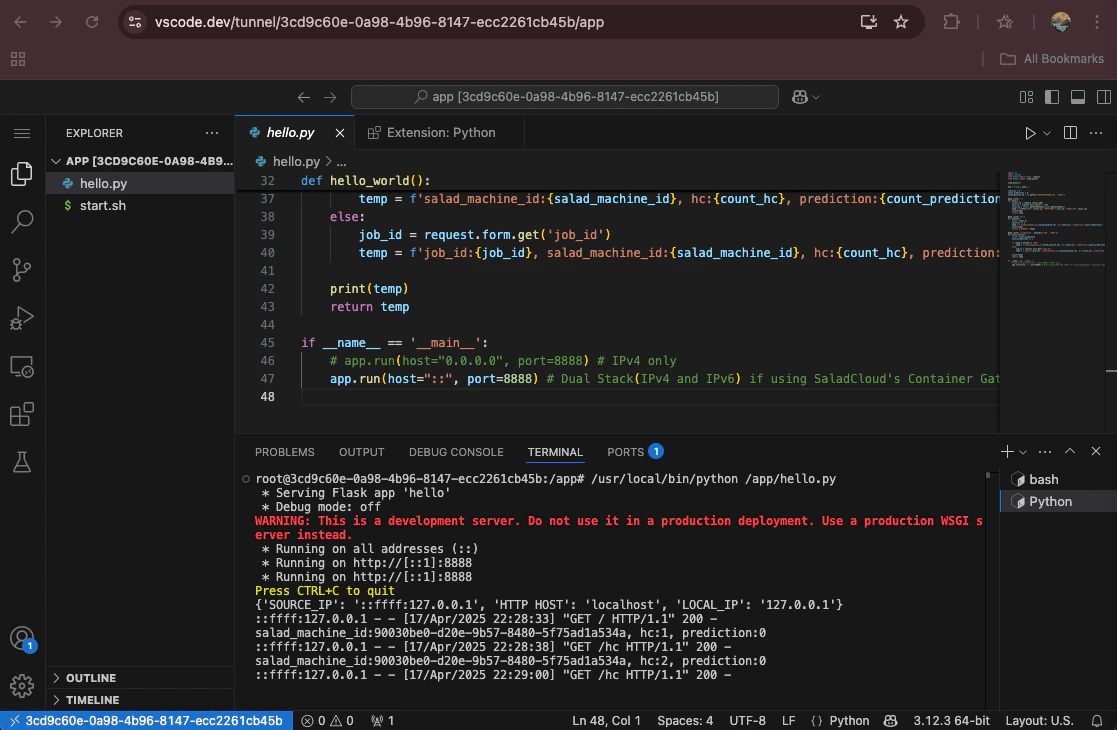
Start the Python Flask server in the browser:
### Connect to the Salad Node
Once the instance is running, you can retrieve the `SALAD_CONTAINER_GROUP_ID` and connect to it using both VS Code
Desktop and a browser.
```
https://vscode.dev/tunnel/SALAD_CONTAINER_GROUP_ID
```
Start the Python Flask server in the browser:
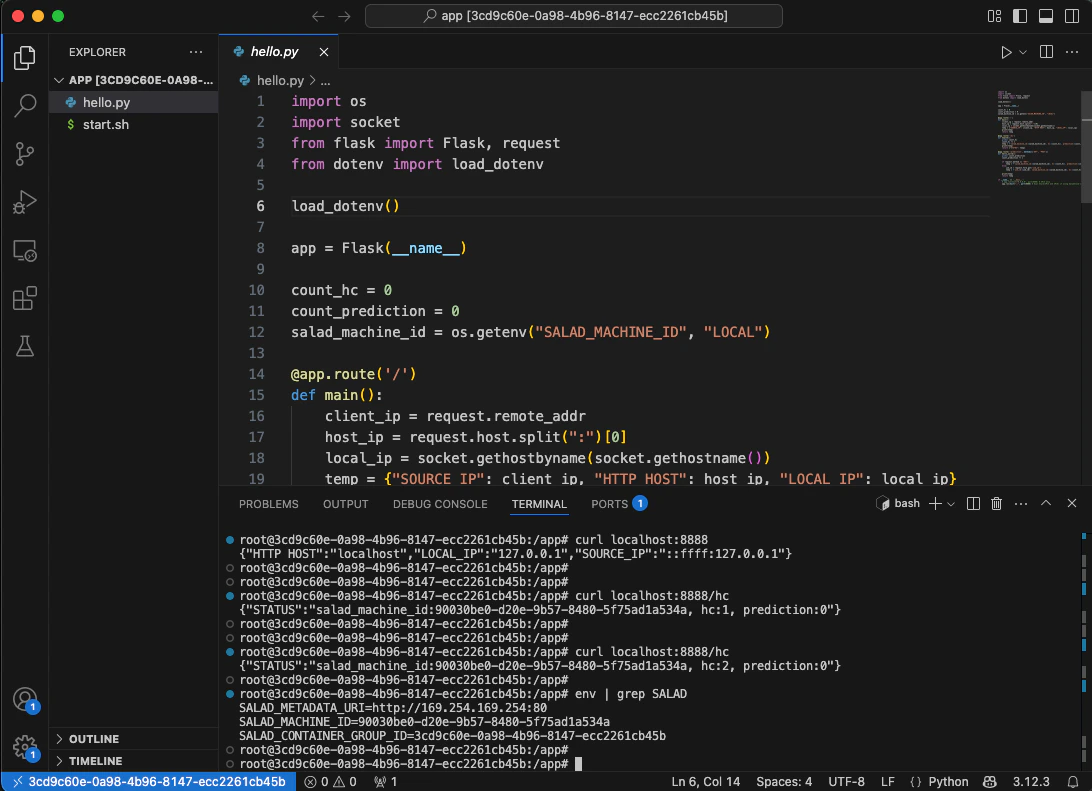
 Use curl to test the application locally in the VS Code Desktop:
 ### Perform a Check
Let's check the tunnel using the Dev Tunnels CLI:
```bash Dev Tunnels CLI theme={null}
ubuntu@wsl-nuc:~$ devtunnel list
Found 1 tunnel.
Tunnel ID Host Connections Labels Ports Expiration Description
joyful-field-ct6cnqj.usw3 1 3cd9c60e-0a98-4b96-8... 2 30 days
# 1 host connection and 2 client connections
# The --name paramater (SALAD_CONTAINER_GROUP_ID) is saved as a label
ubuntu@wsl-nuc:~$ devtunnel show joyful-field-ct6cnqj.usw3
Tunnel ID : joyful-field-ct6cnqj.usw3
Description :
Labels : 3cd9c60e-0a98-4b96-8147-ecc2261cb45b,protocolv4,vscode-server-launcher,_flag4
Access control : {}
Host connections : 1
Client connections : 2
Current upload rate : 148 bytes/s (limit: 20 MB/s)
Current download rate : 132 bytes/s (limit: 20 MB/s)
Upload total : 5458 KB
Download total : 26 MB
Ports : 2
8888 auto https://gtnn333j-8888.usw3.devtunnels.ms/
31545 auto https://gtnn333j-31545.usw3.devtunnels.ms/
Tunnel Expiration : 30 days
```
### Workflow Summary
The automatic mode may fit scenarios where you're developing applications across various Salad GPU nodes over an
extended period. The following summarizes the workflow:
| Step | Action | Performed On |
| :--- | :------------------------------------------------------------------------------------------------------------------------------------------------------------------------------------------------------------------------------- | :--------------- |
| 0 | Modify the image to support the automatic mode, and create a 30-day tunnel using the Dev Tunnels API. | Developer Laptop |
| 1 | Generate an access token each day using the Dev Tunnels API. | Developer Laptop |
| 2 | Run the single-replica container group with the tunnel ID and the updated token.
### Perform a Check
Let's check the tunnel using the Dev Tunnels CLI:
```bash Dev Tunnels CLI theme={null}
ubuntu@wsl-nuc:~$ devtunnel list
Found 1 tunnel.
Tunnel ID Host Connections Labels Ports Expiration Description
joyful-field-ct6cnqj.usw3 1 3cd9c60e-0a98-4b96-8... 2 30 days
# 1 host connection and 2 client connections
# The --name paramater (SALAD_CONTAINER_GROUP_ID) is saved as a label
ubuntu@wsl-nuc:~$ devtunnel show joyful-field-ct6cnqj.usw3
Tunnel ID : joyful-field-ct6cnqj.usw3
Description :
Labels : 3cd9c60e-0a98-4b96-8147-ecc2261cb45b,protocolv4,vscode-server-launcher,_flag4
Access control : {}
Host connections : 1
Client connections : 2
Current upload rate : 148 bytes/s (limit: 20 MB/s)
Current download rate : 132 bytes/s (limit: 20 MB/s)
Upload total : 5458 KB
Download total : 26 MB
Ports : 2
8888 auto https://gtnn333j-8888.usw3.devtunnels.ms/
31545 auto https://gtnn333j-31545.usw3.devtunnels.ms/
Tunnel Expiration : 30 days
```
### Workflow Summary
The automatic mode may fit scenarios where you're developing applications across various Salad GPU nodes over an
extended period. The following summarizes the workflow:
| Step | Action | Performed On |
| :--- | :------------------------------------------------------------------------------------------------------------------------------------------------------------------------------------------------------------------------------- | :--------------- |
| 0 | Modify the image to support the automatic mode, and create a 30-day tunnel using the Dev Tunnels API. | Developer Laptop |
| 1 | Generate an access token each day using the Dev Tunnels API. | Developer Laptop |
| 2 | Run the single-replica container group with the tunnel ID and the updated token.
When a node goes offline unexpectedly, SaladCloud automatically allocates a new one.
Stop the container group when it's not in use. | SaladCloud |
| 3 | Connect using VS Code Desktop or a browser.
Commit code changes regularly to the repositories.
After node reallocation or container group restart, refresh clients to reconnect automatically. | Developer Laptop |
## Interactive Mode
### Launch the VS Code Server Interactively
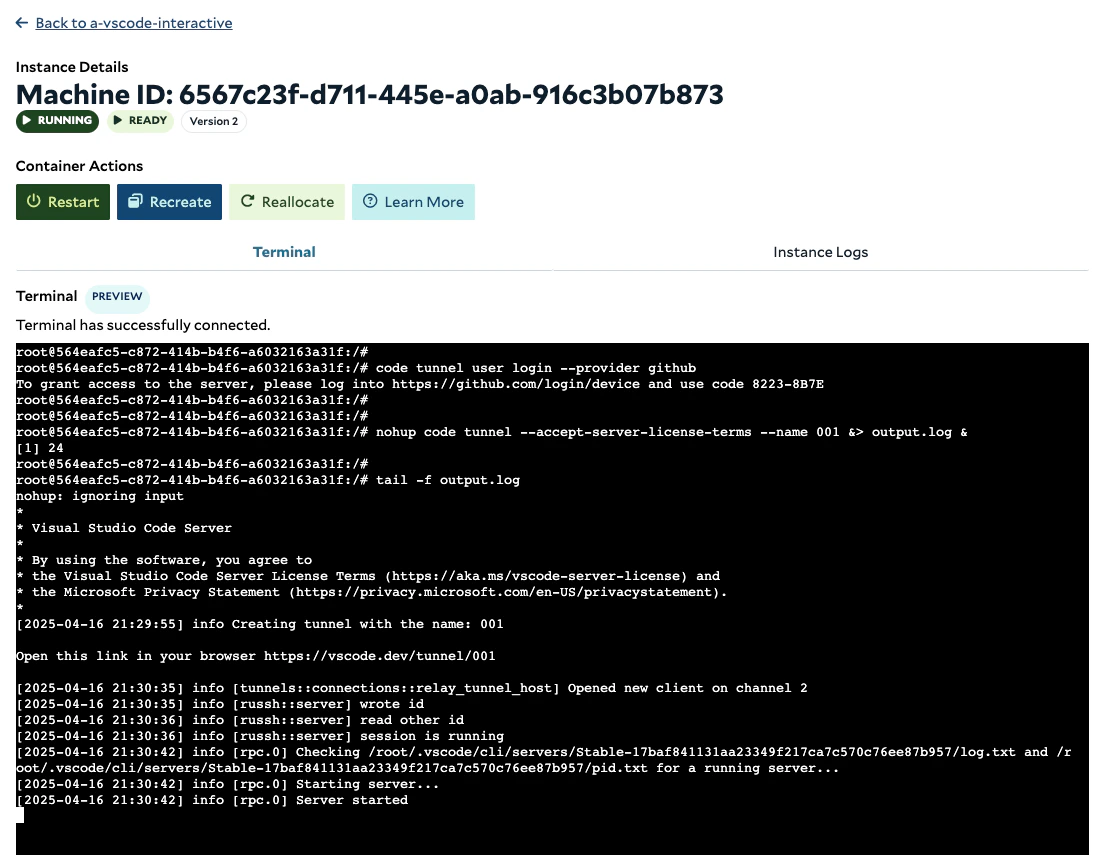
To test or debug code in any running instance, open its terminal in the SaladCloud Portal. From there, you can manually
[install the VS Code Server CLI](https://code.visualstudio.com/docs/remote/tunnels#_using-the-code-cli) — or optionally
include it in your container image during the build process — and start the VS Code Server in tunnel mode interactively.
 ```bash VS Code Server CLI theme={null}
# Sign in interactively using a Github account and a device code
# Even though the command is part of the VS Code Server CLI, it specifically authenticates with the Dev Tunnels service
root@564eafc5-c872-414b-b4f6-a6032163a31f:~$ code tunnel user login --provider github
To grant access to the server, please log into https://github.com/login/device and use code 8223-8B7E
# Open a browser on your developer laptop, navigate to the provided URL, enter the code, authorize access, and then return to continue.
# Start the VS Code Server in tunnel mode to automatically provision a tunnel, launch the server, and expose it through that tunnel.
root@564eafc5-c872-414b-b4f6-a6032163a31f:~$ nohup code tunnel --accept-server-license-terms --name 001 &> output.log &
[1] 24
# You can now safely close the terminal
# Connect using VS Code Desktop or a browser (https://vscode.dev/tunnel/001)
root@564eafc5-c872-414b-b4f6-a6032163a31f:~$ code tunnel status
{"tunnel":{"name":"001","started_at":"2025-04-16T21:30:06.255541221Z","tunnel":"Connected","last_connected_at":"2025-04-16T21:30:13.282022913Z","last_disconnected_at":null,"last_fail_reason":null},"service_installed":false}
root@564eafc5-c872-414b-b4f6-a6032163a31f:~$ tail -f output.log
[2025-04-16 21:29:55] info Creating tunnel with the name: 001
Open this link in your browser https://vscode.dev/tunnel/001
[2025-04-16 21:30:35] info [tunnels::connections::relay_tunnel_host] Opened new client on channel 2
[2025-04-16 21:30:35] info [russh::server] wrote id
[2025-04-16 21:30:36] info [russh::server] read other id
[2025-04-16 21:30:36] info [russh::server] session is running
[2025-04-16 21:30:42] info [rpc.0] Checking /root/.vscode/cli/servers/Stable-17baf841131aa23349f217ca7c570c76ee87b957/log.txt and /root/.vscode/cli/servers/Stable-17baf841131aa23349f217ca7c570c76ee87b957/pid.txt for a running server...
[2025-04-16 21:30:42] info [rpc.0] Starting server...
[2025-04-16 21:30:42] info [rpc.0] Server started
```
### Perform a Check
The VS Code Server CLI interacts with the Dev Tunnels service under the hood for authentication and tunnel provisioning.
You can check the tunnels created by the VS Code Server CLI using the Dev Tunnels CLI:
```bash Dev Tunnels CLI theme={null}
# The --name paramater (001) is saved as a label
ubuntu@wsl-nuc:~$ devtunnel list
Found 1 tunnels.
Tunnel ID Host Connections Labels Ports Expiration Description
new-hill-7rpsj2g.uks1 1 001,protocolv4,vscode... 0 30 days
```
The VS Code Server CLI doesn't always provision a new tunnel. If you relaunch the server on the same Salad node after a
restart, it typically reuses the existing tunnel, even when a new name is provided. When more than 10 tunnels are
created, the older and inactive tunnels would be automatically deleted by Dev Tunnels.
### Workflow Summary
If you only need occasional access to any Salad node for testing or debugging, this mode is ideal. The following
summarizes the workflow:
| Step | Action | Performed On |
| :--- | :----------------------------------------------------------------------------------------------------------------------------------------------------------------------------------------------------------------------------------------------------- | :--------------- |
| 1 | Open the terminal of a running instance in the SaladCloud Portal, and install the VS Code Server CLI. | SaladCloud |
| 2 | Run the VS Code Server CLI to log in to the Dev Tunnels service to receive the URL and an authentication code. **CLI Example:**
```bash VS Code Server CLI theme={null}
# Sign in interactively using a Github account and a device code
# Even though the command is part of the VS Code Server CLI, it specifically authenticates with the Dev Tunnels service
root@564eafc5-c872-414b-b4f6-a6032163a31f:~$ code tunnel user login --provider github
To grant access to the server, please log into https://github.com/login/device and use code 8223-8B7E
# Open a browser on your developer laptop, navigate to the provided URL, enter the code, authorize access, and then return to continue.
# Start the VS Code Server in tunnel mode to automatically provision a tunnel, launch the server, and expose it through that tunnel.
root@564eafc5-c872-414b-b4f6-a6032163a31f:~$ nohup code tunnel --accept-server-license-terms --name 001 &> output.log &
[1] 24
# You can now safely close the terminal
# Connect using VS Code Desktop or a browser (https://vscode.dev/tunnel/001)
root@564eafc5-c872-414b-b4f6-a6032163a31f:~$ code tunnel status
{"tunnel":{"name":"001","started_at":"2025-04-16T21:30:06.255541221Z","tunnel":"Connected","last_connected_at":"2025-04-16T21:30:13.282022913Z","last_disconnected_at":null,"last_fail_reason":null},"service_installed":false}
root@564eafc5-c872-414b-b4f6-a6032163a31f:~$ tail -f output.log
[2025-04-16 21:29:55] info Creating tunnel with the name: 001
Open this link in your browser https://vscode.dev/tunnel/001
[2025-04-16 21:30:35] info [tunnels::connections::relay_tunnel_host] Opened new client on channel 2
[2025-04-16 21:30:35] info [russh::server] wrote id
[2025-04-16 21:30:36] info [russh::server] read other id
[2025-04-16 21:30:36] info [russh::server] session is running
[2025-04-16 21:30:42] info [rpc.0] Checking /root/.vscode/cli/servers/Stable-17baf841131aa23349f217ca7c570c76ee87b957/log.txt and /root/.vscode/cli/servers/Stable-17baf841131aa23349f217ca7c570c76ee87b957/pid.txt for a running server...
[2025-04-16 21:30:42] info [rpc.0] Starting server...
[2025-04-16 21:30:42] info [rpc.0] Server started
```
### Perform a Check
The VS Code Server CLI interacts with the Dev Tunnels service under the hood for authentication and tunnel provisioning.
You can check the tunnels created by the VS Code Server CLI using the Dev Tunnels CLI:
```bash Dev Tunnels CLI theme={null}
# The --name paramater (001) is saved as a label
ubuntu@wsl-nuc:~$ devtunnel list
Found 1 tunnels.
Tunnel ID Host Connections Labels Ports Expiration Description
new-hill-7rpsj2g.uks1 1 001,protocolv4,vscode... 0 30 days
```
The VS Code Server CLI doesn't always provision a new tunnel. If you relaunch the server on the same Salad node after a
restart, it typically reuses the existing tunnel, even when a new name is provided. When more than 10 tunnels are
created, the older and inactive tunnels would be automatically deleted by Dev Tunnels.
### Workflow Summary
If you only need occasional access to any Salad node for testing or debugging, this mode is ideal. The following
summarizes the workflow:
| Step | Action | Performed On |
| :--- | :----------------------------------------------------------------------------------------------------------------------------------------------------------------------------------------------------------------------------------------------------- | :--------------- |
| 1 | Open the terminal of a running instance in the SaladCloud Portal, and install the VS Code Server CLI. | SaladCloud |
| 2 | Run the VS Code Server CLI to log in to the Dev Tunnels service to receive the URL and an authentication code. **CLI Example:**
code tunnel user login –provider github | SaladCloud |
| 3 | Open a browser, log in using the URL, enter the code and authorize access. | Developer Laptop |
| 4 | Run the VS Code Server CLI to launch a VS Code Server in tunnel model, and you can safely close the terminal after this step. **CLI Example:**
nohup code tunnel --accept-server-license-terms --name 001 &> output.log &
tail -f output.txt | SaladCloud |
| 5 | Connect using VS Code Desktop or a browser. | Developer Laptop |