> ## Documentation Index
> Fetch the complete documentation index at: https://docs.salad.com/llms.txt
> Use this file to discover all available pages before exploring further.
# Docker Run on SaladCloud
*Last Updated: November 18, 2024*
This tutorial will guide you through the process of running a container locally and deploying a GPU-accelerated
application on SaladCloud, following best practices. Before you begin, please complete
[the quickstart guide](/general/tutorials/account-setup) to set up your account, organization and project on SaladCloud.
This tutorial assumes you have a basic understanding of containers and images, Python, Docker commands, job queues, and
load balancers.
The ideal development environment to create, build and test the image in this tutorial is a Windows PC with an NVIDIA
GPU, WSL2, Docker Desktop and Visual Studio Code installed.
[Docker Desktop with the WSL 2 backend on Windows](https://docs.docker.com/desktop/gpu/) significantly simplifies
running GPU-accelerated containers, eliminating the need for complex setups or a separate Linux environment.
[Integrating Visual Studio Code with WSL](https://code.visualstudio.com/docs/remote/wsl) offers a powerful, efficient,
and seamless development experience, enabling developers to leverage the strengths of both Windows and Linux
environments without the overhead of managing separate setups.
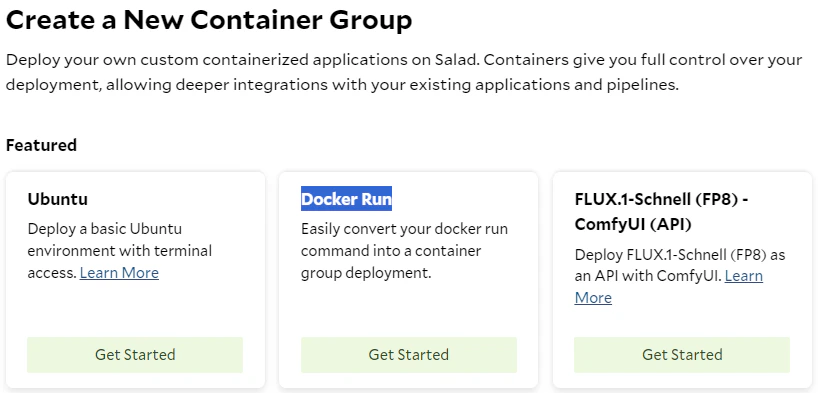
**Now you can create a container group by providing a docker run command, which will be automatically converted into the
appropriate deployment on SaladCloud.** After making any necessary adjustments, such as specifying the replica count and
configuring the machine hardware, you can instantly launch an application running on a group of GPU-powered container
instances. Each instance can receive its task inputs from a job queue or load balancer.
 # Example Code and Image
**Let’s use an example to illustrate how this feature works and how to utilize it effectively.** Assume we have a
container image built from
[the following Dockerfile](https://github.com/SaladTechnologies/misc/blob/main/Test/Dockerfile):
```Code Dockerfile theme={null}
# Select a pre-built base image with GPU support
FROM docker.io/pytorch/pytorch:2.3.0-cuda12.1-cudnn8-runtime
RUN apt-get update && apt-get install -y curl net-tools
RUN pip install --upgrade pip
RUN pip install flask
WORKDIR /app
COPY inference_server.py /app
COPY io_worker.py /app
CMD [ "bash", "-c", "python inference_server.py & python io_worker.py" ]
```
This Dockerfile sets up a containerized environment using the PyTorch base image with GPU support. It installs Flask and
the necessary dependencies, and copies the Python scripts into the image. When the container is run, it starts two
Python processes: **inference\_server.py**, which runs in the background to handle inference requests, and
**io\_worker.py**, which manages input/output operations and invokes the inference.
The [inference\_server.py](https://github.com/SaladTechnologies/misc/blob/main/Test/inference_server.py) simulates a
classical API server that handles requests and runs GPU-based inference tasks, such as transcription, image or text
generation, or molecular dynamics simulation, etc. In this example, we create a simple Flask web application using the
two environment variables (‘HOST’ and ‘PORT’). When accessed at the root URL, it returns a message displaying the
versions of PyTorch, CUDA, cuDNN, and the name of the first GPU available on the system.
When 'HOST' is set to **'0.0.0.0'**, the Flask built-in server listens on all available network interfaces for IPv4
addresses, and does not handle IPv6 requests. In contrast, when configured to **'::'**, the server can accept both IPv4
and IPv6 requests from all available interfaces. **However, some web servers or images may be set to handle only IPv6
traffic when using ‘::’ or ‘\*’.**
```Code inference_server.py theme={null}
import torch
import os
from flask import Flask
HOST= os.getenv("HOST","0.0.0.0")
PORT = os.getenv("PORT","8888")
app = Flask(__name__)
# Download and warm up the AI models
# Consider adding a dedicated endpoint (e.g., /hc) to provide server health status
# Only call the service when it is ready
@app.route('/')
def hello_world():
t1 = torch.__version__
t2 = torch.version.cuda
t3 = torch.backends.cudnn.version()
t4 = torch.cuda.get_device_name(0)
return 'Hello World: {}, {}, {}, {}'.format(t1,t2,t3,t4)
if __name__ == '__main__':
app.run(host=HOST, port=PORT)
```
The [io\_worker.py](https://github.com/SaladTechnologies/misc/blob/main/Test/io_worker.py) simulates a typical workflow
by continually interacting with a job queue (AWS SQS or others) and invoking the inference locally. It retrieves a job,
downloads the input, calls the inference server to process the input, uploads the output and then returns the job
result.
The code constructs the URL as follows:
* If the environment variable HOST is set to **'::'**, the host in the URL becomes `[::1]` for IPv6.
* Otherwise (**'0.0.0.0'**), it defaults to **127.0.0.1** for IPv4.
The logic above illustrates how to explicitly call a service using either **IPv4 (127.0.0.1)** or **IPv6 (::1)**. For
**localhost**, if it is mapped to both IPv4 and IPv6 in the **/etc/hosts** file, whether **localhost** resolves to IPv4
or IPv6 depends on the image and system configuration.
**No matter how the URL is built, both inference\_server.py and io\_worker.py must align on the IP address and port for
local access.**
```Code io_worker.py theme={null}
import os
import time
import requests
HOST= os.getenv("HOST","0.0.0.0")
PORT = os.getenv("PORT","8888")
# Wait for the inference server to become ready, or check its healthcheck endpoint first
time.sleep(2)
URL = f"http://[::1]:{PORT}/" if (HOST == "::") else f"http://127.0.0.1:{PORT}/"
# URL = f"http://localhost:{PORT}/"
while True:
# Retrieve a job from a queue service (such as AWS SQS or others)
# The job provides either the input directly or a reference to the input stored in cloud storage
# Download the job input from cloud storage
print(80 * "*")
print("Get a job and download its input")
# Call the inference server locally, and get the output and result
print("the io_worker calls the inference_server: " + URL)
time.sleep(1)
response = requests.get(URL)
print("The response from the inference_server: " + response.content.decode('utf-8'))
# Upload the job output to cloud storage
# Return the job result to the queue - success or failure
print("Upload the job output and return its result")
```
Let’s build the image and push it to
[the Docker Hub](https://hub.docker.com/repository/docker/saladtechnologies/misc/tags).
```Code theme={null}
docker image build -t docker.io/saladtechnologies/misc:test -f Dockerfile .
docker push docker.io/saladtechnologies/misc:test
```
# Scenario 1: Use a Job Queue
Now we can run some tests. In this scenario, you are building a batch-processing system using a group of GPU-powered
container instances to handle thousands of jobs within a specified timeframe. Each instance retrieves its task inputs
from a job queue, such as AWS SQS, SaladCloud Job Queue, or SaladCloud Kelpie.
Each job includes instructions on whether to download the input, how to process the data, and where to upload the
output. After completing the job, an instance must upload the output and return either SUCCESS or FAILURE to the job
queue. While you can embed the input and output within the job and its response, for large data, it's recommended to use
cloud storage for efficient handling, and the job and its return only contain the metadata and status.
### Docker Run
This command starts a container interactively using the image, mounts a local directory (\~/data) to /app/data in the
container, sets environment variables (HOST and PORT), utilizes all available GPUs, and automatically removes the
container after execution.
```Code theme={null}
docker run --rm -it --gpus all -v ~/data:/app/data -e HOST="0.0.0.0" -e PORT="8888" \
docker.io/saladtechnologies/misc:test
```
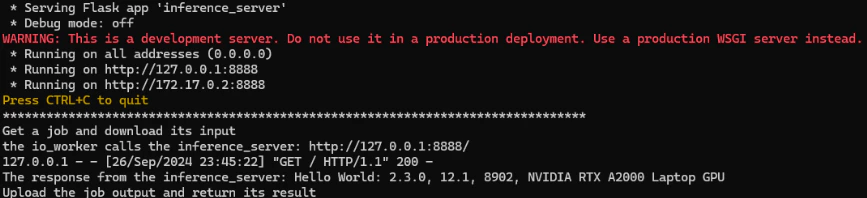
Since no ENTRYPOINT is specified in the Dockerfile, the CMD instruction is used as the default command. While the
container is running, inference\_server.py operates in the background, listening on IPv4 port 8888, while io\_worker.py
manages input/output operations and calls the inference service at [http://127.0.0.1:8888](http://127.0.0.1:8888).
# Example Code and Image
**Let’s use an example to illustrate how this feature works and how to utilize it effectively.** Assume we have a
container image built from
[the following Dockerfile](https://github.com/SaladTechnologies/misc/blob/main/Test/Dockerfile):
```Code Dockerfile theme={null}
# Select a pre-built base image with GPU support
FROM docker.io/pytorch/pytorch:2.3.0-cuda12.1-cudnn8-runtime
RUN apt-get update && apt-get install -y curl net-tools
RUN pip install --upgrade pip
RUN pip install flask
WORKDIR /app
COPY inference_server.py /app
COPY io_worker.py /app
CMD [ "bash", "-c", "python inference_server.py & python io_worker.py" ]
```
This Dockerfile sets up a containerized environment using the PyTorch base image with GPU support. It installs Flask and
the necessary dependencies, and copies the Python scripts into the image. When the container is run, it starts two
Python processes: **inference\_server.py**, which runs in the background to handle inference requests, and
**io\_worker.py**, which manages input/output operations and invokes the inference.
The [inference\_server.py](https://github.com/SaladTechnologies/misc/blob/main/Test/inference_server.py) simulates a
classical API server that handles requests and runs GPU-based inference tasks, such as transcription, image or text
generation, or molecular dynamics simulation, etc. In this example, we create a simple Flask web application using the
two environment variables (‘HOST’ and ‘PORT’). When accessed at the root URL, it returns a message displaying the
versions of PyTorch, CUDA, cuDNN, and the name of the first GPU available on the system.
When 'HOST' is set to **'0.0.0.0'**, the Flask built-in server listens on all available network interfaces for IPv4
addresses, and does not handle IPv6 requests. In contrast, when configured to **'::'**, the server can accept both IPv4
and IPv6 requests from all available interfaces. **However, some web servers or images may be set to handle only IPv6
traffic when using ‘::’ or ‘\*’.**
```Code inference_server.py theme={null}
import torch
import os
from flask import Flask
HOST= os.getenv("HOST","0.0.0.0")
PORT = os.getenv("PORT","8888")
app = Flask(__name__)
# Download and warm up the AI models
# Consider adding a dedicated endpoint (e.g., /hc) to provide server health status
# Only call the service when it is ready
@app.route('/')
def hello_world():
t1 = torch.__version__
t2 = torch.version.cuda
t3 = torch.backends.cudnn.version()
t4 = torch.cuda.get_device_name(0)
return 'Hello World: {}, {}, {}, {}'.format(t1,t2,t3,t4)
if __name__ == '__main__':
app.run(host=HOST, port=PORT)
```
The [io\_worker.py](https://github.com/SaladTechnologies/misc/blob/main/Test/io_worker.py) simulates a typical workflow
by continually interacting with a job queue (AWS SQS or others) and invoking the inference locally. It retrieves a job,
downloads the input, calls the inference server to process the input, uploads the output and then returns the job
result.
The code constructs the URL as follows:
* If the environment variable HOST is set to **'::'**, the host in the URL becomes `[::1]` for IPv6.
* Otherwise (**'0.0.0.0'**), it defaults to **127.0.0.1** for IPv4.
The logic above illustrates how to explicitly call a service using either **IPv4 (127.0.0.1)** or **IPv6 (::1)**. For
**localhost**, if it is mapped to both IPv4 and IPv6 in the **/etc/hosts** file, whether **localhost** resolves to IPv4
or IPv6 depends on the image and system configuration.
**No matter how the URL is built, both inference\_server.py and io\_worker.py must align on the IP address and port for
local access.**
```Code io_worker.py theme={null}
import os
import time
import requests
HOST= os.getenv("HOST","0.0.0.0")
PORT = os.getenv("PORT","8888")
# Wait for the inference server to become ready, or check its healthcheck endpoint first
time.sleep(2)
URL = f"http://[::1]:{PORT}/" if (HOST == "::") else f"http://127.0.0.1:{PORT}/"
# URL = f"http://localhost:{PORT}/"
while True:
# Retrieve a job from a queue service (such as AWS SQS or others)
# The job provides either the input directly or a reference to the input stored in cloud storage
# Download the job input from cloud storage
print(80 * "*")
print("Get a job and download its input")
# Call the inference server locally, and get the output and result
print("the io_worker calls the inference_server: " + URL)
time.sleep(1)
response = requests.get(URL)
print("The response from the inference_server: " + response.content.decode('utf-8'))
# Upload the job output to cloud storage
# Return the job result to the queue - success or failure
print("Upload the job output and return its result")
```
Let’s build the image and push it to
[the Docker Hub](https://hub.docker.com/repository/docker/saladtechnologies/misc/tags).
```Code theme={null}
docker image build -t docker.io/saladtechnologies/misc:test -f Dockerfile .
docker push docker.io/saladtechnologies/misc:test
```
# Scenario 1: Use a Job Queue
Now we can run some tests. In this scenario, you are building a batch-processing system using a group of GPU-powered
container instances to handle thousands of jobs within a specified timeframe. Each instance retrieves its task inputs
from a job queue, such as AWS SQS, SaladCloud Job Queue, or SaladCloud Kelpie.
Each job includes instructions on whether to download the input, how to process the data, and where to upload the
output. After completing the job, an instance must upload the output and return either SUCCESS or FAILURE to the job
queue. While you can embed the input and output within the job and its response, for large data, it's recommended to use
cloud storage for efficient handling, and the job and its return only contain the metadata and status.
### Docker Run
This command starts a container interactively using the image, mounts a local directory (\~/data) to /app/data in the
container, sets environment variables (HOST and PORT), utilizes all available GPUs, and automatically removes the
container after execution.
```Code theme={null}
docker run --rm -it --gpus all -v ~/data:/app/data -e HOST="0.0.0.0" -e PORT="8888" \
docker.io/saladtechnologies/misc:test
```
Since no ENTRYPOINT is specified in the Dockerfile, the CMD instruction is used as the default command. While the
container is running, inference\_server.py operates in the background, listening on IPv4 port 8888, while io\_worker.py
manages input/output operations and calls the inference service at [http://127.0.0.1:8888](http://127.0.0.1:8888).
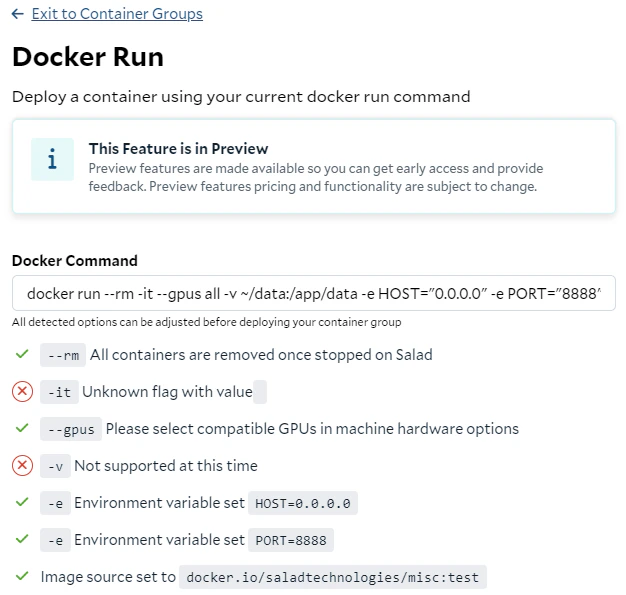
 Let’s create a container group by providing the docker run command through the SaladCloud Portal:
 ### Environment Variables
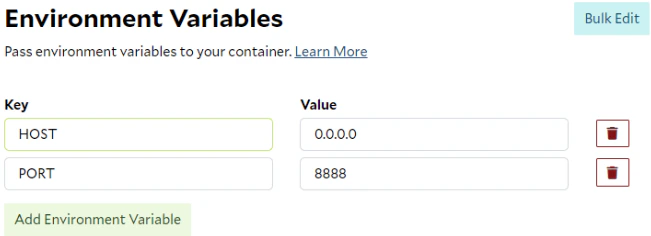
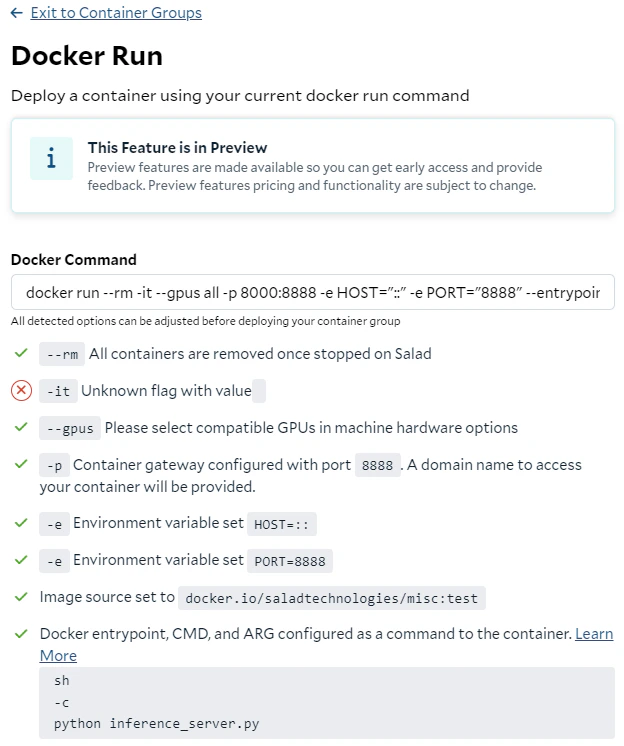
The -e flag in the docker run command is used to pass information to the container, which can be directly mapped to
[the Environment Variables](/container-engine/how-to-guides/environment-variables) settings on SaladCloud.
By utilizing this feature, you can customize system behavior and grant access to additional resources, such as cloud
storage or job queues or APIs, for your containers running on SaladCloud.
### Environment Variables
The -e flag in the docker run command is used to pass information to the container, which can be directly mapped to
[the Environment Variables](/container-engine/how-to-guides/environment-variables) settings on SaladCloud.
By utilizing this feature, you can customize system behavior and grant access to additional resources, such as cloud
storage or job queues or APIs, for your containers running on SaladCloud.
 ### Image Source
One container group can run only one container image at this moment.
Ensure the repository, image name and tag are all correct in
[the Image Source](/container-engine/explanation/infrastructure-platform/container-registries). If the container image
is from a private repository, you will need to provide both the username and access token. These credentials will be
used by SaladCloud to pull the image.
### Image Source
One container group can run only one container image at this moment.
Ensure the repository, image name and tag are all correct in
[the Image Source](/container-engine/explanation/infrastructure-platform/container-registries). If the container image
is from a private repository, you will need to provide both the username and access token. These credentials will be
used by SaladCloud to pull the image.
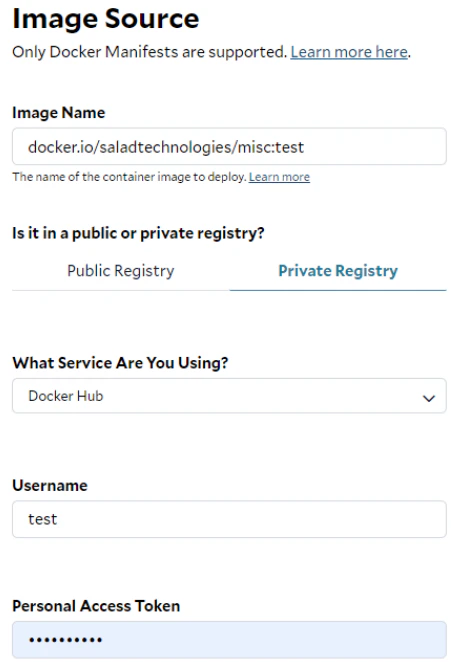 After pulling the image from the designated repository, SaladCloud will store it in its own repository, from which the
image will be delivered to the SaladCloud nodes running your instances. When the container group is stopped, all
SaladCloud nodes will be released and the images on these nodes will be also removed.
If your image has changed since the container group was created, you will need to
[update the image source](/container-engine/how-to-guides/managing-deployments#editing-your-container-group-deployment)
to run the new version. This can be done whether the container group is stopped or running, prompting SaladCloud to pull
the latest image.
**We strongly recommend updating the image name or tag whenever it changes.** This practice helps minimize confusion and
ensures a smoother transition from local testing to deployment on SaladCloud.
### Replica Count
Your container group consists of multiple replicas or instances, with each instance running on a separate SaladCloud
node.
SaladCloud operates on a foundation of distributed and interruptible nodes, meaning that a node running your instance
may go down at any time without prior notice. In such cases, a new node will be allocated to run the instance. There are
no charges incurred during the reallocation process and until the instance is back up and running.
Additionally, downloading your image and starting the instance on these SaladCloud nodes may take some time, potentially
ranging from a few minutes to longer, depending on the image size and the network conditions of the nodes. Some nodes
may download the image faster than others, leading to earlier startup times.
So, when determining the replica count, it’s essential to consider both system capacity and reliability. Generally, we
recommend using **at least 3 replicas for internal testing** and **5 or more for production environments.** Increasing
the number of replicas can significantly enhance the reliability and throughput of your applications on SaladCloud.
After pulling the image from the designated repository, SaladCloud will store it in its own repository, from which the
image will be delivered to the SaladCloud nodes running your instances. When the container group is stopped, all
SaladCloud nodes will be released and the images on these nodes will be also removed.
If your image has changed since the container group was created, you will need to
[update the image source](/container-engine/how-to-guides/managing-deployments#editing-your-container-group-deployment)
to run the new version. This can be done whether the container group is stopped or running, prompting SaladCloud to pull
the latest image.
**We strongly recommend updating the image name or tag whenever it changes.** This practice helps minimize confusion and
ensures a smoother transition from local testing to deployment on SaladCloud.
### Replica Count
Your container group consists of multiple replicas or instances, with each instance running on a separate SaladCloud
node.
SaladCloud operates on a foundation of distributed and interruptible nodes, meaning that a node running your instance
may go down at any time without prior notice. In such cases, a new node will be allocated to run the instance. There are
no charges incurred during the reallocation process and until the instance is back up and running.
Additionally, downloading your image and starting the instance on these SaladCloud nodes may take some time, potentially
ranging from a few minutes to longer, depending on the image size and the network conditions of the nodes. Some nodes
may download the image faster than others, leading to earlier startup times.
So, when determining the replica count, it’s essential to consider both system capacity and reliability. Generally, we
recommend using **at least 3 replicas for internal testing** and **5 or more for production environments.** Increasing
the number of replicas can significantly enhance the reliability and throughput of your applications on SaladCloud.
 **Deploying a container group with a few instances may also reduce waiting time and enhance the developer experience
without incurring additional costs.**
For example, if you want to conduct a quick test or validate an idea on SaladCloud, you can deploy a container group
with 3 replicas. Since some nodes may start up earlier than others, once one of the replicas is running, you can perform
and complete your test, and then shutdown the group, potentially before the other two replicas are up. Throughout this
process, you would only be charged for the running time of a single replica.
### Machine Hardware
The --gpus all option in the command allocates all available GPUs on the host to the container, enabling GPU support for
applications running inside it. SaladCloud currently supports only one GPU per container. When creating a container
group, you can select multiple GPU types at a priority level
[(Batch/Low/Medium/High)](/container-engine/explanation/billing-pricing/priority-pricing), along with the required vCPU,
memory and disk space. SaladCloud will then allocate the appropriate SaladCloud nodes that match these selections to run
the container group.
**Deploying a container group with a few instances may also reduce waiting time and enhance the developer experience
without incurring additional costs.**
For example, if you want to conduct a quick test or validate an idea on SaladCloud, you can deploy a container group
with 3 replicas. Since some nodes may start up earlier than others, once one of the replicas is running, you can perform
and complete your test, and then shutdown the group, potentially before the other two replicas are up. Throughout this
process, you would only be charged for the running time of a single replica.
### Machine Hardware
The --gpus all option in the command allocates all available GPUs on the host to the container, enabling GPU support for
applications running inside it. SaladCloud currently supports only one GPU per container. When creating a container
group, you can select multiple GPU types at a priority level
[(Batch/Low/Medium/High)](/container-engine/explanation/billing-pricing/priority-pricing), along with the required vCPU,
memory and disk space. SaladCloud will then allocate the appropriate SaladCloud nodes that match these selections to run
the container group.
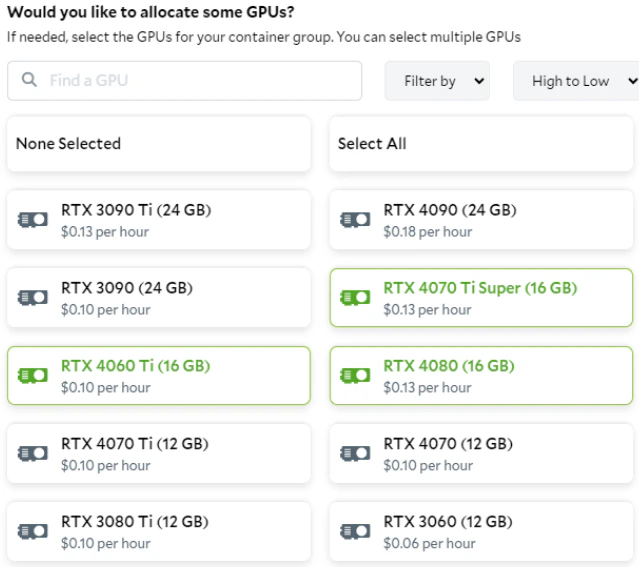 Setting a lower priority for the selected GPUs can help reduce costs; however, low-priority workloads may be preempted
when higher-priority workloads become available on SaladCloud. If you notice that instances with a lower priority level
are being reallocated too frequently for your needs, you can edit the running container group to select a higher
priority level.
### SaladCloud Job Queue
If you are using the SaladCloud Job Queue to manage the tasks for your container group, you can use SaladCloud Job Queue
Worker (an executable binary) to replace io\_worker.py in the example. This worker is designed to handle input/output
operations and interact with your inference server. For more information about SaladCloud Job Queue, please refer to
[this link](/container-engine/explanation/job-processing/job-queues).
### Substitutes
Not all parameters in the docker run command can be directly converted to a container group deployment on SaladCloud;
however, alternative solutions are available.
The -it flag allows you to interact with a container through a terminal. While SaladCloud does not offer this option
during container group creation, you can still interact with running instances using
[the interactive terminal](/container-engine/tutorials/development-tools/interactive-terminal) after the group has been
created to perform tests or troubleshoot issues.
The -v flag is used to mount a volume by mapping a directory from the host system to the container. SaladCloud currently
doesn't support volume mounting using S3FS, FUSE or NFS. Instead, the recommended solution is to install and use the
Cloud Storage SDK or CLI (such as azcopy, aws s3 or gsutil) within the containers to sync data from cloud storage.
### Start the Container Group
After entering the additional information on the Portal, such as the container group name and the external logging
services (optional), you can start the group.
Here is a screenshot of SaladCloud Portal 8 minutes after the container group was created:
Setting a lower priority for the selected GPUs can help reduce costs; however, low-priority workloads may be preempted
when higher-priority workloads become available on SaladCloud. If you notice that instances with a lower priority level
are being reallocated too frequently for your needs, you can edit the running container group to select a higher
priority level.
### SaladCloud Job Queue
If you are using the SaladCloud Job Queue to manage the tasks for your container group, you can use SaladCloud Job Queue
Worker (an executable binary) to replace io\_worker.py in the example. This worker is designed to handle input/output
operations and interact with your inference server. For more information about SaladCloud Job Queue, please refer to
[this link](/container-engine/explanation/job-processing/job-queues).
### Substitutes
Not all parameters in the docker run command can be directly converted to a container group deployment on SaladCloud;
however, alternative solutions are available.
The -it flag allows you to interact with a container through a terminal. While SaladCloud does not offer this option
during container group creation, you can still interact with running instances using
[the interactive terminal](/container-engine/tutorials/development-tools/interactive-terminal) after the group has been
created to perform tests or troubleshoot issues.
The -v flag is used to mount a volume by mapping a directory from the host system to the container. SaladCloud currently
doesn't support volume mounting using S3FS, FUSE or NFS. Instead, the recommended solution is to install and use the
Cloud Storage SDK or CLI (such as azcopy, aws s3 or gsutil) within the containers to sync data from cloud storage.
### Start the Container Group
After entering the additional information on the Portal, such as the container group name and the external logging
services (optional), you can start the group.
Here is a screenshot of SaladCloud Portal 8 minutes after the container group was created:
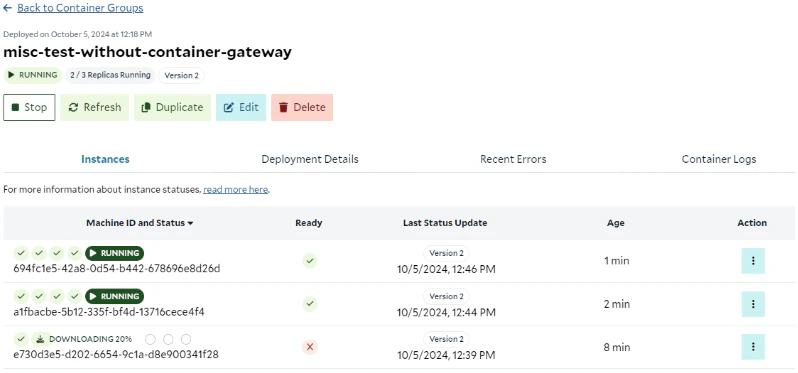 Two instances are already running (one for 1 minute, having taken 7 minutes to start, and the other for 2 minutes,
having taken 6 minutes to start), while the third is still downloading the image, which is expected.
When deploying a group of instances, it may take several minutes or longer for all instances to become fully
operational, with some starting earlier than others, depending on the image size and their network conditions. Some
nodes may run continuously for several days without interruption, while others might only operate for a few hours before
being reallocated.
**Applications running on SaladCloud must be optimized to adapt to this environment.** For long-running tasks, your code
should incorporate a built-in mechanism to manage reallocations by utilizing a job queue and cloud storage. During job
execution, the code can periodically save checkpoints to the cloud. If a node or instance goes offline, another node or
instance can retrieve the unfinished job from the job queue, recover the status from the last saved checkpoint in the
cloud and resume execution.
Furthermore, **the instances running on SaladCloud must have a continuously running process** ( the ENTRYPOINT and CMD
instructions specified in the Dockerfile), such as a web server that listens for requests or a job queue worker that
pulls new tasks. **If the process simply runs a task and then completes quickly, SaladCloud will automatically
reallocate the instances to rerun the process.**
# Scenario 2: With Container Gateway
Let's perform another test. In this scenario, you are building a real-time, on-demand inference application using a
group of GPU-powered container instances, accessible through a container gateway (load balancer). Your client
application, such as AI Agent or Web UI, interacts with users directly, and forwards the inference requests to the
instances through the container gateway.
This setup is not intended for long-running tasks. The container gateway has a timeout setting, and requests must be
processed and returned by instances within 100 seconds.
### Docker Run
This command provides the ENTRYPOINT instruction ( ‘sh’ ) and overrides the original CMD instruction specified in the
Dockerfile ( with -c 'python inference\_server.py' ) when running the container. The CMD acts as the default parameters
for the ENTRYPOINT in this case, and starts only inference\_server.py, which handles both IPv4 and IPv6 requests.
Additionally, The port 8888 in the container is mapped to port 8000 on the host, enabling any services running on port
8888 within the container to be accessible through port 8000 on the host machine.
You can also modify the Dockerfile and rebuild the image to achieve the same goal, eliminating the need to specify the
ENTRYPOINT and CMD options when running the docker run command.
```Code theme={null}
docker run --rm -it --gpus all -p 8000:8888 -e HOST="::" -e PORT="8888" --entrypoint 'sh' \
docker.io/saladtechnologies/misc:test -c 'python inference_server.py'
```
In this case, there is no io\_worker.py running to handle input/output operations, so we can directly access the
inference service via the port 8000 on the host. Alternatively, we can first enter the container and access the
inference service on the local port 8888 using localhost, IPv4 and IPv6.
```Code theme={null}
# Access the service via the port 8000 on the host
curl http://localhost:8000/
# Enter the container
docker exec -it XXX /bin/bash
# Access the service on the local port 8888 within the container
curl http://localhost:8888/
curl http://127.0.0.1:8888/
curl http://[::1]:8888/
```
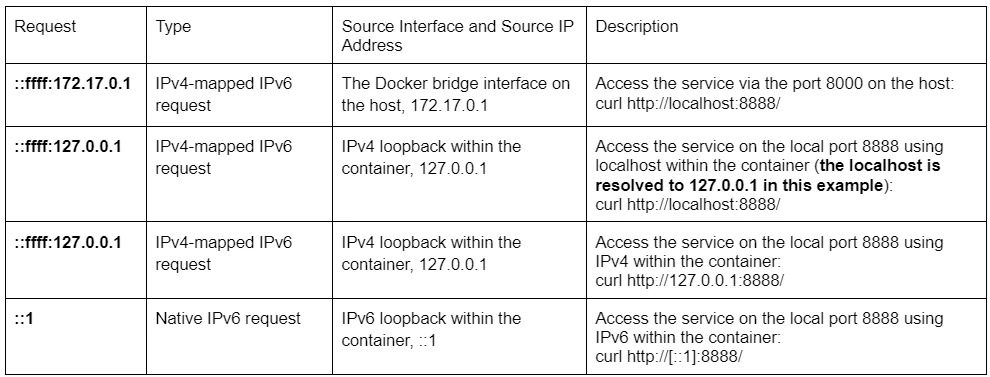
When the Flask server is bound to **'::'**, a dual-stack socket is created and the server can handle two kinds of
requests:
* Native IPv6 requests, using IPv6 directly and handled by the socket.
* IPv4-mapped IPv6 requests, coming from the IPv4 address **‘x.x.x.x’** but translated into **‘::ffff:x.x.x.x’** and
handled by the same socket.
**Some web servers or images may create IPv6-only sockets in this case, limiting them to handling IPv6 requests
exclusively.**
Let’s review the server logs for more details, as they would be helpful to the deployment of health probes on
SaladCloud:
Two instances are already running (one for 1 minute, having taken 7 minutes to start, and the other for 2 minutes,
having taken 6 minutes to start), while the third is still downloading the image, which is expected.
When deploying a group of instances, it may take several minutes or longer for all instances to become fully
operational, with some starting earlier than others, depending on the image size and their network conditions. Some
nodes may run continuously for several days without interruption, while others might only operate for a few hours before
being reallocated.
**Applications running on SaladCloud must be optimized to adapt to this environment.** For long-running tasks, your code
should incorporate a built-in mechanism to manage reallocations by utilizing a job queue and cloud storage. During job
execution, the code can periodically save checkpoints to the cloud. If a node or instance goes offline, another node or
instance can retrieve the unfinished job from the job queue, recover the status from the last saved checkpoint in the
cloud and resume execution.
Furthermore, **the instances running on SaladCloud must have a continuously running process** ( the ENTRYPOINT and CMD
instructions specified in the Dockerfile), such as a web server that listens for requests or a job queue worker that
pulls new tasks. **If the process simply runs a task and then completes quickly, SaladCloud will automatically
reallocate the instances to rerun the process.**
# Scenario 2: With Container Gateway
Let's perform another test. In this scenario, you are building a real-time, on-demand inference application using a
group of GPU-powered container instances, accessible through a container gateway (load balancer). Your client
application, such as AI Agent or Web UI, interacts with users directly, and forwards the inference requests to the
instances through the container gateway.
This setup is not intended for long-running tasks. The container gateway has a timeout setting, and requests must be
processed and returned by instances within 100 seconds.
### Docker Run
This command provides the ENTRYPOINT instruction ( ‘sh’ ) and overrides the original CMD instruction specified in the
Dockerfile ( with -c 'python inference\_server.py' ) when running the container. The CMD acts as the default parameters
for the ENTRYPOINT in this case, and starts only inference\_server.py, which handles both IPv4 and IPv6 requests.
Additionally, The port 8888 in the container is mapped to port 8000 on the host, enabling any services running on port
8888 within the container to be accessible through port 8000 on the host machine.
You can also modify the Dockerfile and rebuild the image to achieve the same goal, eliminating the need to specify the
ENTRYPOINT and CMD options when running the docker run command.
```Code theme={null}
docker run --rm -it --gpus all -p 8000:8888 -e HOST="::" -e PORT="8888" --entrypoint 'sh' \
docker.io/saladtechnologies/misc:test -c 'python inference_server.py'
```
In this case, there is no io\_worker.py running to handle input/output operations, so we can directly access the
inference service via the port 8000 on the host. Alternatively, we can first enter the container and access the
inference service on the local port 8888 using localhost, IPv4 and IPv6.
```Code theme={null}
# Access the service via the port 8000 on the host
curl http://localhost:8000/
# Enter the container
docker exec -it XXX /bin/bash
# Access the service on the local port 8888 within the container
curl http://localhost:8888/
curl http://127.0.0.1:8888/
curl http://[::1]:8888/
```
When the Flask server is bound to **'::'**, a dual-stack socket is created and the server can handle two kinds of
requests:
* Native IPv6 requests, using IPv6 directly and handled by the socket.
* IPv4-mapped IPv6 requests, coming from the IPv4 address **‘x.x.x.x’** but translated into **‘::ffff:x.x.x.x’** and
handled by the same socket.
**Some web servers or images may create IPv6-only sockets in this case, limiting them to handling IPv6 requests
exclusively.**
Let’s review the server logs for more details, as they would be helpful to the deployment of health probes on
SaladCloud:

 Let’s create a container group by providing the docker run command through the SaladCloud Portal:
 ### Container Gateway
The -p flag in the docker run command is used to map the port 8888 in the container to the port 8000 on the host, making
the service accessible from the host. Here it is converted to the container gateway deployment within the container
group.
### Container Gateway
The -p flag in the docker run command is used to map the port 8888 in the container to the port 8000 on the host, making
the service accessible from the host. Here it is converted to the container gateway deployment within the container
group.
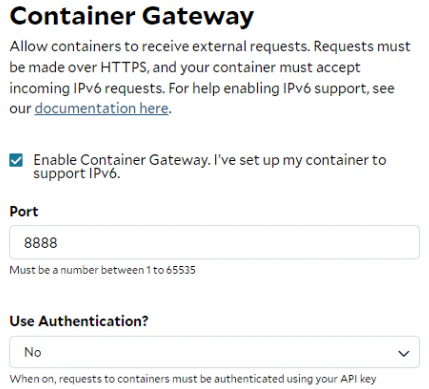 The container gateway is a load balancer deployed in front of instances within a container group to expose their
services. **Instances running on SaladCloud must be configured to listen on both IPv4 and IPv6 (or IPv6 only) to ensure
their services can be accessed through the container gateway.** This is why “::” is used to launch the Flask server in
the docker run command.
In this setup, a publicly accessible domain name will be generated, allowing access to the container’s service on port
8888 from the Internet, and you can also configure the API key for authentication.
```Code theme={null}
# Access from Internet
curl https://shrimp-ceviche-rsom27c9k1nmhl1a.salad.cloud/
```
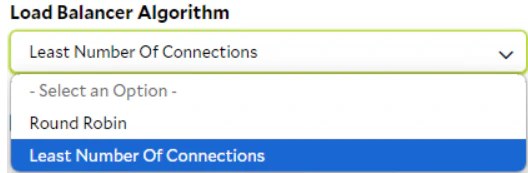
Requests to the container gateway will be forwarded to the instances using two options: Round Robin and Least
Connections. Since the inference time can vary significantly among different requests, Least Connections should be the
preferred method in most cases, as it directs requests to the least busy instances.
The container gateway is a load balancer deployed in front of instances within a container group to expose their
services. **Instances running on SaladCloud must be configured to listen on both IPv4 and IPv6 (or IPv6 only) to ensure
their services can be accessed through the container gateway.** This is why “::” is used to launch the Flask server in
the docker run command.
In this setup, a publicly accessible domain name will be generated, allowing access to the container’s service on port
8888 from the Internet, and you can also configure the API key for authentication.
```Code theme={null}
# Access from Internet
curl https://shrimp-ceviche-rsom27c9k1nmhl1a.salad.cloud/
```
Requests to the container gateway will be forwarded to the instances using two options: Round Robin and Least
Connections. Since the inference time can vary significantly among different requests, Least Connections should be the
preferred method in most cases, as it directs requests to the least busy instances.
 By default, the container gateway sends multiple requests to an instance simultaneously. However, it can be configured
to send only one request to an instance at a time, with subsequent requests waiting in the gateway until the current one
is completed. For more information on load balancing options and how to adjust these settings to fit your needs, please
refer to [this guide](/container-engine/explanation/gateway/load-balancer-options).
Avoid sending very large requests (hundreds of MB or more) to instances through the container gateway, as this can
significantly reduce end-to-end performance.
Instead, upload large files to cloud storage first, such as AWS S3, Cloudflare R2, or YouTube. Then, send requests to
the instances through the container gateway, including only the file URL and metadata. After receiving requests, the
instances directly download the inputs (specified in the requests) from cloud storage. This approach allows instances to
optimize downloading throughput from cloud storage and reduces data transfer and copy.
Similarly, for very large responses, instances should upload outputs directly to cloud storage while the responses
contain only the status and metadata.
### Health Probes
[Health probes](/container-engine/explanation/infrastructure-platform/health-probes) offer an automated mechanism to
initiate specific actions based on the status of containers within a container group. **You can think of a probe as a
piece of code running alongside the inference server within the same container, allowing it to access the service
locally or the shared file system**.
[Readiness probes](/container-engine/explanation/infrastructure-platform/readiness-probes) are essential when deploying
a container gateway, as they ensure that requests are only forwarded to an instance when it is fully prepared—for
example, when the model has been loaded and warmed up.
When configuring a readiness probe on SaladCloud, you can utilize TCP, gRPC, and HTTP protocols. **SaladCloud does not
provide an option to explicitly select IPv4 or IPv6; it defaults to using IPv6 when the container gateway is deployed,
and reverts to IPv4 otherwise.**
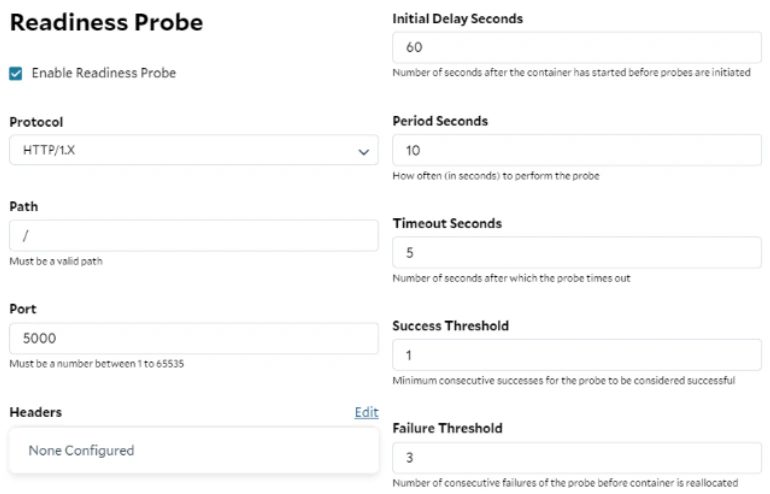
Here is an example: This HTTP probe checks the health of the inference server running inside the instance. The probe
sends an HTTP GET request on port 5000 at the root path ( / ) and evaluates the response code. If a status code of 200
is returned, the probe is considered successful, and the container gateway will begin forwarding traffic to the
instance. After 3 consecutive failures, the probe is marked as failed, and while the instance will remain running on the
node, it will stop receiving requests from the gateway. **It’s important to note that readiness probes may fluctuate
between passing and failing.**
```Code theme={null}
Protocol: HTTP/1.X
Path: /
Port: 5000
Initial Delay Seconds: 60
Period Seconds: 10
Timeout Seconds: 5
Success Threshold: 1
Failure Threshold: 3
```
By default, the container gateway sends multiple requests to an instance simultaneously. However, it can be configured
to send only one request to an instance at a time, with subsequent requests waiting in the gateway until the current one
is completed. For more information on load balancing options and how to adjust these settings to fit your needs, please
refer to [this guide](/container-engine/explanation/gateway/load-balancer-options).
Avoid sending very large requests (hundreds of MB or more) to instances through the container gateway, as this can
significantly reduce end-to-end performance.
Instead, upload large files to cloud storage first, such as AWS S3, Cloudflare R2, or YouTube. Then, send requests to
the instances through the container gateway, including only the file URL and metadata. After receiving requests, the
instances directly download the inputs (specified in the requests) from cloud storage. This approach allows instances to
optimize downloading throughput from cloud storage and reduces data transfer and copy.
Similarly, for very large responses, instances should upload outputs directly to cloud storage while the responses
contain only the status and metadata.
### Health Probes
[Health probes](/container-engine/explanation/infrastructure-platform/health-probes) offer an automated mechanism to
initiate specific actions based on the status of containers within a container group. **You can think of a probe as a
piece of code running alongside the inference server within the same container, allowing it to access the service
locally or the shared file system**.
[Readiness probes](/container-engine/explanation/infrastructure-platform/readiness-probes) are essential when deploying
a container gateway, as they ensure that requests are only forwarded to an instance when it is fully prepared—for
example, when the model has been loaded and warmed up.
When configuring a readiness probe on SaladCloud, you can utilize TCP, gRPC, and HTTP protocols. **SaladCloud does not
provide an option to explicitly select IPv4 or IPv6; it defaults to using IPv6 when the container gateway is deployed,
and reverts to IPv4 otherwise.**
Here is an example: This HTTP probe checks the health of the inference server running inside the instance. The probe
sends an HTTP GET request on port 5000 at the root path ( / ) and evaluates the response code. If a status code of 200
is returned, the probe is considered successful, and the container gateway will begin forwarding traffic to the
instance. After 3 consecutive failures, the probe is marked as failed, and while the instance will remain running on the
node, it will stop receiving requests from the gateway. **It’s important to note that readiness probes may fluctuate
between passing and failing.**
```Code theme={null}
Protocol: HTTP/1.X
Path: /
Port: 5000
Initial Delay Seconds: 60
Period Seconds: 10
Timeout Seconds: 5
Success Threshold: 1
Failure Threshold: 3
```
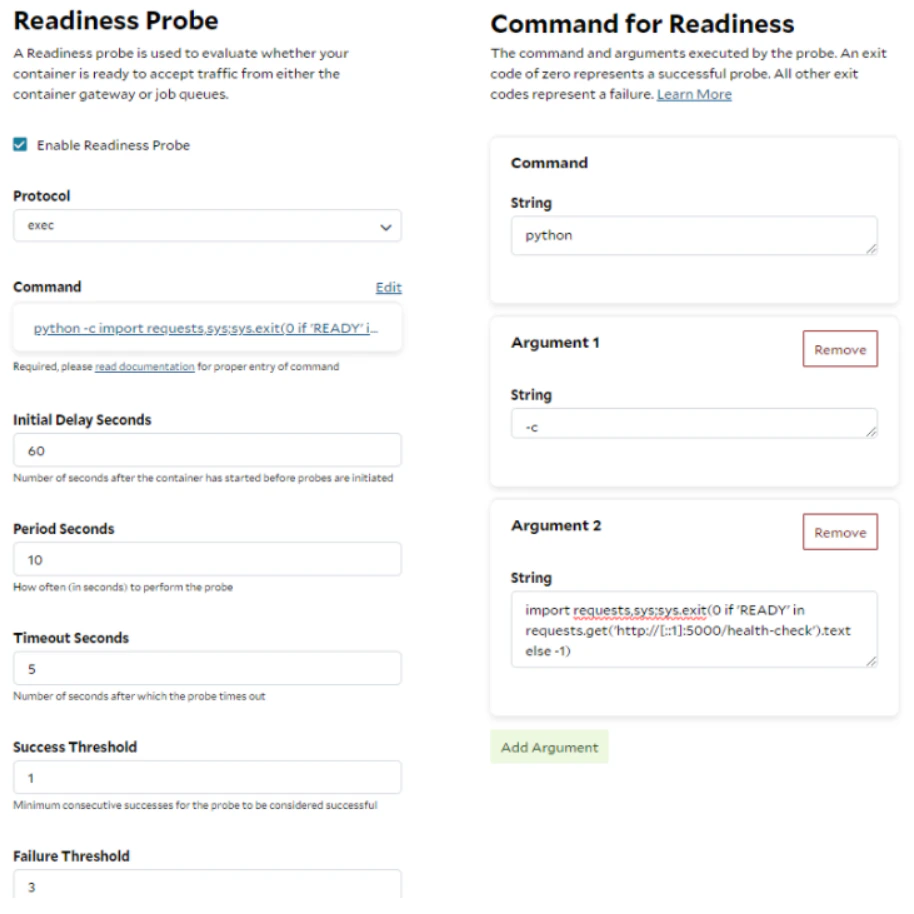
 You can also use the [exec protocol](/container-engine/explanation/infrastructure-platform/health-probes#exec-protocol)
to create a custom script for the readiness probe.
Let’s look at another example: This exec probe runs a Python script inside the instance and checks the exit code. If the
response from accessing `http://[::1]:5000/health-check` contains **'READY'**, the Python script returns zero,
indicating a successful probe. Otherwise, the probe is deemed failed.
This probe is more advanced, as it checks not only the HTTP status code, but also the semantics of the response.
Additionally, it explicitly uses IPv6 (::1) to access the inference service locally.
```Code theme={null}
Probe Protocol: exec
Command: python
Argument1: -c
Argument2: import requests,sys;sys.exit(0 if 'READY' in requests.get('http://[::1]:5000/health-check').text else -1)
Initial Delay Seconds: 60
Period Seconds: 10
Timeout Seconds: 5
Success Threshold: 1
Failure Threshold: 3
```
You can also use the [exec protocol](/container-engine/explanation/infrastructure-platform/health-probes#exec-protocol)
to create a custom script for the readiness probe.
Let’s look at another example: This exec probe runs a Python script inside the instance and checks the exit code. If the
response from accessing `http://[::1]:5000/health-check` contains **'READY'**, the Python script returns zero,
indicating a successful probe. Otherwise, the probe is deemed failed.
This probe is more advanced, as it checks not only the HTTP status code, but also the semantics of the response.
Additionally, it explicitly uses IPv6 (::1) to access the inference service locally.
```Code theme={null}
Probe Protocol: exec
Command: python
Argument1: -c
Argument2: import requests,sys;sys.exit(0 if 'READY' in requests.get('http://[::1]:5000/health-check').text else -1)
Initial Delay Seconds: 60
Period Seconds: 10
Timeout Seconds: 5
Success Threshold: 1
Failure Threshold: 3
```
 **Regardless of the probe protocol used, It is crucial to ensure that the probe and the inference server are aligned on
IP address and port:**
* If the server listens on IPv4 only, the probe must be based on IPv4.
* If the server handles both IPv4 and IPv6 requests, the probe can use IPv4 or IPv6.
* If the server only handles IPv6 requests, the probe must be built on IPv6.
You can conduct additional tests using the base image, selected web server and localhost on SaladCloud to confirm these
details before a standard deployment.
**For simplicity, configure your server to use either IPv6 or dual-stack only when the container gateway is enabled, and
explicitly use IPv6 (::1) in the probes if using the exec protocol. In all other scenarios, such as when using a job
queue, configure your server with IPv4 and use IPv4 (127.0.0.1) or localhost in the exec probes.**
### Command
The --entrypoint ‘sh’ and -c ‘python inference\_server.py’ options in the command are converted to the Command deployment
within the container group. This feature allows you to provide or override the original ENTRYPOINT and CMD instructions
specified in the Dockerfile. **With this flexibility, you don't need to modify the Dockerfile, rebuild and push the
image every time you change settings and code or run different applications.**
**Regardless of the probe protocol used, It is crucial to ensure that the probe and the inference server are aligned on
IP address and port:**
* If the server listens on IPv4 only, the probe must be based on IPv4.
* If the server handles both IPv4 and IPv6 requests, the probe can use IPv4 or IPv6.
* If the server only handles IPv6 requests, the probe must be built on IPv6.
You can conduct additional tests using the base image, selected web server and localhost on SaladCloud to confirm these
details before a standard deployment.
**For simplicity, configure your server to use either IPv6 or dual-stack only when the container gateway is enabled, and
explicitly use IPv6 (::1) in the probes if using the exec protocol. In all other scenarios, such as when using a job
queue, configure your server with IPv4 and use IPv4 (127.0.0.1) or localhost in the exec probes.**
### Command
The --entrypoint ‘sh’ and -c ‘python inference\_server.py’ options in the command are converted to the Command deployment
within the container group. This feature allows you to provide or override the original ENTRYPOINT and CMD instructions
specified in the Dockerfile. **With this flexibility, you don't need to modify the Dockerfile, rebuild and push the
image every time you change settings and code or run different applications.**
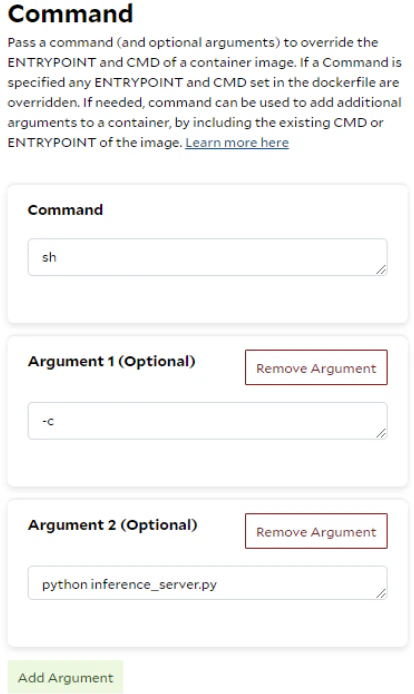 As previously mentioned, the instances running on SaladCloud must have a continuously running process. If you simply
want to start your instances, and then access them interactively to run code or troubleshoot issues, use the following
command settings:
As previously mentioned, the instances running on SaladCloud must have a continuously running process. If you simply
want to start your instances, and then access them interactively to run code or troubleshoot issues, use the following
command settings:
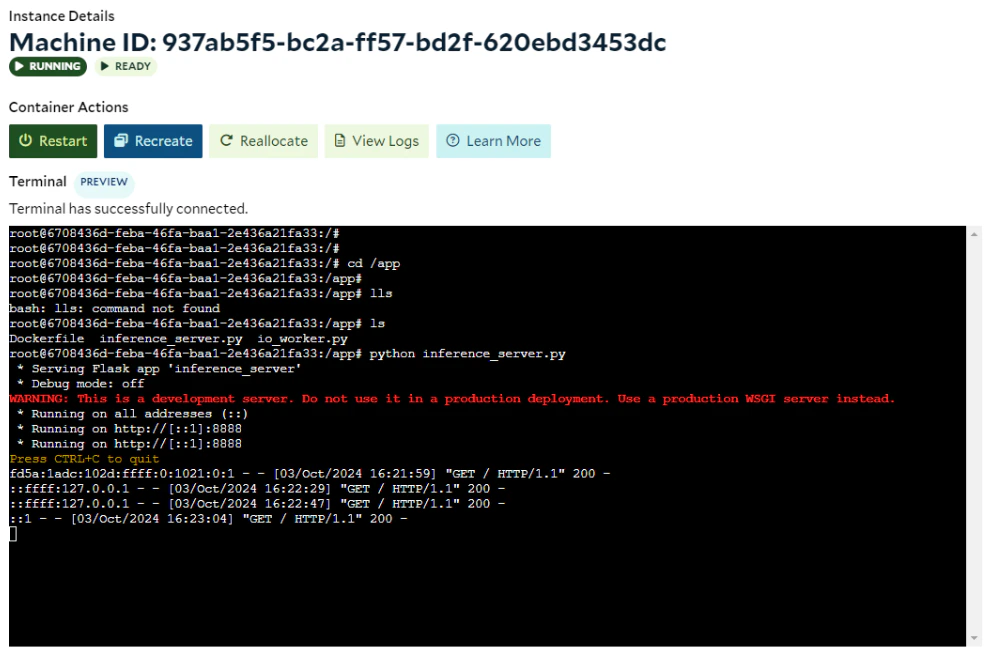
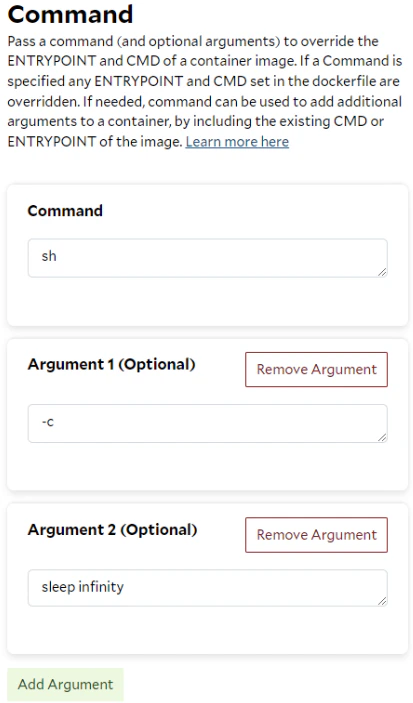 Once the instances are up and in a sleep state that is not reallocated by SaladCloud, you can access them through the
interactive terminal to manually execute tasks, run tests, and diagnose problems. This screenshot shows after the
instance is running, we run and test **inference\_server.py** manually using the interactive terminal.
Once the instances are up and in a sleep state that is not reallocated by SaladCloud, you can access them through the
interactive terminal to manually execute tasks, run tests, and diagnose problems. This screenshot shows after the
instance is running, we run and test **inference\_server.py** manually using the interactive terminal.
 # Summary
While most of a docker run command and its parameters can be directly translated into the container group deployment on
SaladCloud to run a GPU-accelerated application, some aspects may need to be adjusted and replaced to fully optimize the
use of SaladCloud.
* SaladCloud is the powerful, highly scalable and cost-effective platform for requirements that involve tens to
thousands of GPUs for large-scale and on-demand AI inference (such as image generation or LLM), utilizing a load
balancer, or a batch-processing system to handle millions of jobs (transcription, molecular simulation) within a
specified timeframe. However, single-instance, UI-based, or database applications are not well-suited for SaladCloud.
* Consider both system capacity and reliability when determining the replica account (3+ for testing and 5+ for
production), and increasing the number of replicas can significantly enhance the reliability and throughput of your
applications.
* Deploying a container group with a few instances may reduce waiting time and enhance the developer experience without
incurring additional costs.
* Always update the container image name or tag whenever it changes to minimize confusion. If the image has changed
since the container group was created, you will need to update the image source in the container group to run the new
version even if it retains the same name and tag.
* Applications running on SaladCloud must be optimized to accommodate the distributed and interruptible nature of the
platform, including varying startup times and node reallocations.
* The containers running on SaladCloud must have a continuously running process; and If the process completes,
SaladCloud will automatically reallocate the instances to rerun the process.
* You can run code or troubleshoot issues interactively, using the Command settings and the interactive terminal.
* The probe and the inference server must be properly aligned for local access in terms of both IP address (IPv4 or
IPv6) and port. For simplicity, configure your server to use either IPv6 or dual-stack only when the container gateway
is enabled. In all other cases, use IPv4 exclusively.
* All container instances, regardless of their locations, are currently exposed by the container gateway in the U.S,
which may introduce additional latency for instances in other regions. Ensure that your applications can tolerate this
delay and jitter.
* Avoid using the container gateway or job queue to transfer very large data. Instead, utilize them to transmit metadata
and status, while instances directly access cloud storage for uploading and downloading large data.
* SaladCloud currently doesn't support mounting volumes using S3FS, FUSE or NFS. The recommended solution is to install
and use the Cloud Storage SDK or CLI (such as azcopy, aws s3 or gsutil) within the containers to sync data from cloud
storage.
* Unlike a Kubernetes Pod, which can run multiple containers (images) that share the same network and storage, a
SaladCloud container group can currently run only one image. To run multiple applications, you may need to consolidate
their images into one and use the ENTRYPOINT and CMD instructions in the Dockerfile to run multiple processes within
that single image.
* If you run multiple applications or images using the Docker Compose commands, you will assess their suitability for
SaladCloud first. Each application in the YAML file should be mapped to a dedicated container group with the container
gateway. Communication between these applications or groups can only occur through the generated access domain names.
Alternatively, you can consolidate these images into a single image and then deploy it using one container group.
# Summary
While most of a docker run command and its parameters can be directly translated into the container group deployment on
SaladCloud to run a GPU-accelerated application, some aspects may need to be adjusted and replaced to fully optimize the
use of SaladCloud.
* SaladCloud is the powerful, highly scalable and cost-effective platform for requirements that involve tens to
thousands of GPUs for large-scale and on-demand AI inference (such as image generation or LLM), utilizing a load
balancer, or a batch-processing system to handle millions of jobs (transcription, molecular simulation) within a
specified timeframe. However, single-instance, UI-based, or database applications are not well-suited for SaladCloud.
* Consider both system capacity and reliability when determining the replica account (3+ for testing and 5+ for
production), and increasing the number of replicas can significantly enhance the reliability and throughput of your
applications.
* Deploying a container group with a few instances may reduce waiting time and enhance the developer experience without
incurring additional costs.
* Always update the container image name or tag whenever it changes to minimize confusion. If the image has changed
since the container group was created, you will need to update the image source in the container group to run the new
version even if it retains the same name and tag.
* Applications running on SaladCloud must be optimized to accommodate the distributed and interruptible nature of the
platform, including varying startup times and node reallocations.
* The containers running on SaladCloud must have a continuously running process; and If the process completes,
SaladCloud will automatically reallocate the instances to rerun the process.
* You can run code or troubleshoot issues interactively, using the Command settings and the interactive terminal.
* The probe and the inference server must be properly aligned for local access in terms of both IP address (IPv4 or
IPv6) and port. For simplicity, configure your server to use either IPv6 or dual-stack only when the container gateway
is enabled. In all other cases, use IPv4 exclusively.
* All container instances, regardless of their locations, are currently exposed by the container gateway in the U.S,
which may introduce additional latency for instances in other regions. Ensure that your applications can tolerate this
delay and jitter.
* Avoid using the container gateway or job queue to transfer very large data. Instead, utilize them to transmit metadata
and status, while instances directly access cloud storage for uploading and downloading large data.
* SaladCloud currently doesn't support mounting volumes using S3FS, FUSE or NFS. The recommended solution is to install
and use the Cloud Storage SDK or CLI (such as azcopy, aws s3 or gsutil) within the containers to sync data from cloud
storage.
* Unlike a Kubernetes Pod, which can run multiple containers (images) that share the same network and storage, a
SaladCloud container group can currently run only one image. To run multiple applications, you may need to consolidate
their images into one and use the ENTRYPOINT and CMD instructions in the Dockerfile to run multiple processes within
that single image.
* If you run multiple applications or images using the Docker Compose commands, you will assess their suitability for
SaladCloud first. Each application in the YAML file should be mapped to a dedicated container group with the container
gateway. Communication between these applications or groups can only occur through the generated access domain names.
Alternatively, you can consolidate these images into a single image and then deploy it using one container group.