> ## Documentation Index
> Fetch the complete documentation index at: https://docs.salad.com/llms.txt
> Use this file to discover all available pages before exploring further.
# Deployment Guide
> In this step-by-step guide, we share how to deploy YOLOv8 on SaladCloud's distributed cloud infrastructure for real-time object detection.
*Last Updated: October 10, 2024*
# YOLOv8 on Salad
## Introduction
Object detection technology has come a long way from its inception. Early systems could hardly differentiate between
shapes, but today's algorithms like YOLOv8 have the ability to pinpoint and track objects with remarkable precision.
YOLOv8 is the latest advancement in a lineage known for balancing accuracy and speed.
Unlike the AI of old that would chug through data, YOLOv8 skates across live feeds, identifying and classifying objects
with an efficiency that supports a multitude of practical applications. It could be tracking logos screen presence
during sporting event, monitoring items on an assembly line, or inspecting the intricate parts of train cars for
maintenance. YOLOv8 offers a lens through which the world can be quantified in motion, without the need for extensive
model training from the end user.
Deploying YOLOv8 on SaladCloud results in a practical and efficient solution. SaladCloud's infrastructure democratizes
the power of YOLOv8, allowing users to deploy sophisticated object detection systems without heavy investment in
physical hardware. Whether you're a developer or a business looking to integrate cutting-edge object detection into your
operations, YOLOv8 paired with SaladCloud offers a viable and scalable solution.
Stay tuned as we dive into creating our object detection solution with Yolov8 within the environment of SaladCloud ,
showcasing how this combination can streamline your object detection needs.
## Project Overview: Streamlining Object Detection in Live Streams with YOLOv8 and SaladCloud
In this project, we focus on harnessing the power of a pre-trained YOLOv8 model to analyze live video streams. In this
article, we will not delve into training our custom model, but it may be an avenue we explore later.
**The Workflow:**
1. **Input Data**: We initiate the process by capturing a live stream link as our input source. This will be live stream
video upon which object detection will be performed.
2. **Object Detection**: With each passing frame of the live video, YOLOv8's pre-trained algorithms analyzes the visuals
to detect objects it has been trained to recognize.
3. **Data Compilation and Analysis**: As objects are identified, their information is systematically captured in real
time, leading to the construction of a comprehensive dataframe. This tabular data encompasses timestamps, object
classifications, and other pertinent metadata extracted from the video frames. Utilizing aggregation methods and
analytical techniques, we'll further refine this data to create a concise and informative summary.
4. **Storage and Accessibility**: The dataframe is then exported as a CSV file, which is securely stored in an Azure
storage account. This ensures easy access and manageability of the processed data for further analysis or
record-keeping.
5. **Human-Friendly Summaries**: Beyond the raw data, we gather information into human-readable summaries. These
narratives will provide insights into how long specific objects were present in the video and what percentage of the
frame the were taking.
**The Advantages:**
* **No Need for Model Training**: We can use a pretrained Yolo Model for our demo saving some time on data labeling and
training. We might cover training in one of our next articles.
* **Real-Time Analysis**: Processing live streams requires potent computational resources. Deploying our solution on
SaladCloud offers the necessary horsepower without the overhead of local infrastructure.
* **Data-Driven Insights**: Our approach converts continuous video streams into structured data, paving the way for
in-depth analytics and informed decision-making.
* **Accessible Results**: By storing outcomes in Azure, we benefit from cloud scalability and the robustness of
enterprise-grade security and data handling.
* **Comprehensive Reporting**: The human-friendly summaries bridge the gap between complex data analytics and actionable
insights, useful for non-technical stakeholders.
Through this project, we aim to demonstrate that advanced object detection and tracking is not only the domain of large
corporations with vast resources. By utilizing SaladCloud and YOLOv8, we democratize access to cutting-edge AI
capabilities, enabling users to perform sophisticated tasks with minimal setup and investment. This endeavor showcases
how cloud computing and AI models can work in concert to address real-world applications in object detection and
tracking, providing value across a range of scenarios, from security and surveillance to marketing analytics and quality
control in manufacturing.
## Reference Architecture
We are setting out to construct two distinct solutions to leverage the capabilities of YOLOv8 for object detection.
Here's an outline of the architecture for each solution:
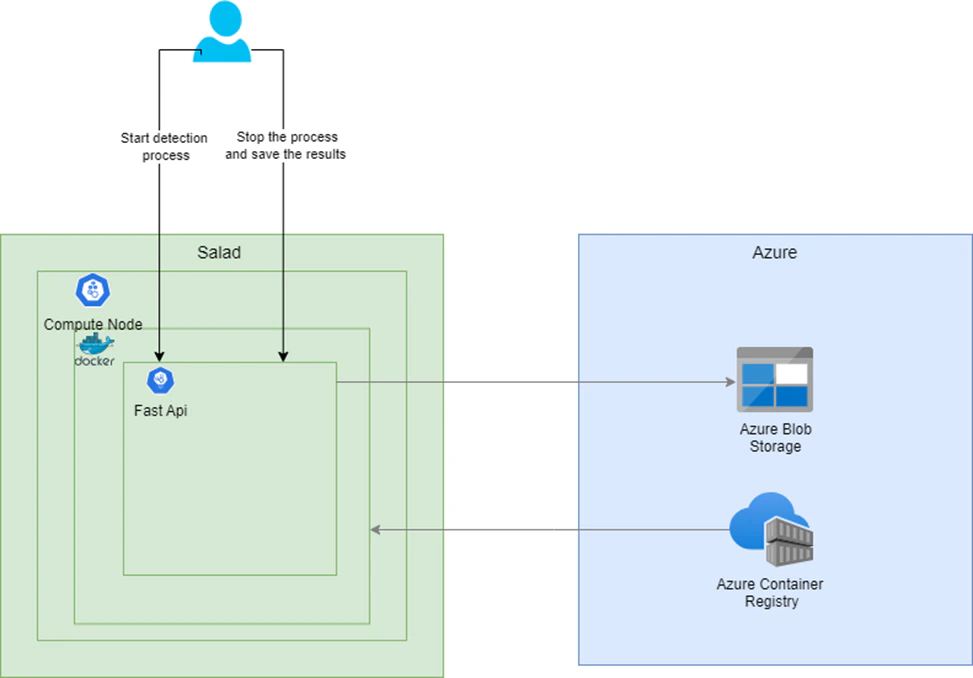
### Solution 1: Fast API for Real-Time Processing
* **Objective**: Develop an API that can initiate and terminate the object detection process based on API calls.
* **Process Flow**:
* The Fast API receives a request with all the necessary parameters to start the object detection task.
* It processes the video stream in the background, identifying and classifying objects as they appear.
* Upon receiving a stop API call, the process concludes, and the results are stored in an Azure storage container.
* **Deployment**:
* The Fast API is containerized using Docker, ensuring a consistent and isolated environment for deployment.
* This Docker container is then deployed on SaladCloud compute resources to utilize processing capabilities.
* The Docker image itself is housed in Azure Container Registry for secure and convenient access.
 ### Solution 2: Batch Processing for Asynchronous Workloads
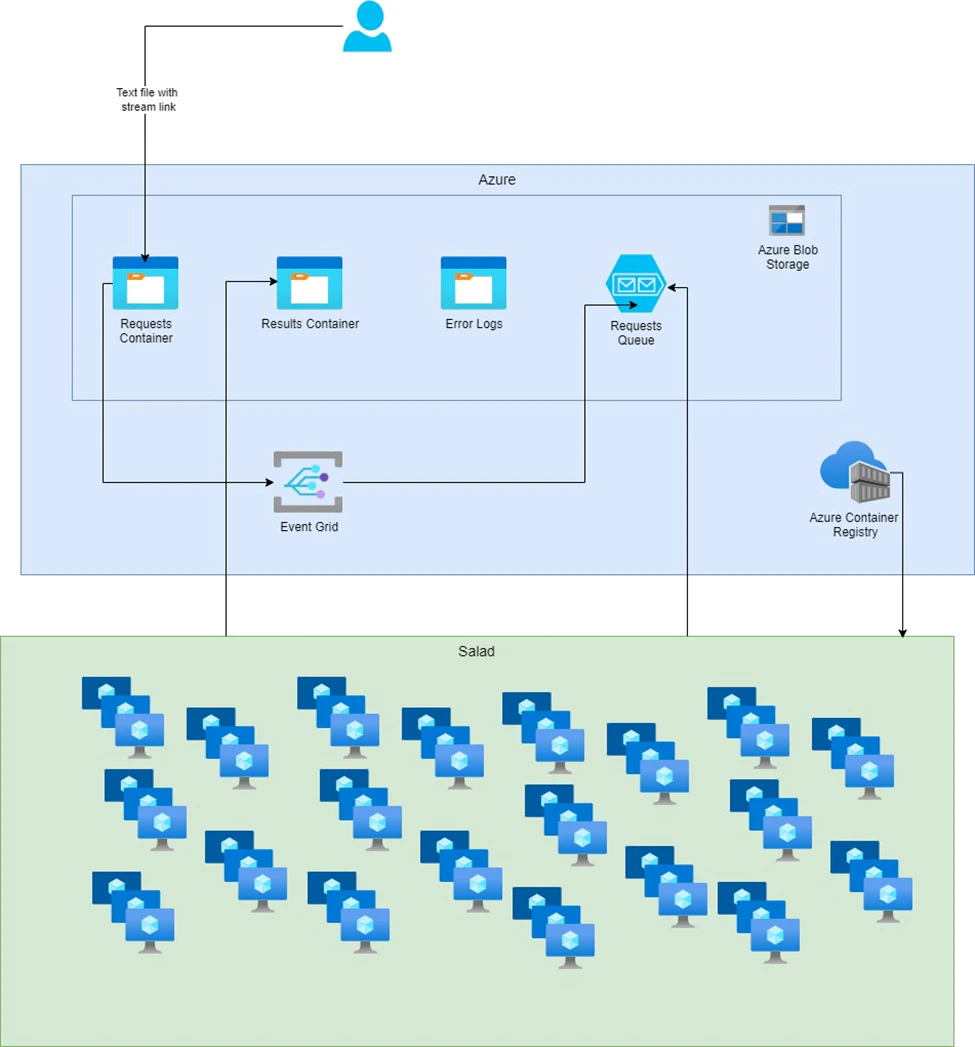
* **Objective**: Set up a batch processing system that reacts to new video stream links stored in Azure.
* **Process Flow**:
* Video stream links are saved in an Azure storage container.
* An event grid with subscriptions is configured to monitor the storage container and trigger a message in a storage
queue whenever a new file is added.
* A Python script for batch processing is containerized and deployed across multiple SaladCloud compute nodes.
* This batch process routinely checks the storage queue. When a new message appears, it picks up the corresponding
stream for processing.
### Solution 2: Batch Processing for Asynchronous Workloads
* **Objective**: Set up a batch processing system that reacts to new video stream links stored in Azure.
* **Process Flow**:
* Video stream links are saved in an Azure storage container.
* An event grid with subscriptions is configured to monitor the storage container and trigger a message in a storage
queue whenever a new file is added.
* A Python script for batch processing is containerized and deployed across multiple SaladCloud compute nodes.
* This batch process routinely checks the storage queue. When a new message appears, it picks up the corresponding
stream for processing.
 ## Folder Structure
Our full solution is stored here: [git repo](https://github.com/SaladTechnologies/yolov8-on-salad)
Here is the folder structure we will have once the project is done:
```java theme={null}
yolo8-video-stream/
├─ src/
│ ├─ infrastructure/
│ │ ├─ main.bicep (azure resources deployment for batch)
│ ├─ python/
│ │ ├─ api (architecture 1)/
│ │ │ ├─ inference/
│ │ │ │ ├─ dev/
│ │ │ │ │ ├─ setup
│ │ │ │ ├─ fast.py (single link)
│ │ │ │ ├─ fast_multi.py (multi-threading)
│ │ │ ├─ docker.sh/
│ │ │ ├─ Dockerfile
│ │ ├─ batch (architecture 2)/
│ │ │ ├─ inference/
│ │ │ │ ├─ dev/
│ │ │ │ │ ├─ setup
│ │ │ │ ├─ batch.py (Batch processsing script)
│ │ │ ├─ docker.sh
│ │ │ ├─ Dockerfile
```
## Local Environment Testing
Before we deploy these solutions on SaladCloud's infrastructure, it's crucial to evaluate YOLOv8's capabilities in a
local setting. This allows us to troubleshoot any issues and make any make our solution meet our needs.
### Local Development Setup: Installing Necessary Libraries
Setting up an efficient local development environment is essential for a smooth workflow. I ensure this by preparing
[setup](https://github.com/SaladTechnologies/yolov8-on-salad/blob/main/src/python/api/inference/dev/setup) and
[requirements](https://github.com/SaladTechnologies/yolov8-on-salad/blob/main/src/python/api/inference/requirements.txt)
files to facilitate the installation of all dependencies. These files help verify that the dependencies function
correctly during the development phase. I am providing the complete contents of the requirements file and the setup
script above. During my work on the project, I encountered a couple of issues with the libraries, which I will briefly
mention without going too deeply into them.
#### Encountered Issues and Their Workarounds:
**Issue 1: Processing YouTube Videos and Live Streams** The library 'pafy' is commonly used to process YouTube video
URLs and is dependent on 'youtube-dl', which hasn't been updated recently. YouTube's API change, specifically the
removal of the dislike count, has led to 'youtube-dl' encountering errors regarding the 'dislike\_count not found'. To
circumvent this, I've switched to using the 'cap\_from\_youtube' library, which is a simplified alternative to 'pafy'. It
simply retrieves the video URL and creates an OpenCV video capture object.
**Issue 2: Module Not Found Error in Virtual Environment** Utilizing Yolo tracking within a Python virtual environment
was throwing a "ModuleNotFoundError: No module named 'lap'". Attempting to resolve this issue led me down a rabbit hole
of dependency ordering, specifically the need to install 'numpy' before 'lap'. The only effective solution was to
downgrade 'pip', install 'lap', upgrade 'pip' again, and then proceed with installing the remaining requirements. This
installation sequence has been replicated in the
[Dockerfile](https://github.com/mgorkii-nlplogix/yolo8-video-stream/blob/main/src/python/api/Dockerfile) as well.
The Setup Script:
```python Python theme={null}
#! /bin/bash
set -e
echo "setup the current environment"
CURRENT_DIRECTORY="$( dirname "${BASH_SOURCE[0]}" )"
cd "${CURRENT_DIRECTORY}"
echo "current directory: $( pwd )"
echo "setup development environment for inference"
YOLOv8_SRC_API_DIR="$( cd .. && pwd )"
echo "dev directory set to: ${YOLOv8_SRC_API_DIR}"
echo "remove old virtual environment"
rm -rf "${YOLOv8_SRC_API_DIR}/.venv"
echo "create new virtual environment"
python3.9 -m venv "${YOLOv8_SRC_API_DIR}/.venv"
echo "activate virtual environment"
source "${YOLOv8_SRC_API_DIR}/.venv/bin/activate"
echo "installing dependencies ..."
(cd "${YOLOv8_SRC_API_DIR}" && \
python -m pip install pip==21.1.1 && \
pip install numpy && \
pip install --upgrade --force-reinstall "git+https://github.com/ytdl-org/youtube-dl.git" && \
pip install lap==0.4.0 && \
pip install --upgrade pip && \
pip install -r requirements.txt)
```
To establish a clean virtual environment and install all the necessary libraries, you simply needs to execute the script
using the command:
```java Bash theme={null}
bash dev/setup
```
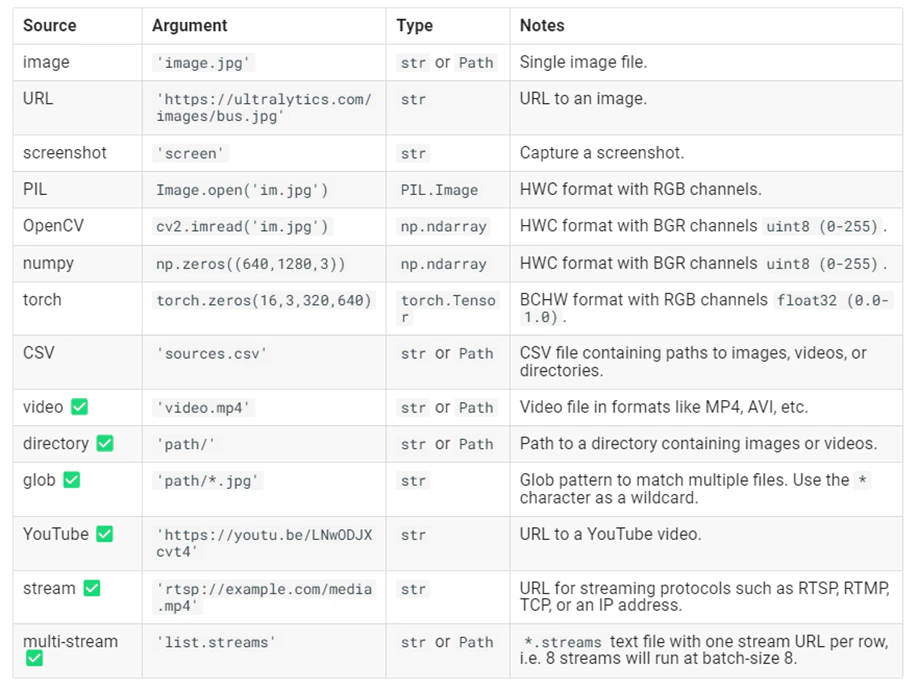
## Exploring YOLOv8's Capabilities and Data Compatibility
As we delve into the practicalities of implementing YOLOv8 for object detection, a fundamental step is to understand the
range of its capabilities and the types of data it can process effectively. This knowledge will shape our approach to
solving the problem at hand. Here is a list of possible inputs:
## Folder Structure
Our full solution is stored here: [git repo](https://github.com/SaladTechnologies/yolov8-on-salad)
Here is the folder structure we will have once the project is done:
```java theme={null}
yolo8-video-stream/
├─ src/
│ ├─ infrastructure/
│ │ ├─ main.bicep (azure resources deployment for batch)
│ ├─ python/
│ │ ├─ api (architecture 1)/
│ │ │ ├─ inference/
│ │ │ │ ├─ dev/
│ │ │ │ │ ├─ setup
│ │ │ │ ├─ fast.py (single link)
│ │ │ │ ├─ fast_multi.py (multi-threading)
│ │ │ ├─ docker.sh/
│ │ │ ├─ Dockerfile
│ │ ├─ batch (architecture 2)/
│ │ │ ├─ inference/
│ │ │ │ ├─ dev/
│ │ │ │ │ ├─ setup
│ │ │ │ ├─ batch.py (Batch processsing script)
│ │ │ ├─ docker.sh
│ │ │ ├─ Dockerfile
```
## Local Environment Testing
Before we deploy these solutions on SaladCloud's infrastructure, it's crucial to evaluate YOLOv8's capabilities in a
local setting. This allows us to troubleshoot any issues and make any make our solution meet our needs.
### Local Development Setup: Installing Necessary Libraries
Setting up an efficient local development environment is essential for a smooth workflow. I ensure this by preparing
[setup](https://github.com/SaladTechnologies/yolov8-on-salad/blob/main/src/python/api/inference/dev/setup) and
[requirements](https://github.com/SaladTechnologies/yolov8-on-salad/blob/main/src/python/api/inference/requirements.txt)
files to facilitate the installation of all dependencies. These files help verify that the dependencies function
correctly during the development phase. I am providing the complete contents of the requirements file and the setup
script above. During my work on the project, I encountered a couple of issues with the libraries, which I will briefly
mention without going too deeply into them.
#### Encountered Issues and Their Workarounds:
**Issue 1: Processing YouTube Videos and Live Streams** The library 'pafy' is commonly used to process YouTube video
URLs and is dependent on 'youtube-dl', which hasn't been updated recently. YouTube's API change, specifically the
removal of the dislike count, has led to 'youtube-dl' encountering errors regarding the 'dislike\_count not found'. To
circumvent this, I've switched to using the 'cap\_from\_youtube' library, which is a simplified alternative to 'pafy'. It
simply retrieves the video URL and creates an OpenCV video capture object.
**Issue 2: Module Not Found Error in Virtual Environment** Utilizing Yolo tracking within a Python virtual environment
was throwing a "ModuleNotFoundError: No module named 'lap'". Attempting to resolve this issue led me down a rabbit hole
of dependency ordering, specifically the need to install 'numpy' before 'lap'. The only effective solution was to
downgrade 'pip', install 'lap', upgrade 'pip' again, and then proceed with installing the remaining requirements. This
installation sequence has been replicated in the
[Dockerfile](https://github.com/mgorkii-nlplogix/yolo8-video-stream/blob/main/src/python/api/Dockerfile) as well.
The Setup Script:
```python Python theme={null}
#! /bin/bash
set -e
echo "setup the current environment"
CURRENT_DIRECTORY="$( dirname "${BASH_SOURCE[0]}" )"
cd "${CURRENT_DIRECTORY}"
echo "current directory: $( pwd )"
echo "setup development environment for inference"
YOLOv8_SRC_API_DIR="$( cd .. && pwd )"
echo "dev directory set to: ${YOLOv8_SRC_API_DIR}"
echo "remove old virtual environment"
rm -rf "${YOLOv8_SRC_API_DIR}/.venv"
echo "create new virtual environment"
python3.9 -m venv "${YOLOv8_SRC_API_DIR}/.venv"
echo "activate virtual environment"
source "${YOLOv8_SRC_API_DIR}/.venv/bin/activate"
echo "installing dependencies ..."
(cd "${YOLOv8_SRC_API_DIR}" && \
python -m pip install pip==21.1.1 && \
pip install numpy && \
pip install --upgrade --force-reinstall "git+https://github.com/ytdl-org/youtube-dl.git" && \
pip install lap==0.4.0 && \
pip install --upgrade pip && \
pip install -r requirements.txt)
```
To establish a clean virtual environment and install all the necessary libraries, you simply needs to execute the script
using the command:
```java Bash theme={null}
bash dev/setup
```
## Exploring YOLOv8's Capabilities and Data Compatibility
As we delve into the practicalities of implementing YOLOv8 for object detection, a fundamental step is to understand the
range of its capabilities and the types of data it can process effectively. This knowledge will shape our approach to
solving the problem at hand. Here is a list of possible inputs:
 Our project's scope now narrows to the realm of video processing, with a particular focus on YouTube videos and live
stream data. YOLOv8's versatility in handling video data makes it an ideal candidate for real-time object detection in
these mediums.
## Video processing
We'll begin by experimenting with an example straight from the
[Ultralytics documentation](https://docs.ultralytics.com/modes/predict/#inference-sources), which illustrates how to
apply the basic object detection model provided by YOLO on video sources. This example uses the 'yolov8n' model, which
is the YOLOv8 Nano model known for its speed and efficiency.
Here's the starting code snippet provided by Ultralytics for running inference on a video:
```python theme={null}
from ultralytics import YOLO
# Load a pretrained YOLOv8n model
model = YOLO('yolov8n.pt')
# Define source as YouTube video URL
source = 'https://youtu.be/LNwODJXcvt4 '
# Run inference on the source
results = model(source)
```
To better understand the real-time processing capabilities of YOLOv8, we will integrate it with OpenCV (cv2), a powerful
library for computer vision tasks. This setup will allow us to visualize object detection as it happens. Before running
the script, ensure that you have installed the necessary packages, **opencv-python**, **ultralytics**, and
**cap\_from\_youtube**, the last of which addresses OpenCV's current limitations with YouTube video streams.
```python theme={null}
from ultralytics import YOLO
import cv2
from cap_from_youtube import cap_from_youtube
# Load the YOLOv8 model
model = YOLO("yolov8n.pt")
# Open youtube video
link = "https://www.youtube.com/watch?v=yHP-zGsoqRA "
cap = cap_from_youtube(link, "720p")
# Loop through the video frames
while cap.isOpened():
# Read a frame from the video
success, frame = cap.read()
if success:
# Run YOLOv8 inference on the frame
results = model(frame)
# Visualize the results on the frame
annotated_frame = results[0].plot()
# Display the annotated frame
cv2.imshow("YOLOv8 Inference", annotated_frame)
# Break the loop if 'q' is pressed
if cv2.waitKey(1) & 0xFF == ord("q"):
break
else:
# Break the loop if the end of the video is reached
break
# Release the video capture object and close the display window
cap.release()
cv2.destroyAllWindows()
```
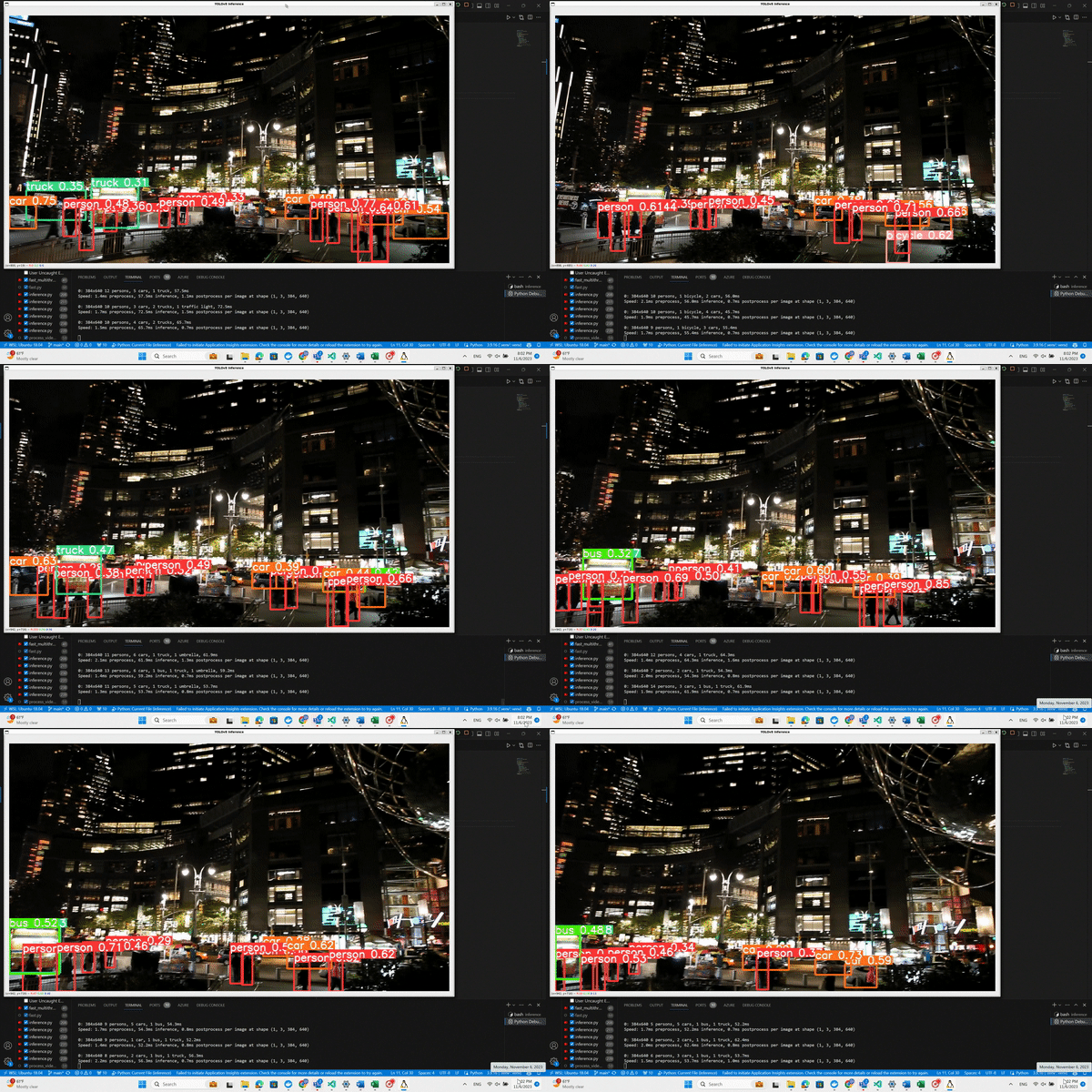
With this script, as YOLO processes the video frames and identifies objects, bounding boxes will be drawn around them.
You'll see a display window pop up showing the video feed with the detections overlaid. Pay attention to the output
displayed at the bottom of the screen for additional insights. Let's run our code and see what happens.
And here is the magic!
Our project's scope now narrows to the realm of video processing, with a particular focus on YouTube videos and live
stream data. YOLOv8's versatility in handling video data makes it an ideal candidate for real-time object detection in
these mediums.
## Video processing
We'll begin by experimenting with an example straight from the
[Ultralytics documentation](https://docs.ultralytics.com/modes/predict/#inference-sources), which illustrates how to
apply the basic object detection model provided by YOLO on video sources. This example uses the 'yolov8n' model, which
is the YOLOv8 Nano model known for its speed and efficiency.
Here's the starting code snippet provided by Ultralytics for running inference on a video:
```python theme={null}
from ultralytics import YOLO
# Load a pretrained YOLOv8n model
model = YOLO('yolov8n.pt')
# Define source as YouTube video URL
source = 'https://youtu.be/LNwODJXcvt4 '
# Run inference on the source
results = model(source)
```
To better understand the real-time processing capabilities of YOLOv8, we will integrate it with OpenCV (cv2), a powerful
library for computer vision tasks. This setup will allow us to visualize object detection as it happens. Before running
the script, ensure that you have installed the necessary packages, **opencv-python**, **ultralytics**, and
**cap\_from\_youtube**, the last of which addresses OpenCV's current limitations with YouTube video streams.
```python theme={null}
from ultralytics import YOLO
import cv2
from cap_from_youtube import cap_from_youtube
# Load the YOLOv8 model
model = YOLO("yolov8n.pt")
# Open youtube video
link = "https://www.youtube.com/watch?v=yHP-zGsoqRA "
cap = cap_from_youtube(link, "720p")
# Loop through the video frames
while cap.isOpened():
# Read a frame from the video
success, frame = cap.read()
if success:
# Run YOLOv8 inference on the frame
results = model(frame)
# Visualize the results on the frame
annotated_frame = results[0].plot()
# Display the annotated frame
cv2.imshow("YOLOv8 Inference", annotated_frame)
# Break the loop if 'q' is pressed
if cv2.waitKey(1) & 0xFF == ord("q"):
break
else:
# Break the loop if the end of the video is reached
break
# Release the video capture object and close the display window
cap.release()
cv2.destroyAllWindows()
```
With this script, as YOLO processes the video frames and identifies objects, bounding boxes will be drawn around them.
You'll see a display window pop up showing the video feed with the detections overlaid. Pay attention to the output
displayed at the bottom of the screen for additional insights. Let's run our code and see what happens.
And here is the magic!
 ## Processing Live Video Stream from Youtube
Now we move on to the task of processing live video streams. While **cap\_from\_youtube** works well for YouTube videos by
loading them into memory, live streams require a different approach due to their continuous and unbounded nature.
Pafy is a Python library that interfaces with YouTube content, providing various streams and metadata around YouTube
videos and playlists. To make it work in the virtual environment we had to solve a few libraries issues we discussed
earlier. To make the process easier for you run the dev/setup file we also mentioned earlier. For live video streams,
Pafy allows us to access the stream URL, which we can then pass to OpenCV for real-time processing. Here's how we can
use Pafy to open a live YouTube stream:
```python theme={null}
import pafy
# Open youtube video with a live stream
link = "https://www.youtube.com/watch?v=GSmCh4DrbWY "
video = pafy.new(link)
best = video.getbest(preftype="mp4")
cap = cv2.VideoCapture(best.url)
```
## Processing Live Video Stream (RTSP, RTMP, TCP, IP address)
Ultralytics gives us an example of running inference on remote streaming sources using RTSP, RTMP, TCP and IP address
protocols. If multiple streams are provided in a `*.streams` text file then batched inference will run, i.e. 8 streams
will run at batch-size 8, otherwise single streams will run at batch-size 1. We will include it in our code as well.
Based on specific link parameters our process will pick which way to process the link. You can check that in the full
script
```python theme={null}
from ultralytics import YOLO
# Load a pretrained YOLOv8n model
model = YOLO('yolov8n.pt')
# Single stream with batch-size 1 inference
source = 'rtsp://example.com/media.mp4' # RTSP, RTMP, TCP or IP streaming address
# Multiple streams with batched inference (i.e. batch-size 8 for 8 streams)
source = 'path/to/list.streams' # *.streams text file with one streaming address per row
# Run inference on the source
results = model(source, stream=True) # generator of Results objects
```
## Implementing Object Tracking
Having established the method to process live streams, the next crucial feature of our project is to track the
identified objects. YOLOv8 comes equipped with a built-in tracking system that assigns unique IDs to each detected
object, enabling us to follow their movement across frames. There is a way to pick between 2 tracking models, but for
now we will just use the default one.
**Enabling Tracking with YOLOv8:**
To utilize the tracking functionality, we simply need to modify our inference call. By adding **.track** to our model
call and setting **persist=True**, we instruct the model to maintain object identities consistently over time. This
addition to the code will look like this:
```python theme={null}
results = model.track(frame, persist=True)
```
Let's try it:
## Processing Live Video Stream from Youtube
Now we move on to the task of processing live video streams. While **cap\_from\_youtube** works well for YouTube videos by
loading them into memory, live streams require a different approach due to their continuous and unbounded nature.
Pafy is a Python library that interfaces with YouTube content, providing various streams and metadata around YouTube
videos and playlists. To make it work in the virtual environment we had to solve a few libraries issues we discussed
earlier. To make the process easier for you run the dev/setup file we also mentioned earlier. For live video streams,
Pafy allows us to access the stream URL, which we can then pass to OpenCV for real-time processing. Here's how we can
use Pafy to open a live YouTube stream:
```python theme={null}
import pafy
# Open youtube video with a live stream
link = "https://www.youtube.com/watch?v=GSmCh4DrbWY "
video = pafy.new(link)
best = video.getbest(preftype="mp4")
cap = cv2.VideoCapture(best.url)
```
## Processing Live Video Stream (RTSP, RTMP, TCP, IP address)
Ultralytics gives us an example of running inference on remote streaming sources using RTSP, RTMP, TCP and IP address
protocols. If multiple streams are provided in a `*.streams` text file then batched inference will run, i.e. 8 streams
will run at batch-size 8, otherwise single streams will run at batch-size 1. We will include it in our code as well.
Based on specific link parameters our process will pick which way to process the link. You can check that in the full
script
```python theme={null}
from ultralytics import YOLO
# Load a pretrained YOLOv8n model
model = YOLO('yolov8n.pt')
# Single stream with batch-size 1 inference
source = 'rtsp://example.com/media.mp4' # RTSP, RTMP, TCP or IP streaming address
# Multiple streams with batched inference (i.e. batch-size 8 for 8 streams)
source = 'path/to/list.streams' # *.streams text file with one streaming address per row
# Run inference on the source
results = model(source, stream=True) # generator of Results objects
```
## Implementing Object Tracking
Having established the method to process live streams, the next crucial feature of our project is to track the
identified objects. YOLOv8 comes equipped with a built-in tracking system that assigns unique IDs to each detected
object, enabling us to follow their movement across frames. There is a way to pick between 2 tracking models, but for
now we will just use the default one.
**Enabling Tracking with YOLOv8:**
To utilize the tracking functionality, we simply need to modify our inference call. By adding **.track** to our model
call and setting **persist=True**, we instruct the model to maintain object identities consistently over time. This
addition to the code will look like this:
```python theme={null}
results = model.track(frame, persist=True)
```
Let's try it:
 That is great, but our main goal is to get a summary of how long an object was present on the video. I will now remove
the appearing window with the bounding boxes and we will pay more attention to the data. For this part of the project I
am using Jupyter in vscode and pandas. Let's check what results object is:
That is great, but our main goal is to get a summary of how long an object was present on the video. I will now remove
the appearing window with the bounding boxes and we will pay more attention to the data. For this part of the project I
am using Jupyter in vscode and pandas. Let's check what results object is:
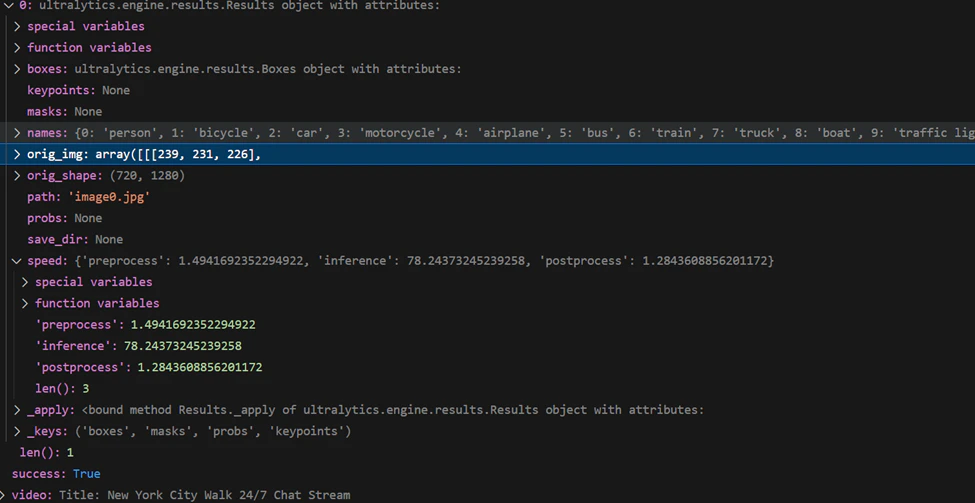 We can see that results object has some metadata and all the detections. Let's only keep the detections and convert them
to a more readable format:
```python theme={null}
json.loads(results[0].tojson())
```
We can see that results object has some metadata and all the detections. Let's only keep the detections and convert them
to a more readable format:
```python theme={null}
json.loads(results[0].tojson())
```
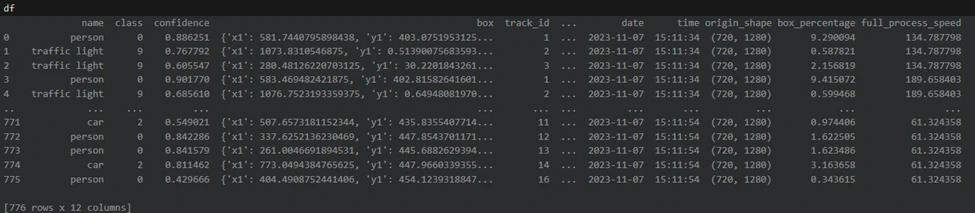
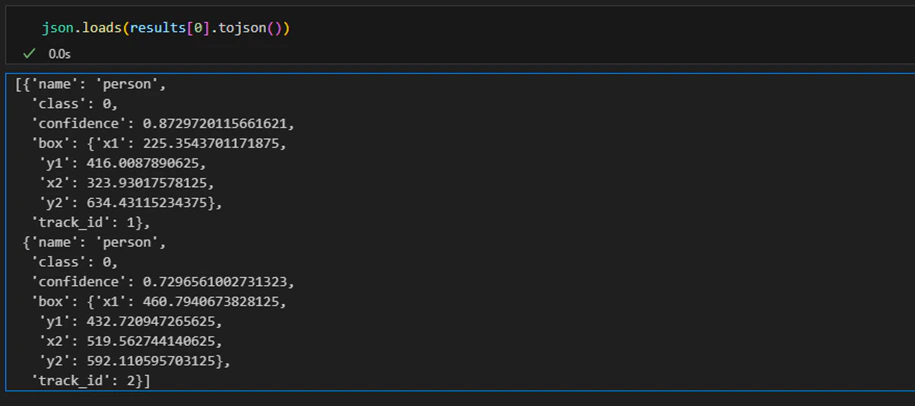 To get a detailed summary of object detections, we'll collate all the individual detection data into a pandas DataFrame.
We will not only include the basic detection details provided by YOLOv8, such as bounding box coordinates, class ID,
class name, and tracking ID, but also additional contextual information for a richer analysis.
**Calculating Additional Metrics:**
We defined a function to calculate the percentage of the frame that each detection occupies. Alongside this, we'll
record the video link, frame timestamp, original frame shape, and the processing speed for each frame.
Here's how we'll assemble our results into a DataFrame and enrich it with the additional data:
```python theme={null}
import datetime
import json
import pandas as pd
def calculate_percentage(bbox, original_shape):
bbox_area = (bbox['x2'] - bbox['x1']) * (bbox['y2'] - bbox['y1'])
original_shape_area = original_shape[0] * original_shape[1]
percentage = (bbox_area / original_shape_area) * 100
return percentage
# we will store all the results as a list of dictionaries
all_results = []
# Loop through the video frames
while cap.isOpened():
# Read a frame from the video
success, frame = cap.read()
if success:
# Run YOLOv8 inference on the frame
results = model.track(frame, persist=True)
timestamp = datetime.datetime.now()
# save every box with label
for box in json.loads(results[0].tojson()):
box["input"] = link
box["timestamp"] = timestamp
box["date"] = timestamp.strftime("%Y-%m-%d")
box["time"] = timestamp.time().strftime("%H:%M:%S")
box["origin_shape"] = results[0].orig_shape
box["box_percentage"] = calculate_percentage(box["box"], results[0].orig_shape)
box["full_process_speed"] = sum(results[0].speed.values())
all_results.append(box)
# Break the loop if 'q' is pressed
if cv2.waitKey(1) & 0xFF == ord("q"):
df = pd.DataFrame(all_results)
break
```
After the loop is interrupted (by pressing 'q'), we convert the list of dictionaries into a pandas DataFrame. This
DataFrame will then contain a complete log of every detection across the video's frames, enriched with the additional
data points we've calculated.
Let's see what we've got.
To get a detailed summary of object detections, we'll collate all the individual detection data into a pandas DataFrame.
We will not only include the basic detection details provided by YOLOv8, such as bounding box coordinates, class ID,
class name, and tracking ID, but also additional contextual information for a richer analysis.
**Calculating Additional Metrics:**
We defined a function to calculate the percentage of the frame that each detection occupies. Alongside this, we'll
record the video link, frame timestamp, original frame shape, and the processing speed for each frame.
Here's how we'll assemble our results into a DataFrame and enrich it with the additional data:
```python theme={null}
import datetime
import json
import pandas as pd
def calculate_percentage(bbox, original_shape):
bbox_area = (bbox['x2'] - bbox['x1']) * (bbox['y2'] - bbox['y1'])
original_shape_area = original_shape[0] * original_shape[1]
percentage = (bbox_area / original_shape_area) * 100
return percentage
# we will store all the results as a list of dictionaries
all_results = []
# Loop through the video frames
while cap.isOpened():
# Read a frame from the video
success, frame = cap.read()
if success:
# Run YOLOv8 inference on the frame
results = model.track(frame, persist=True)
timestamp = datetime.datetime.now()
# save every box with label
for box in json.loads(results[0].tojson()):
box["input"] = link
box["timestamp"] = timestamp
box["date"] = timestamp.strftime("%Y-%m-%d")
box["time"] = timestamp.time().strftime("%H:%M:%S")
box["origin_shape"] = results[0].orig_shape
box["box_percentage"] = calculate_percentage(box["box"], results[0].orig_shape)
box["full_process_speed"] = sum(results[0].speed.values())
all_results.append(box)
# Break the loop if 'q' is pressed
if cv2.waitKey(1) & 0xFF == ord("q"):
df = pd.DataFrame(all_results)
break
```
After the loop is interrupted (by pressing 'q'), we convert the list of dictionaries into a pandas DataFrame. This
DataFrame will then contain a complete log of every detection across the video's frames, enriched with the additional
data points we've calculated.
Let's see what we've got.
 ## Readable summary
With the DataFrame populated with tracking and detection data, we're now ready to create a summary that achieves our
main goal: calculating the duration each object was present in the video. We'll start by filtering out any irrelevant
data and then proceed to group the valid detections to summarize our findings.
**Filter data**
We need to ensure that we only include rows with valid tracking IDs. This means filtering out any detections that do not
have a tracking ID or where the tracking ID is 0, which may indicate an invalid detection or an object that wasn't
tracked consistently.
**Grouping Detections for Summary:**
With a DataFrame of filtered results, we'll group the data by tracking ID to find the earliest and latest timestamps for
each object. Our object will get a new tracking ID if it leaves and re-enters the video. If in your project you need to
track a specific label, you will need to add additional logic of grouping by class and summing the durations.
We'll also determine the most commonly assigned class for each object, in case there are discrepancies in classification
across frames, and calculate the average size of the object within the frame.
The **summary** function will perform these operations and output a readable string
```python theme={null}
def summary(df, filename, result_blob):
if (
"track_id" in df.columns
and df["track_id"].notna().any()
and df["track_id"].ne(0).any()
):
df_filtered = df[(df["track_id"] != 0) & (df["track_id"].notna())].copy()
# Group by 'track_id' and calculate duration, most frequent class and
# corresponding name for each group
# Group by track_id and calculate average box_percentage, min and max timestamp
summary_df = (
df_filtered.groupby("track_id")
.agg(
average_box_percentage=("box_percentage", "mean"),
min_timestamp=("timestamp", "min"),
max_timestamp=("timestamp", "max"),
most_common_class=(
"name",
lambda x: x.value_counts().index[0],
), # Most common class per track_id
)
.reset_index()
)
# Calculate duration
summary_df["duration"] = (
summary_df["max_timestamp"] - summary_df["min_timestamp"]
)
# Convert the DataFrame to a string
output_string = "\n".join(
f"{row['most_common_class']} with id {row['track_id']} was present in the video for {row['duration']} from {row['min_timestamp']} to {row['max_timestamp']} and was taking {row['average_box_percentage']:.2f}% of the screen"
for _, row in summary_df.iterrows()
)
else:
output_string = "No objects were detected in the video"
```
**Results:**
Executing the function will produce output like the following:
person with id 1.0 was present in the video for 0 days 00:01:34.273634 from 2023-11-08 03:24:55.866030 to 2023-11-08
03:26:30.139664 and was taking 8.28% of the screen person with id 2.0 was present in the video for 0 days
00:00:52.874862 from 2023-11-08 03:24:55.866030 to 2023-11-08 03:25:48.740892 and was taking 3.87% of the screen person
with id 3.0 was present in the video for 0 days 00:01:02.194742 from 2023-11-08 03:24:55.866030 to 2023-11-08
03:25:58.060772 and was taking 6.97% of the screen person with id 4.0 was present in the video for 0 days
00:00:13.343196 from 2023-11-08 03:24:55.866030 to 2023-11-08 03:25:09.209226 and was taking 1.07% of the screen person
with id 5.0 was present in the video for 0 days 00:00:12.491371 from 2023-11-08 03:24:55.866030 to 2023-11-08
03:25:08.357401 and was taking 1.42% of the screen person with id 6.0 was present in the video for 0 days
00:00:37.937545 from 2023-11-08 03:24:55.866030 to 2023-11-08 03:25:33.803575 and was taking 1.60% of the screen person
with id 7.0 was present in the video for 0 days 00:00:12.994483 from 2023-11-08 03:24:55.866030 to 2023-11-08
03:25:08.860513 and was taking 2.12% of the screen car with id 8.0 was present in the video for 0 days 00:00:05.370814
from 2023-11-08 03:24:55.866030 to 2023-11-08 03:25:01.236844 and was taking 3.89% of the screen car with id 9.0 was
present in the video for 0 days 00:00:01.655127 from 2023-11-08 03:24:55.866030 to 2023-11-08 03:24:57.521157 and was
taking 2.39% of the screen
````
## Run process on GPU
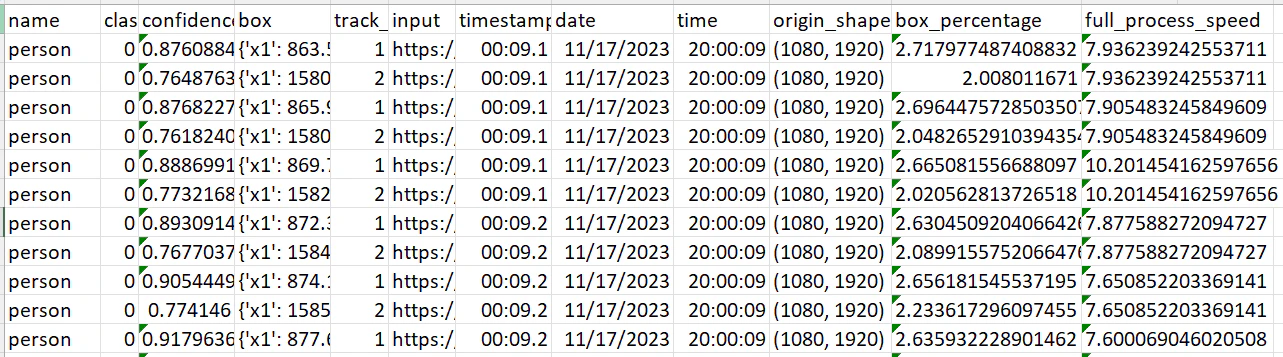
In our metadata Dataframe the last column “full_process_speed“ reflects a combination of preprocessing, inference and
post-processing time. We can see that now we have the processing speed from 60 to 400 milliseconds per frame which is
impressive, but we can do better. To unlock the full potential of our solution, we've added a simple enhancement: CUDA
device detection. With just a few lines of code, our process now intelligently determines if a CUDA-compatible GPU is
available and adjusts accordingly.:
```python
# Check for CUDA device and set it
device = "0" if torch.cuda.is_available() else "cpu"
if device == "0":
torch.cuda.set_device(0)
````
This adjustment ensures that if the system has the capability, it will leverage the GPU, thus significantly boosting the
processing speed.
The results speak for themselves. After running a live stream through our enhanced process for about 40 minutes, we
observed a dramatic improvement in processing speed. The times dropped to a stunning 5 to 15 milliseconds per frame.
This enhancement means our YOLOv8 solution is now processing frames up to 10 times faster on a GPU compared to CPU
processing.
## Readable summary
With the DataFrame populated with tracking and detection data, we're now ready to create a summary that achieves our
main goal: calculating the duration each object was present in the video. We'll start by filtering out any irrelevant
data and then proceed to group the valid detections to summarize our findings.
**Filter data**
We need to ensure that we only include rows with valid tracking IDs. This means filtering out any detections that do not
have a tracking ID or where the tracking ID is 0, which may indicate an invalid detection or an object that wasn't
tracked consistently.
**Grouping Detections for Summary:**
With a DataFrame of filtered results, we'll group the data by tracking ID to find the earliest and latest timestamps for
each object. Our object will get a new tracking ID if it leaves and re-enters the video. If in your project you need to
track a specific label, you will need to add additional logic of grouping by class and summing the durations.
We'll also determine the most commonly assigned class for each object, in case there are discrepancies in classification
across frames, and calculate the average size of the object within the frame.
The **summary** function will perform these operations and output a readable string
```python theme={null}
def summary(df, filename, result_blob):
if (
"track_id" in df.columns
and df["track_id"].notna().any()
and df["track_id"].ne(0).any()
):
df_filtered = df[(df["track_id"] != 0) & (df["track_id"].notna())].copy()
# Group by 'track_id' and calculate duration, most frequent class and
# corresponding name for each group
# Group by track_id and calculate average box_percentage, min and max timestamp
summary_df = (
df_filtered.groupby("track_id")
.agg(
average_box_percentage=("box_percentage", "mean"),
min_timestamp=("timestamp", "min"),
max_timestamp=("timestamp", "max"),
most_common_class=(
"name",
lambda x: x.value_counts().index[0],
), # Most common class per track_id
)
.reset_index()
)
# Calculate duration
summary_df["duration"] = (
summary_df["max_timestamp"] - summary_df["min_timestamp"]
)
# Convert the DataFrame to a string
output_string = "\n".join(
f"{row['most_common_class']} with id {row['track_id']} was present in the video for {row['duration']} from {row['min_timestamp']} to {row['max_timestamp']} and was taking {row['average_box_percentage']:.2f}% of the screen"
for _, row in summary_df.iterrows()
)
else:
output_string = "No objects were detected in the video"
```
**Results:**
Executing the function will produce output like the following:
person with id 1.0 was present in the video for 0 days 00:01:34.273634 from 2023-11-08 03:24:55.866030 to 2023-11-08
03:26:30.139664 and was taking 8.28% of the screen person with id 2.0 was present in the video for 0 days
00:00:52.874862 from 2023-11-08 03:24:55.866030 to 2023-11-08 03:25:48.740892 and was taking 3.87% of the screen person
with id 3.0 was present in the video for 0 days 00:01:02.194742 from 2023-11-08 03:24:55.866030 to 2023-11-08
03:25:58.060772 and was taking 6.97% of the screen person with id 4.0 was present in the video for 0 days
00:00:13.343196 from 2023-11-08 03:24:55.866030 to 2023-11-08 03:25:09.209226 and was taking 1.07% of the screen person
with id 5.0 was present in the video for 0 days 00:00:12.491371 from 2023-11-08 03:24:55.866030 to 2023-11-08
03:25:08.357401 and was taking 1.42% of the screen person with id 6.0 was present in the video for 0 days
00:00:37.937545 from 2023-11-08 03:24:55.866030 to 2023-11-08 03:25:33.803575 and was taking 1.60% of the screen person
with id 7.0 was present in the video for 0 days 00:00:12.994483 from 2023-11-08 03:24:55.866030 to 2023-11-08
03:25:08.860513 and was taking 2.12% of the screen car with id 8.0 was present in the video for 0 days 00:00:05.370814
from 2023-11-08 03:24:55.866030 to 2023-11-08 03:25:01.236844 and was taking 3.89% of the screen car with id 9.0 was
present in the video for 0 days 00:00:01.655127 from 2023-11-08 03:24:55.866030 to 2023-11-08 03:24:57.521157 and was
taking 2.39% of the screen
````
## Run process on GPU
In our metadata Dataframe the last column “full_process_speed“ reflects a combination of preprocessing, inference and
post-processing time. We can see that now we have the processing speed from 60 to 400 milliseconds per frame which is
impressive, but we can do better. To unlock the full potential of our solution, we've added a simple enhancement: CUDA
device detection. With just a few lines of code, our process now intelligently determines if a CUDA-compatible GPU is
available and adjusts accordingly.:
```python
# Check for CUDA device and set it
device = "0" if torch.cuda.is_available() else "cpu"
if device == "0":
torch.cuda.set_device(0)
````
This adjustment ensures that if the system has the capability, it will leverage the GPU, thus significantly boosting the
processing speed.
The results speak for themselves. After running a live stream through our enhanced process for about 40 minutes, we
observed a dramatic improvement in processing speed. The times dropped to a stunning 5 to 15 milliseconds per frame.
This enhancement means our YOLOv8 solution is now processing frames up to 10 times faster on a GPU compared to CPU
processing.
 ## Storing Object Detection Results in Azure Storage
**Create Storage Account**
Storing your YOLOv8 object detection results in Azure Storage is an excellent way to manage and archive your data
efficiently. In order to be able to do that we created an account in Azure, created a subscription, resources group,
storage account and a storage container name “yolo-results“. Since we only needed a storage account for our api solution
we provisioned in through the portal. For our “batch“ process we created a bicep file that you can check
[here](https://github.com/SaladTechnologies/yolov8-on-salad/blob/main/src/infrastructure/main.bicep). You can find a
very detailed documentation on how to create a storage account from Microsoft
[here](https://learn.microsoft.com/en-us/azure/storage/common/storage-account-create?tabs=azure-portal)
Next we got our storage connection string. To do that open azure portal and navigate to your storage account. On the
left click “Access keys“. Click “show“ next to Connection string and save it somewhere. Here is a little function we put
together to connect to our storage account that uses container name and storage key as inputs:
```python theme={null}
from azure.storage.blob import ContainerClient
def azure_initiate(
result_blob: str,
storage_connection_string: str,
):
azure_client = ContainerClient.from_connection_string(
storage_connection_string, result_blob
)
return azure_client
```
**Files format and naming**
Next we need to save our and summary into a suitable format for storage, such as CSV, JSON, or plain text. We picked csv
for the DataFrame and txt for the summary. For Filename convention we use timestamp of when the process started and a
part of the incoming link. That helps us easily identify where the stream is coming from and make file name unique.
**Saving Results Incrementally:**
1. **Timed Saves**: We implement logic within the processing loop to save interim results at intervals that will be
specified in our api call. Since our stream might be infinite we need to do to be able to check the results without
breaking the connection to the stream.
2. **Final Save**: Ensure all results are saved once the process is completed:
Function to save our Dataframe:
```python theme={null}
def save_df(df, filename, result_blob):
results_csv_file_name = f"{filename}.csv"
results_blob_client = result_blob.get_blob_client(results_csv_file_name)
csv_stream = io.StringIO()
df.to_csv(csv_stream, index=False)
# Convert the CSV data to bytes
csv_bytes = csv_stream.getvalue().encode("utf-8")
results_blob_client.upload_blob(csv_bytes, overwrite=True)
```
Add this part of code to the summary function to save the summary results to azure:
```python theme={null}
results_txt_file_name = f"{filename}.txt"
results_blob_client_txt = result_blob.get_blob_client(results_txt_file_name)
results_blob_client_txt.upload_blob(output_string, overwrite=True)
```
## Create FastAPI
We have verified that our yolo model does it's job, we've put together the logic of saving our results and configured
our azure storage account. Now let's pack and deploy our solution to cloud.
Among various options, we've opted for an API-based approach and chosen Python FastAPI for several compelling reasons.
FastAPI stands out for its high performance and efficient asynchronous support, essential for handling our real-time
data processing demands. Additionally, it offers the convenience of automatic interactive documentation with a prebuilt
Swagger interface, simplifying the use and understanding of our API. We ill create 3 api endpoints:
**Start Endpoint**: An endpoint to initiate the object detection process as a background task. It accepts parameters
like **link**, **live**, **container**, **saving timer** and **storage\_key** necessary for the process.
**Stop Endpoint**: An endpoint to halt the ongoing object detection process. It sets a global flag **should\_continue**
to **False** to signal the process to stop.
**Health Check Endpoint**: A simple endpoint to check the health of the service
```python theme={null}
@app.post("/start")
def start_process(
background_tasks: BackgroundTasks,
link: str,
live: bool,
container: str,
saving_timer: int,
storage_key: str,
):
background_tasks.add_task(process, link, live, container, saving_timer, storage_key)
return {"status": "Process started"}
@app.get("/stop")
def stop_process():
global should_continue
should_continue = False
return {"status": "Process stopped"}
@app.get("/hc")
async def health_check():
return "OK"
```
We also need to change our processing logic replacing the key interruption with the stop call and adding our processing
logic to “background“. Check our full python script
[here](https://github.com/SaladTechnologies/yolov8-on-salad/blob/main/src/python/api/inference/fast.py)
**Local Testing with Uvicorn:**
Before deploying the FastAPI application, it's essential to test it locally. Uvicorn is a lightning-fast ASGI server
implementation, ideal for running our FastAPI application. Uvicorn will also be essential for running our application in
the cloud. Make sure you install uvicorn first. If you used our setup script to install all the dependencies you already
have it.
Run the following command to start Uvicorn:
```python theme={null}
uvicorn fast:app --host 0.0.0.0 --port 8000
```
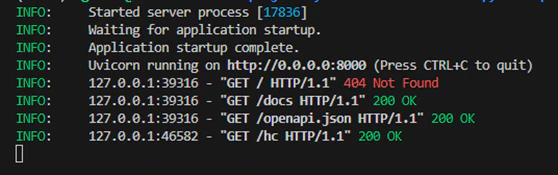
You should see something similar to that in your terminal:
## Storing Object Detection Results in Azure Storage
**Create Storage Account**
Storing your YOLOv8 object detection results in Azure Storage is an excellent way to manage and archive your data
efficiently. In order to be able to do that we created an account in Azure, created a subscription, resources group,
storage account and a storage container name “yolo-results“. Since we only needed a storage account for our api solution
we provisioned in through the portal. For our “batch“ process we created a bicep file that you can check
[here](https://github.com/SaladTechnologies/yolov8-on-salad/blob/main/src/infrastructure/main.bicep). You can find a
very detailed documentation on how to create a storage account from Microsoft
[here](https://learn.microsoft.com/en-us/azure/storage/common/storage-account-create?tabs=azure-portal)
Next we got our storage connection string. To do that open azure portal and navigate to your storage account. On the
left click “Access keys“. Click “show“ next to Connection string and save it somewhere. Here is a little function we put
together to connect to our storage account that uses container name and storage key as inputs:
```python theme={null}
from azure.storage.blob import ContainerClient
def azure_initiate(
result_blob: str,
storage_connection_string: str,
):
azure_client = ContainerClient.from_connection_string(
storage_connection_string, result_blob
)
return azure_client
```
**Files format and naming**
Next we need to save our and summary into a suitable format for storage, such as CSV, JSON, or plain text. We picked csv
for the DataFrame and txt for the summary. For Filename convention we use timestamp of when the process started and a
part of the incoming link. That helps us easily identify where the stream is coming from and make file name unique.
**Saving Results Incrementally:**
1. **Timed Saves**: We implement logic within the processing loop to save interim results at intervals that will be
specified in our api call. Since our stream might be infinite we need to do to be able to check the results without
breaking the connection to the stream.
2. **Final Save**: Ensure all results are saved once the process is completed:
Function to save our Dataframe:
```python theme={null}
def save_df(df, filename, result_blob):
results_csv_file_name = f"{filename}.csv"
results_blob_client = result_blob.get_blob_client(results_csv_file_name)
csv_stream = io.StringIO()
df.to_csv(csv_stream, index=False)
# Convert the CSV data to bytes
csv_bytes = csv_stream.getvalue().encode("utf-8")
results_blob_client.upload_blob(csv_bytes, overwrite=True)
```
Add this part of code to the summary function to save the summary results to azure:
```python theme={null}
results_txt_file_name = f"{filename}.txt"
results_blob_client_txt = result_blob.get_blob_client(results_txt_file_name)
results_blob_client_txt.upload_blob(output_string, overwrite=True)
```
## Create FastAPI
We have verified that our yolo model does it's job, we've put together the logic of saving our results and configured
our azure storage account. Now let's pack and deploy our solution to cloud.
Among various options, we've opted for an API-based approach and chosen Python FastAPI for several compelling reasons.
FastAPI stands out for its high performance and efficient asynchronous support, essential for handling our real-time
data processing demands. Additionally, it offers the convenience of automatic interactive documentation with a prebuilt
Swagger interface, simplifying the use and understanding of our API. We ill create 3 api endpoints:
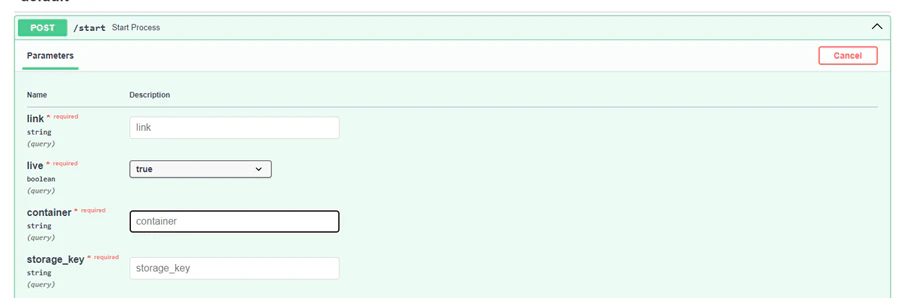
**Start Endpoint**: An endpoint to initiate the object detection process as a background task. It accepts parameters
like **link**, **live**, **container**, **saving timer** and **storage\_key** necessary for the process.
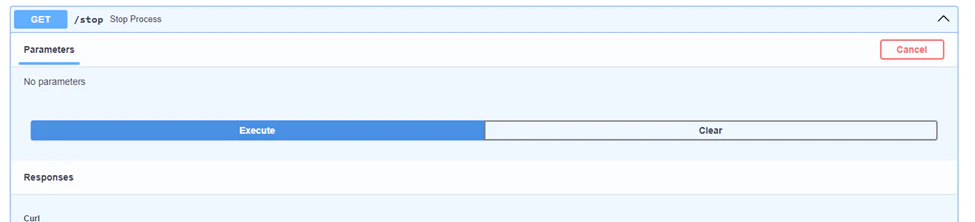
**Stop Endpoint**: An endpoint to halt the ongoing object detection process. It sets a global flag **should\_continue**
to **False** to signal the process to stop.
**Health Check Endpoint**: A simple endpoint to check the health of the service
```python theme={null}
@app.post("/start")
def start_process(
background_tasks: BackgroundTasks,
link: str,
live: bool,
container: str,
saving_timer: int,
storage_key: str,
):
background_tasks.add_task(process, link, live, container, saving_timer, storage_key)
return {"status": "Process started"}
@app.get("/stop")
def stop_process():
global should_continue
should_continue = False
return {"status": "Process stopped"}
@app.get("/hc")
async def health_check():
return "OK"
```
We also need to change our processing logic replacing the key interruption with the stop call and adding our processing
logic to “background“. Check our full python script
[here](https://github.com/SaladTechnologies/yolov8-on-salad/blob/main/src/python/api/inference/fast.py)
**Local Testing with Uvicorn:**
Before deploying the FastAPI application, it's essential to test it locally. Uvicorn is a lightning-fast ASGI server
implementation, ideal for running our FastAPI application. Uvicorn will also be essential for running our application in
the cloud. Make sure you install uvicorn first. If you used our setup script to install all the dependencies you already
have it.
Run the following command to start Uvicorn:
```python theme={null}
uvicorn fast:app --host 0.0.0.0 --port 8000
```
You should see something similar to that in your terminal:
 **Testing Your Endpoints:**
Now your FastAPI application is running locally. To test it you can use tools like **curl**, **httpie**, or test
directly from the automatically generated Swagger UI. In our case swagger will be available
[here](http://localhost:8000/docs).
Let's start with the “start“ endpoint. Fill in the required fields and execute it.
**Testing Your Endpoints:**
Now your FastAPI application is running locally. To test it you can use tools like **curl**, **httpie**, or test
directly from the automatically generated Swagger UI. In our case swagger will be available
[here](http://localhost:8000/docs).
Let's start with the “start“ endpoint. Fill in the required fields and execute it.
 To stop the process execute the stop endpoint
 In your terminal you will see that the process has stopped. Now lets check if our results saved in our azure account:
 Great. We now have our solution packed into a fast api and have our control system of starting and stopping the process
in place.
## Containerizing the FastAPI Application with Docker
Now that we have our FastAPI tested and verified, the next crucial step is to package our solution into a Docker image.
This approach is key to facilitating deployment to our cloud clusters. Containerizing with Docker not only streamlines
the deployment process but also ensures that our application runs reliably and consistently in the cloud environment,
mirroring the conditions under which it was developed and tested. With Docker, we create a portable and scalable
solution, ready to be deployed efficiently across various cloud infrastructures.
When creating the Dockerfile, it's crucial to select a base image that includes all the necessary system dependencies,
because that might cause some networking issues. We've tested our solution with “python3.9“ base image, so if possible
stick to it. If you have to use a different base image for any reason check out SaladCloud documentation on networking.
We should also keep in mind our earlier issues with the libraries. Here is the full Dockerfile we will use to build an
image:
```dockerfile theme={null}
# Use the official Python image as the base image
FROM python:3.9
# Set the working directory to /app
WORKDIR /app
# Copy the inference folder to /app/inference
COPY /inference /app/inference
# Update pip and install requirements
RUN apt-get update && apt-get install -y git gcc python3-dev build-essential libgl1-mesa-dev libglib2.0-0 libsm6 libxrender1 libxext6
# RUN apt-get install -y socat
RUN python -m pip install pip==21.1.1
RUN pip install numpy
RUN pip install --upgrade --force-reinstall "git+https://github.com/ytdl-org/youtube-dl.git"
RUN pip install lap==0.4.0
RUN pip install --upgrade pip
RUN pip install -r inference/requirements.txt
RUN pip install uvicorn
WORKDIR /app/inference
CMD ["uvicorn", "fast_multi:app", "--host", "::", "--port", "80"]
```
I've also put together a bash script to easily publish your image to azure container registry. The script is located
side by side with the Dockerfile in the git repo. You can use the following command to build and deploy your image:
```shell theme={null}
bash docker.sh
```
## Deploying the FastAPI Application to Salad
We finally got to the last and most exiting part of our project. We will now deploy our full solution to the cloud.
Deploying your containerized FastAPI application to SaladCloud's GPU Cloud can is a very efficient and cost-effective
way to run your object detection solution. SaladCloud's has a very user-friendly interface as well as an API for
deployment. Let's deploy our solution using SaladCloud portal.
First create your account and log into the [portal](https://portal.salad.com/) Create your organization and let's deploy
our container app.
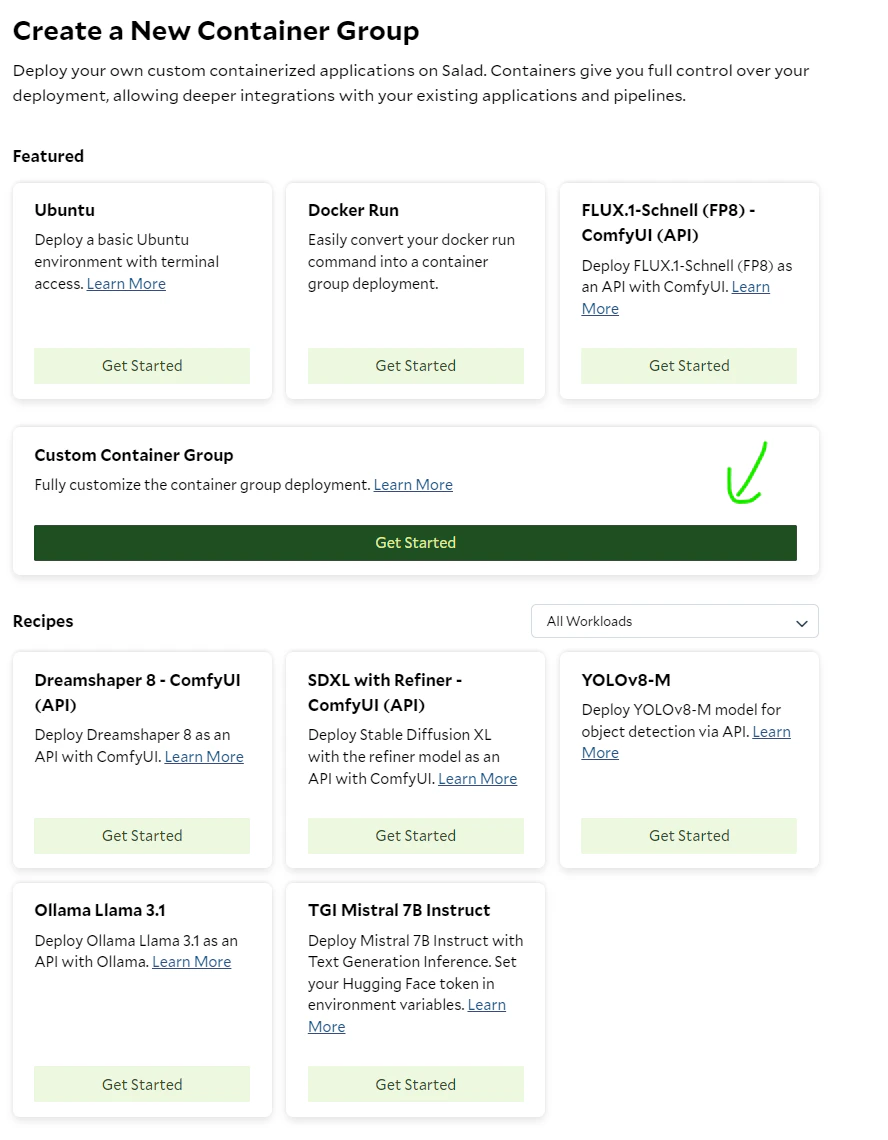
Under Custom Container Group click "Get Started":
Great. We now have our solution packed into a fast api and have our control system of starting and stopping the process
in place.
## Containerizing the FastAPI Application with Docker
Now that we have our FastAPI tested and verified, the next crucial step is to package our solution into a Docker image.
This approach is key to facilitating deployment to our cloud clusters. Containerizing with Docker not only streamlines
the deployment process but also ensures that our application runs reliably and consistently in the cloud environment,
mirroring the conditions under which it was developed and tested. With Docker, we create a portable and scalable
solution, ready to be deployed efficiently across various cloud infrastructures.
When creating the Dockerfile, it's crucial to select a base image that includes all the necessary system dependencies,
because that might cause some networking issues. We've tested our solution with “python3.9“ base image, so if possible
stick to it. If you have to use a different base image for any reason check out SaladCloud documentation on networking.
We should also keep in mind our earlier issues with the libraries. Here is the full Dockerfile we will use to build an
image:
```dockerfile theme={null}
# Use the official Python image as the base image
FROM python:3.9
# Set the working directory to /app
WORKDIR /app
# Copy the inference folder to /app/inference
COPY /inference /app/inference
# Update pip and install requirements
RUN apt-get update && apt-get install -y git gcc python3-dev build-essential libgl1-mesa-dev libglib2.0-0 libsm6 libxrender1 libxext6
# RUN apt-get install -y socat
RUN python -m pip install pip==21.1.1
RUN pip install numpy
RUN pip install --upgrade --force-reinstall "git+https://github.com/ytdl-org/youtube-dl.git"
RUN pip install lap==0.4.0
RUN pip install --upgrade pip
RUN pip install -r inference/requirements.txt
RUN pip install uvicorn
WORKDIR /app/inference
CMD ["uvicorn", "fast_multi:app", "--host", "::", "--port", "80"]
```
I've also put together a bash script to easily publish your image to azure container registry. The script is located
side by side with the Dockerfile in the git repo. You can use the following command to build and deploy your image:
```shell theme={null}
bash docker.sh
```
## Deploying the FastAPI Application to Salad
We finally got to the last and most exiting part of our project. We will now deploy our full solution to the cloud.
Deploying your containerized FastAPI application to SaladCloud's GPU Cloud can is a very efficient and cost-effective
way to run your object detection solution. SaladCloud's has a very user-friendly interface as well as an API for
deployment. Let's deploy our solution using SaladCloud portal.
First create your account and log into the [portal](https://portal.salad.com/) Create your organization and let's deploy
our container app.
Under Custom Container Group click "Get Started":
 We now need to set up all of our container group parameters:
**Configure Container Group:**
1. **Create a unique name for your Container group**
2. **Pick the Image Source:** In our case we are using a private Azure Container Registry. Click Edit next to Image
source. Now switch to “Private Registry“, under “What Service Are You Using“ pick Azure Container Registry. Now lets
get back to our azure portal and find the image name, username and password of our container registry repository.
Find your acr in azure and click “repositories“ on the left
We now need to set up all of our container group parameters:
**Configure Container Group:**
1. **Create a unique name for your Container group**
2. **Pick the Image Source:** In our case we are using a private Azure Container Registry. Click Edit next to Image
source. Now switch to “Private Registry“, under “What Service Are You Using“ pick Azure Container Registry. Now lets
get back to our azure portal and find the image name, username and password of our container registry repository.
Find your acr in azure and click “repositories“ on the left
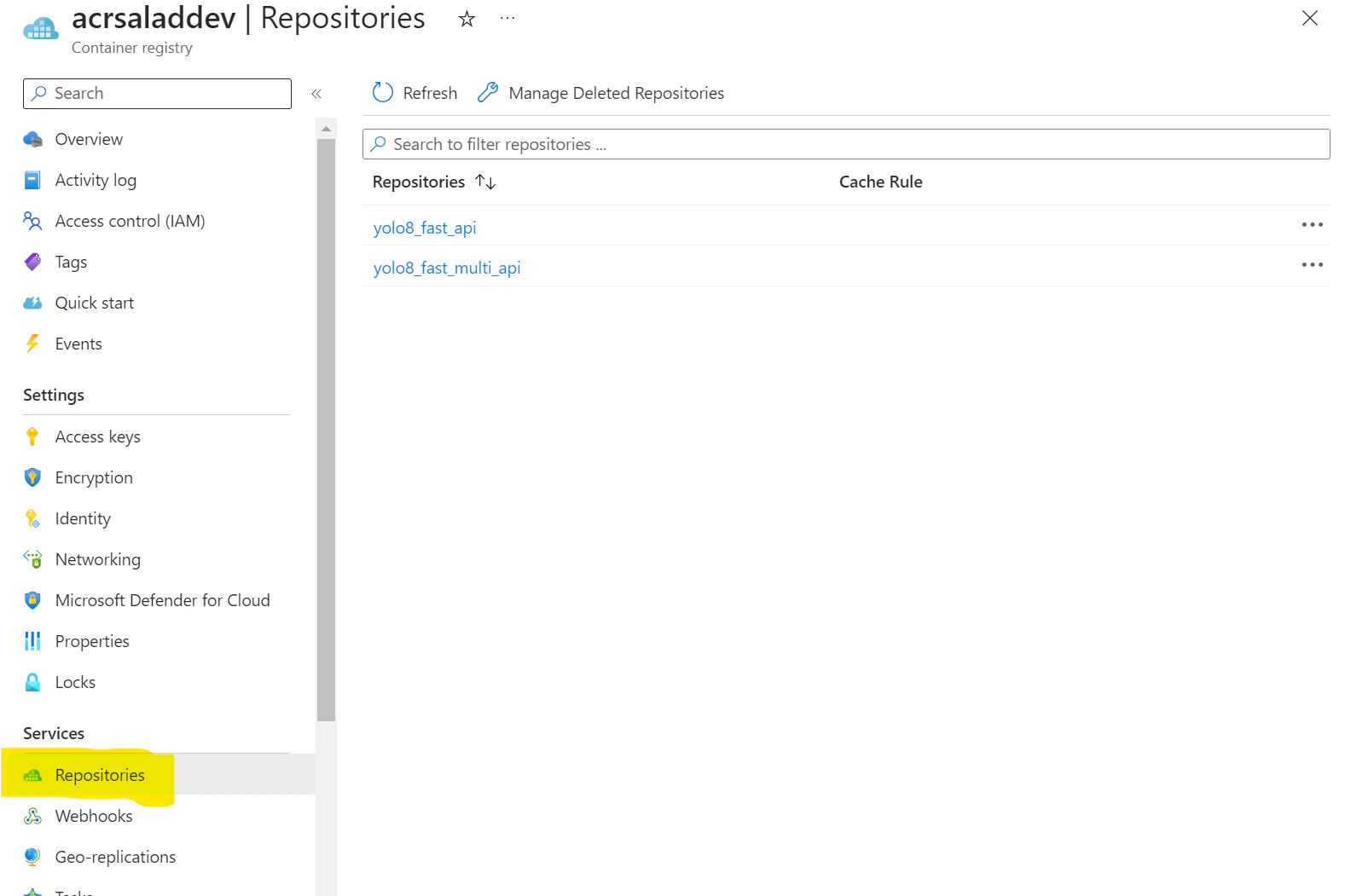 Chose the image repository and click on the version you want to pull. Now under “Manifest“ you will see a Docker pull
command in the followings format: `docker pull `:
Chose the image repository and click on the version you want to pull. Now under “Manifest“ you will see a Docker pull
command in the followings format: `docker pull `:
 Copy the “image name“ and paste back to SaladCloud portal. Now let's find acr username and password back in azure
portal. Get back to your azure container registry page and click Access keys on the left. If your “Admin user” is not
enabled, do so. Now copy the username and password and pass it back to SaladCloud portal.
3. **Replica count**: I will pick for now, since our process is kind of “synchronous“. We will use the second replica as
a backup.
4. **Pick compute resources:** That is the best part. Pick how much cpu, ram and gpu you want to allocate to your
process. The prices are very low in comparison to all the other cloud solutions, so be creative.
5. **Optional Settings**: SaladCloud gives you some pretty cool options like health check probe, external logging and
passing environment variables. For our solution the one parameter that we have to pass is **the Container Gateway.**
Click “Edit“ next to it, check “Enable Container Gateway“ and set port to 80:
Copy the “image name“ and paste back to SaladCloud portal. Now let's find acr username and password back in azure
portal. Get back to your azure container registry page and click Access keys on the left. If your “Admin user” is not
enabled, do so. Now copy the username and password and pass it back to SaladCloud portal.
3. **Replica count**: I will pick for now, since our process is kind of “synchronous“. We will use the second replica as
a backup.
4. **Pick compute resources:** That is the best part. Pick how much cpu, ram and gpu you want to allocate to your
process. The prices are very low in comparison to all the other cloud solutions, so be creative.
5. **Optional Settings**: SaladCloud gives you some pretty cool options like health check probe, external logging and
passing environment variables. For our solution the one parameter that we have to pass is **the Container Gateway.**
Click “Edit“ next to it, check “Enable Container Gateway“ and set port to 80:
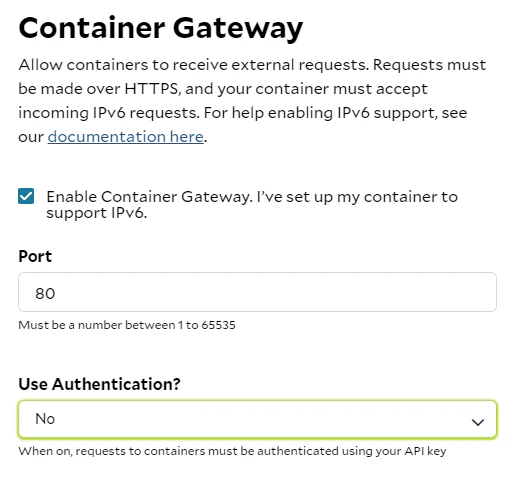 In addition you can set an extra layer of security by turning Authentication on. If you turn it on you will need to
provide your personal token together with the api call. Your token can be found [here](https://portal.salad.com/api-key)
With everything in place, deploying your FastAPI application on SaladCloud is just a few clicks away. By taking
advantage of SaladCloud's platform, you can ensure that your object detection API is running on reliable infrastructure
that can handle intensive tasks at a fraction of the cost. Now check “AutoStart container group once image is pulled“
and hit “Deploy“. We are all set let's wait till our solution deploys and test it.
## Benefits of Using Salad:
* **Cost-Effectiveness**: SaladCloud offers GPU cloud solutions at a more affordable rate than many other cloud
providers, allowing you to allocate more resources to your application for less.
* **Ease of Use**: With a focus on user experience, SaladCloud's interface is designed to be intuitive, removing the
complexity from deploying and managing cloud-based applications.
* **Documentation and Support**: SaladCloud provides detailed documentation to assist with deployment, configuration,
and troubleshooting, backed by a support team to help you when needed.
## Test Full Solution deployed to Salad
With your solution deployed on Salad, the next step is to interact with your FastAPI application using its public
endpoint. SaladCloud provides you with a deployment URL, which you can use to send requests to your API in the same way
you would locally, but now through SaladCloud's infrastructure.
In addition you can set an extra layer of security by turning Authentication on. If you turn it on you will need to
provide your personal token together with the api call. Your token can be found [here](https://portal.salad.com/api-key)
With everything in place, deploying your FastAPI application on SaladCloud is just a few clicks away. By taking
advantage of SaladCloud's platform, you can ensure that your object detection API is running on reliable infrastructure
that can handle intensive tasks at a fraction of the cost. Now check “AutoStart container group once image is pulled“
and hit “Deploy“. We are all set let's wait till our solution deploys and test it.
## Benefits of Using Salad:
* **Cost-Effectiveness**: SaladCloud offers GPU cloud solutions at a more affordable rate than many other cloud
providers, allowing you to allocate more resources to your application for less.
* **Ease of Use**: With a focus on user experience, SaladCloud's interface is designed to be intuitive, removing the
complexity from deploying and managing cloud-based applications.
* **Documentation and Support**: SaladCloud provides detailed documentation to assist with deployment, configuration,
and troubleshooting, backed by a support team to help you when needed.
## Test Full Solution deployed to Salad
With your solution deployed on Salad, the next step is to interact with your FastAPI application using its public
endpoint. SaladCloud provides you with a deployment URL, which you can use to send requests to your API in the same way
you would locally, but now through SaladCloud's infrastructure.
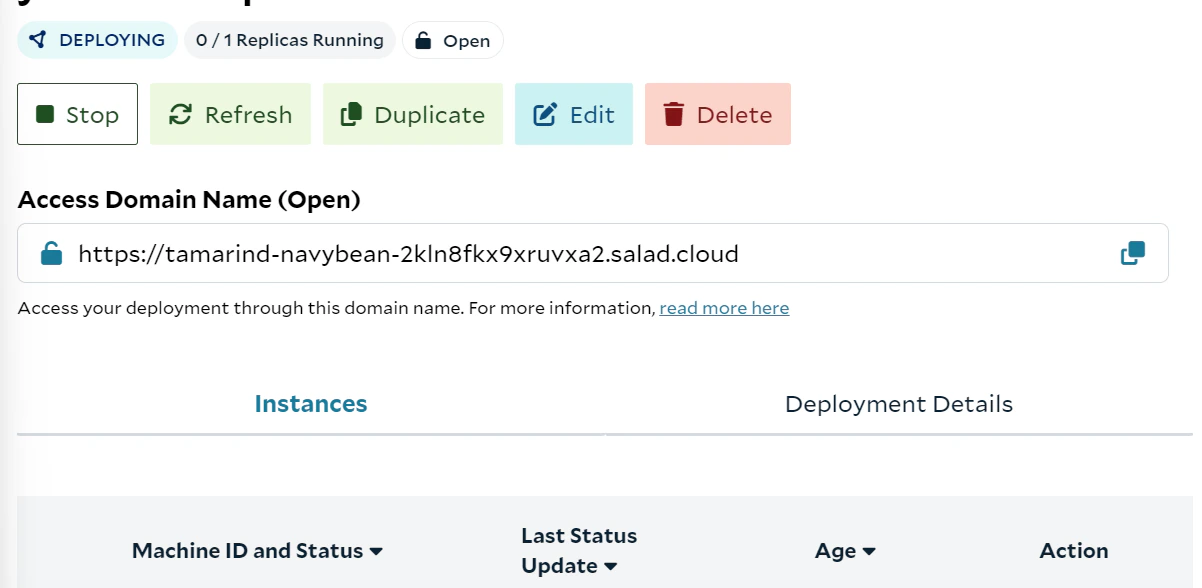 This url will be used instead of the localhost we used to send requests to while testing our FastApi locally, so if we
replace local host with the link and keep the /docs we will get to our swagger page, but now living in the cloud:
```http theme={null}
https://tamarind-navybean-2kln8fkx9xruvxa2.salad.cloud/docs
```
Now let's send a start request, wait for a few hours and then hit the stop endpoint. Now let's check if we have our
results in cloud:
This url will be used instead of the localhost we used to send requests to while testing our FastApi locally, so if we
replace local host with the link and keep the /docs we will get to our swagger page, but now living in the cloud:
```http theme={null}
https://tamarind-navybean-2kln8fkx9xruvxa2.salad.cloud/docs
```
Now let's send a start request, wait for a few hours and then hit the stop endpoint. Now let's check if we have our
results in cloud:
 And our solution is now deployed to cloud compute and successfully writes the results to our storage account.
## Price Comparison: Processing Live Streams and Videos on Azure and Salad
When it comes to deploying object detection models, especially for tasks like processing live streams and videos,
understanding the cost implications of different cloud services is crucial. Our comparison will consider three
scenarios: processing a live stream, a complete video, and multiple live streams simultaneously.
Let's start with the first use case: **live stream**
#### Context and Considerations
* **Live Stream Processing**: Live streams are unique in that they can only be processed as the data is received. Even
with the best GPUs, the processing is limited to the current feed rate.
* **Azure's Real-Time Endpoint**: We assume the use of an ML Studio real-time endpoint in Azure for a fair comparison.
This setup aligns with a synchronous process that doesn't require a full dedicated VM.
#### Azure Pricing Overview
We will now compare the compute prices in Azure and SaladCloud. Note that in Azure you can not pick ram, vCpu and GPU
memory separately. You can only pick preconfigured computes. With SaladCloud you can pick exactly what you need.
* **Lowest GPU Compute in Azure**: For our price comparison, we'll start by looking at Azure's lowest GPU compute price,
keeping in mind the closest model to our solution is YOLOv5.
#### 1. Processing a Live Stream
| Service | Configuration | Cost Per Hour | Remarks |
| --------- | ------------------------- | ------------- | ----------------------------------------- |
| **Azure** | 4 core, 16GB RAM (No GPU) | \$0.19 | General purpose compute, no dedicated GPU |
| **Salad** | 4 vCores, 16GB RAM | \$0.032 | Equivalent to Azure's general compute |
#### Percentage Cost Difference for General Compute
* **SaladCloud is approximately 83% cheaper than Azure for general compute configurations.**
#### 2. Processing with GPU Support. This is the GPU Azure recommends for YOLOv5.
| Service | Configuration | Cost Per Hour | Remarks |
| --------- | ------------------------------------------ | ------------- | ------------------------------------ |
| **Azure** | NC16as\_T4\_v3 (16 vCPU, 110GB RAM, 1 GPU) | \$1.20 | Recommended for YOLOv5 |
| **Salad** | Equivalent GPU Configuration | \$0.326 | SaladCloud's equivalent GPU offering |
#### Percentage Cost Difference for GPU Compute
* **SaladCloud is approximately 73% cheaper than Azure for similar GPU configurations.**
***
## Conclusions
Our journey into the realm of object detection using YOLOv8 and deploying it on SaladCloud's GPU cloud has been both
challenging and rewarding. We've successfully navigated through all stages of development and deployment of our
solution. Our deployment on SaladCloud has demonstrated not just the viability of such a system for real-time object
detection in live video streams, but also its cost-effectiveness.
The testing phase on SaladCloud's platform has validated our application's functionality, providing a clear path from
request to result, proving that advanced machine learning tasks can be both accessible and efficient.
For those who might be interested we've also implemented **multi-threading functionality** to our solution. With
multithreading you can process several streams simultaneously by providing your api with a list of links. Here is the
link to the multi-threading api code:
[https://github.com/SaladTechnologies/yolov8-on-salad/blob/main/src/python/api/inference/fast\_multi\_thread.py](https://github.com/SaladTechnologies/yolov8-on-salad/blob/main/src/python/api/inference/fast_multi_thread.py)
If you are going to deploy the multi-threading solution, remember to change the python script name in the Dockerfile.
The api would now also be expecting a list of links instead of one link
And our solution is now deployed to cloud compute and successfully writes the results to our storage account.
## Price Comparison: Processing Live Streams and Videos on Azure and Salad
When it comes to deploying object detection models, especially for tasks like processing live streams and videos,
understanding the cost implications of different cloud services is crucial. Our comparison will consider three
scenarios: processing a live stream, a complete video, and multiple live streams simultaneously.
Let's start with the first use case: **live stream**
#### Context and Considerations
* **Live Stream Processing**: Live streams are unique in that they can only be processed as the data is received. Even
with the best GPUs, the processing is limited to the current feed rate.
* **Azure's Real-Time Endpoint**: We assume the use of an ML Studio real-time endpoint in Azure for a fair comparison.
This setup aligns with a synchronous process that doesn't require a full dedicated VM.
#### Azure Pricing Overview
We will now compare the compute prices in Azure and SaladCloud. Note that in Azure you can not pick ram, vCpu and GPU
memory separately. You can only pick preconfigured computes. With SaladCloud you can pick exactly what you need.
* **Lowest GPU Compute in Azure**: For our price comparison, we'll start by looking at Azure's lowest GPU compute price,
keeping in mind the closest model to our solution is YOLOv5.
#### 1. Processing a Live Stream
| Service | Configuration | Cost Per Hour | Remarks |
| --------- | ------------------------- | ------------- | ----------------------------------------- |
| **Azure** | 4 core, 16GB RAM (No GPU) | \$0.19 | General purpose compute, no dedicated GPU |
| **Salad** | 4 vCores, 16GB RAM | \$0.032 | Equivalent to Azure's general compute |
#### Percentage Cost Difference for General Compute
* **SaladCloud is approximately 83% cheaper than Azure for general compute configurations.**
#### 2. Processing with GPU Support. This is the GPU Azure recommends for YOLOv5.
| Service | Configuration | Cost Per Hour | Remarks |
| --------- | ------------------------------------------ | ------------- | ------------------------------------ |
| **Azure** | NC16as\_T4\_v3 (16 vCPU, 110GB RAM, 1 GPU) | \$1.20 | Recommended for YOLOv5 |
| **Salad** | Equivalent GPU Configuration | \$0.326 | SaladCloud's equivalent GPU offering |
#### Percentage Cost Difference for GPU Compute
* **SaladCloud is approximately 73% cheaper than Azure for similar GPU configurations.**
***
## Conclusions
Our journey into the realm of object detection using YOLOv8 and deploying it on SaladCloud's GPU cloud has been both
challenging and rewarding. We've successfully navigated through all stages of development and deployment of our
solution. Our deployment on SaladCloud has demonstrated not just the viability of such a system for real-time object
detection in live video streams, but also its cost-effectiveness.
The testing phase on SaladCloud's platform has validated our application's functionality, providing a clear path from
request to result, proving that advanced machine learning tasks can be both accessible and efficient.
For those who might be interested we've also implemented **multi-threading functionality** to our solution. With
multithreading you can process several streams simultaneously by providing your api with a list of links. Here is the
link to the multi-threading api code:
[https://github.com/SaladTechnologies/yolov8-on-salad/blob/main/src/python/api/inference/fast\_multi\_thread.py](https://github.com/SaladTechnologies/yolov8-on-salad/blob/main/src/python/api/inference/fast_multi_thread.py)
If you are going to deploy the multi-threading solution, remember to change the python script name in the Dockerfile.
The api would now also be expecting a list of links instead of one link