> ## Documentation Index
> Fetch the complete documentation index at: https://docs.salad.com/llms.txt
> Use this file to discover all available pages before exploring further.
# GROMACS Playground Environment Recipe
> Deploy a GROMACS playground environment to run and explore molecular dynamics simulations on SaladCloud.
*Last Updated: July 24, 2025*
Deploy from the [SaladCloud Portal](https://portal.salad.com).
## Overview
Please familiarize yourself with [GROMACS](https://www.gromacs.org/) and the
[GROMACS solution on SaladCloud](/container-engine/how-to-guides/molecular-dynamics-simulation/gromacs-srcg) before
running the recipe.
This recipe provides a GROMACS playground environment designed for running and exploring molecular dynamics simulations
on SaladCloud. It is ideal for researchers, students, and developers who want to experiment with GROMACS in a
Cloud-based and GPU-accelerated environment without needing to set up complex local installations.
The environment includes:
* **Python Environment** - Miniconda 25.5.1 with Python 3.12
* **JupyterLab 4.4.3** - For interactive data analysis, notebook creation and terminal access
* **GROMACS 2024.5(CUDA 11.8)without MPI** - For high-performance molecular dynamics simulations
* **VS Code Server** - Optional remote development access
* **Example .tpr files** - Available in the /app/systems folder
## Deployment
When launching the recipe, you’ll need to provide the Container Group Name and set the Replica Count to 1. You can
adjust the hardware configuration—including vCPU, memory, and GPU—as needed. The Container Gateway is mandatory and
cannot be disabled.
Please remember to shut down the instance manually in the Portal once you’re finished.
Also keep in mind that SaladCloud instances are ephemeral and can be reallocated at any time, reverting to a fresh
image. For production workloads, consider integrating your container with cloud storage to ensure data persistence.
## Access Options
Once deployed, you can access the environment through multiple interfaces:
#### Web Terminal
Click on any running instance in the SaladCloud Portal to access a browser-based terminal for command-line operations.
#### JupyterLab
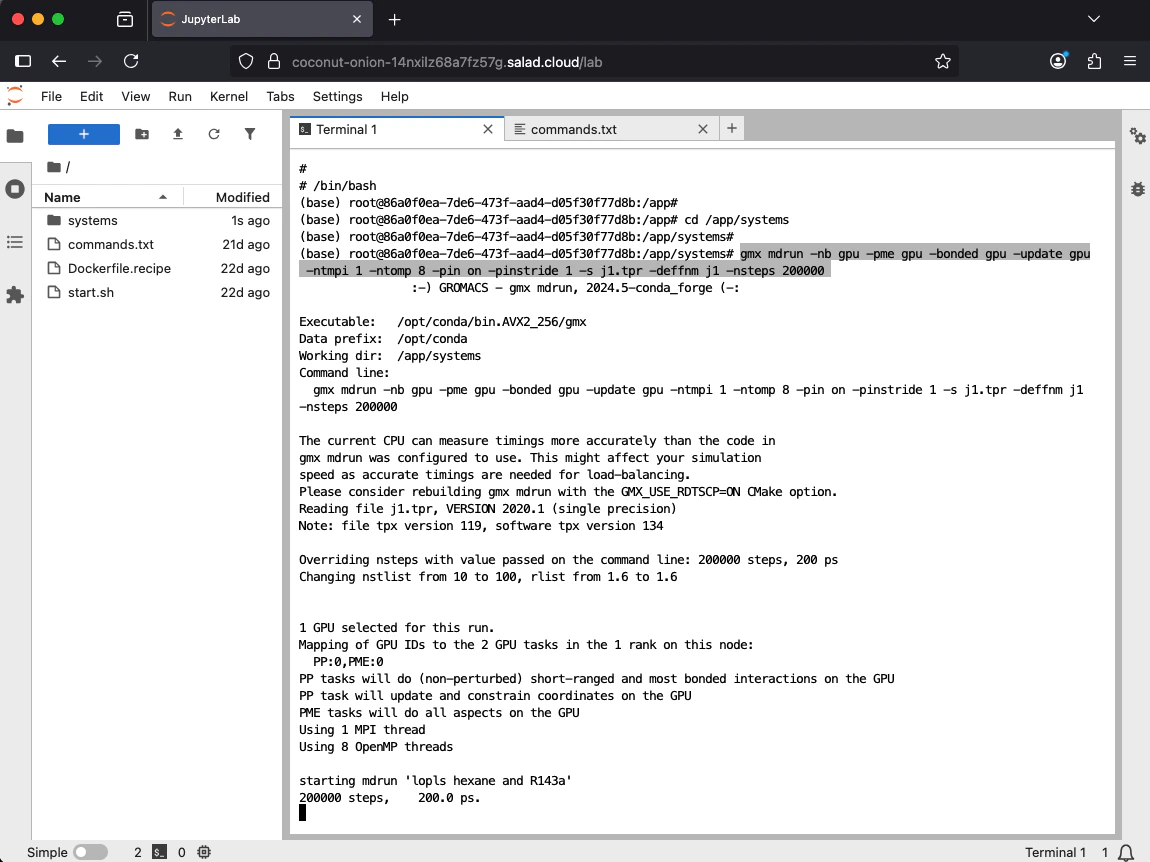
Access JupyterLab at `https://your-deployment-url.salad.cloud/` for interactive Python development, data analysis, and
notebook creation. You can easily upload and download files directly through the JupyterLab interface. Additionally, you
can use the integrated JupyterLab terminal to run GROMACS CLI commands for simulations and testing.
 #### Visual Studio Code
To debug code, you can start the VS Code Server using either the JupyterLab terminal or the Web Terminal, and then
connect to it using VS Code. Please refer to
[this guide](/container-engine/tutorials/development-tools/vscode-remote-development#interactive-mode) for more details.
## Source Code
The complete source code for this recipe is available in the
[SaladCloud Recipes GitHub repository](https://github.com/SaladTechnologies/salad-recipes/tree/master/recipes/gromacs-srcg).
#### Visual Studio Code
To debug code, you can start the VS Code Server using either the JupyterLab terminal or the Web Terminal, and then
connect to it using VS Code. Please refer to
[this guide](/container-engine/tutorials/development-tools/vscode-remote-development#interactive-mode) for more details.
## Source Code
The complete source code for this recipe is available in the
[SaladCloud Recipes GitHub repository](https://github.com/SaladTechnologies/salad-recipes/tree/master/recipes/gromacs-srcg).