> ## Documentation Index
> Fetch the complete documentation index at: https://docs.salad.com/llms.txt
> Use this file to discover all available pages before exploring further.
# GitHub Container Registry
*Last Updated: October 15, 2024*
[GitHub Container Registry](https://ghcr.io) (GHCR) is a powerful platform for hosting and managing container images.
You can store and manage Docker in the Container registry.
### Prerequisites
Before you begin, make sure you have the following:
* A [GitHub](https://www.github.com) account
* A Docker image that you want to publish to GHCR
* Docker installed on your local machine
To deploy image from GitHub Container Registry (GHCR) to SaladCloud Portal, follow these steps:
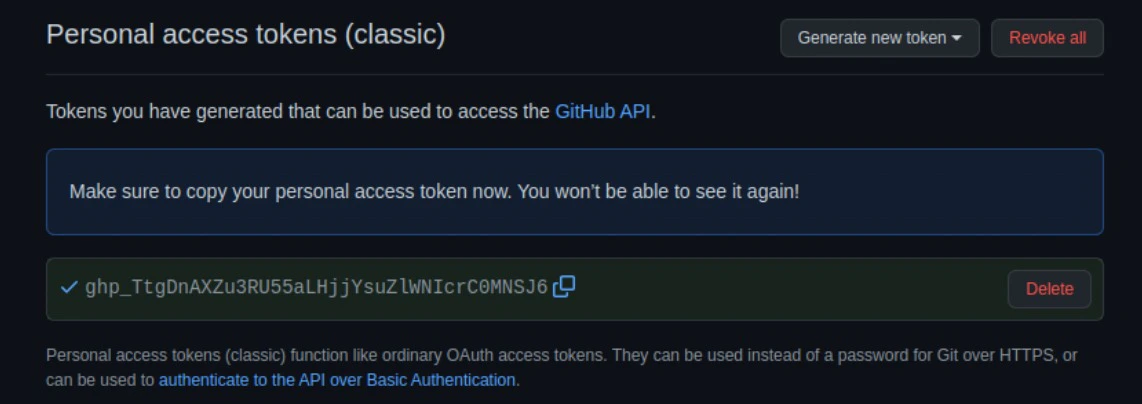
### Step 1 : Create a [Personal Access Token ](https://docs.github.com/en/enterprise-server@3.6/authentication/keeping-your-account-and-data-secure/managing-your-personal-access-tokens)(PAT)
1. Go to your GitHub Settings page.
2. In the left sidebar, click on "Security & admin."
3. Under "Personal access tokens," click "Generate new token."
4. Provide a descriptive name for your token and select the packages:write permission.
5. Click "Generate token" and make sure to copy the generated PAT to a safe place. You won't be able to see it again.
 ### Step 2 : Authenticate to the Registry
You can authenticate to GHCR using either the Docker CLI or the GitHub CLI.
1. Authenticate using the Docker CLI: Open your terminal and run the following command, replacing your\_username and
your\_PAT with your GitHub username and the PAT you generated: `docker login ghcr.io -u your_username -p your_PAT`
2. Authenticate using the GitHub CLI : If you prefer using the GitHub CLI, run this command and replace your\_PAT with
your PAT: `gh auth login --with-token your_PAT`
### Step 3: Tag Your Docker Image
To prepare your Docker image for GHCR, you need to tag it with the appropriate name. Replace your\_image, your\_username,
your\_repo, and tag\_name with your image's name and your GitHub information:
`docker tag your_image ghcr.io/your_username/your_repo:tag_name`
### Step 4 : Push Your Image to the Registry
Now that your image is tagged correctly, you can push it to GHCR:
`docker push ghcr.io/your_username/your_repo:tag_name`
### Step 5: Configure SaladCloud Container Environment (SCE)
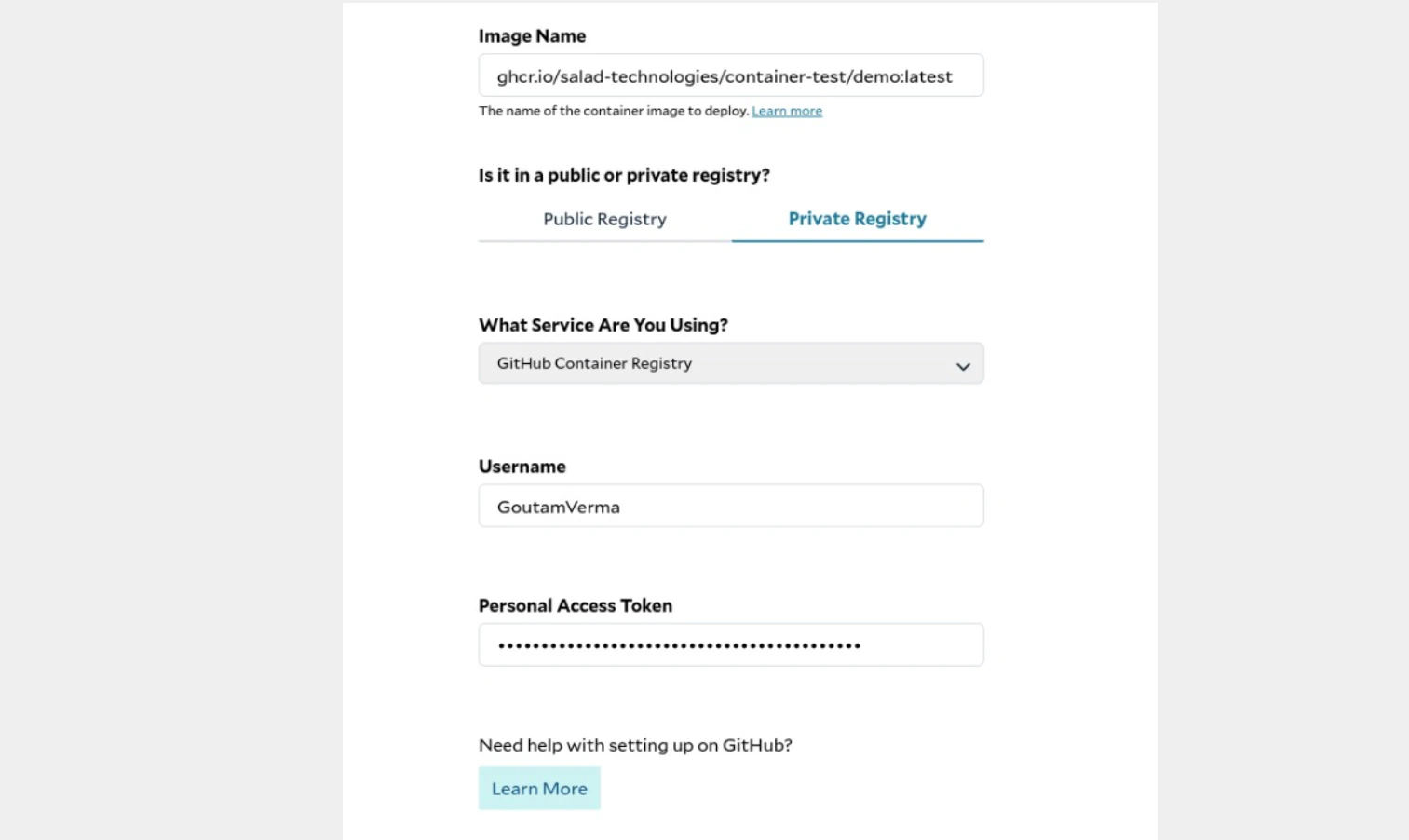
Access the SaladCloud portal and configure your SCE with the following information:
1. Username and Personal Access Token that we generated in the beginning.
2. Image name from your private registry.
### Step 2 : Authenticate to the Registry
You can authenticate to GHCR using either the Docker CLI or the GitHub CLI.
1. Authenticate using the Docker CLI: Open your terminal and run the following command, replacing your\_username and
your\_PAT with your GitHub username and the PAT you generated: `docker login ghcr.io -u your_username -p your_PAT`
2. Authenticate using the GitHub CLI : If you prefer using the GitHub CLI, run this command and replace your\_PAT with
your PAT: `gh auth login --with-token your_PAT`
### Step 3: Tag Your Docker Image
To prepare your Docker image for GHCR, you need to tag it with the appropriate name. Replace your\_image, your\_username,
your\_repo, and tag\_name with your image's name and your GitHub information:
`docker tag your_image ghcr.io/your_username/your_repo:tag_name`
### Step 4 : Push Your Image to the Registry
Now that your image is tagged correctly, you can push it to GHCR:
`docker push ghcr.io/your_username/your_repo:tag_name`
### Step 5: Configure SaladCloud Container Environment (SCE)
Access the SaladCloud portal and configure your SCE with the following information:
1. Username and Personal Access Token that we generated in the beginning.
2. Image name from your private registry.
 ### Step 6 : Start the Container
With all configurations in place, click the "Start" button in the SaladCloud portal to launch your container using the
private Github registry image.
### Step 6 : Start the Container
With all configurations in place, click the "Start" button in the SaladCloud portal to launch your container using the
private Github registry image.
 > 👍 Congratulations!
>
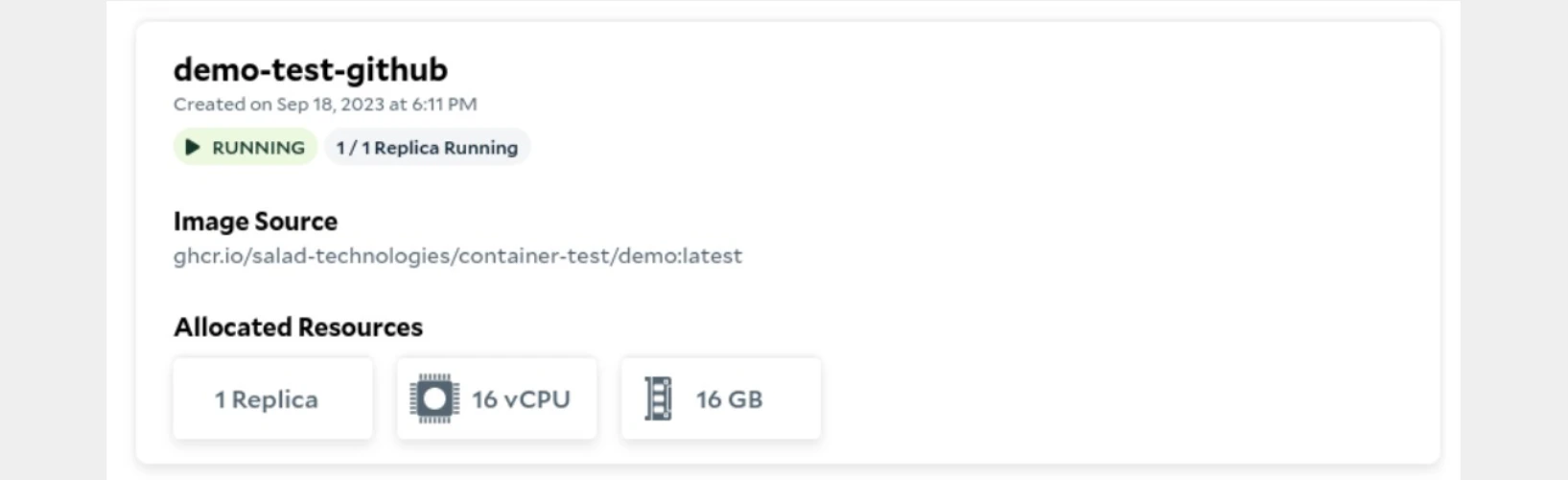
> Your container is now up and running, utilizing the image stored securely in your private Github container registry.
> 👍 Congratulations!
>
> Your container is now up and running, utilizing the image stored securely in your private Github container registry.