> ## Documentation Index
> Fetch the complete documentation index at: https://docs.salad.com/llms.txt
> Use this file to discover all available pages before exploring further.
# Managing Deployments
*Last Updated: October 9, 2025*
### Listing your Container Deployments
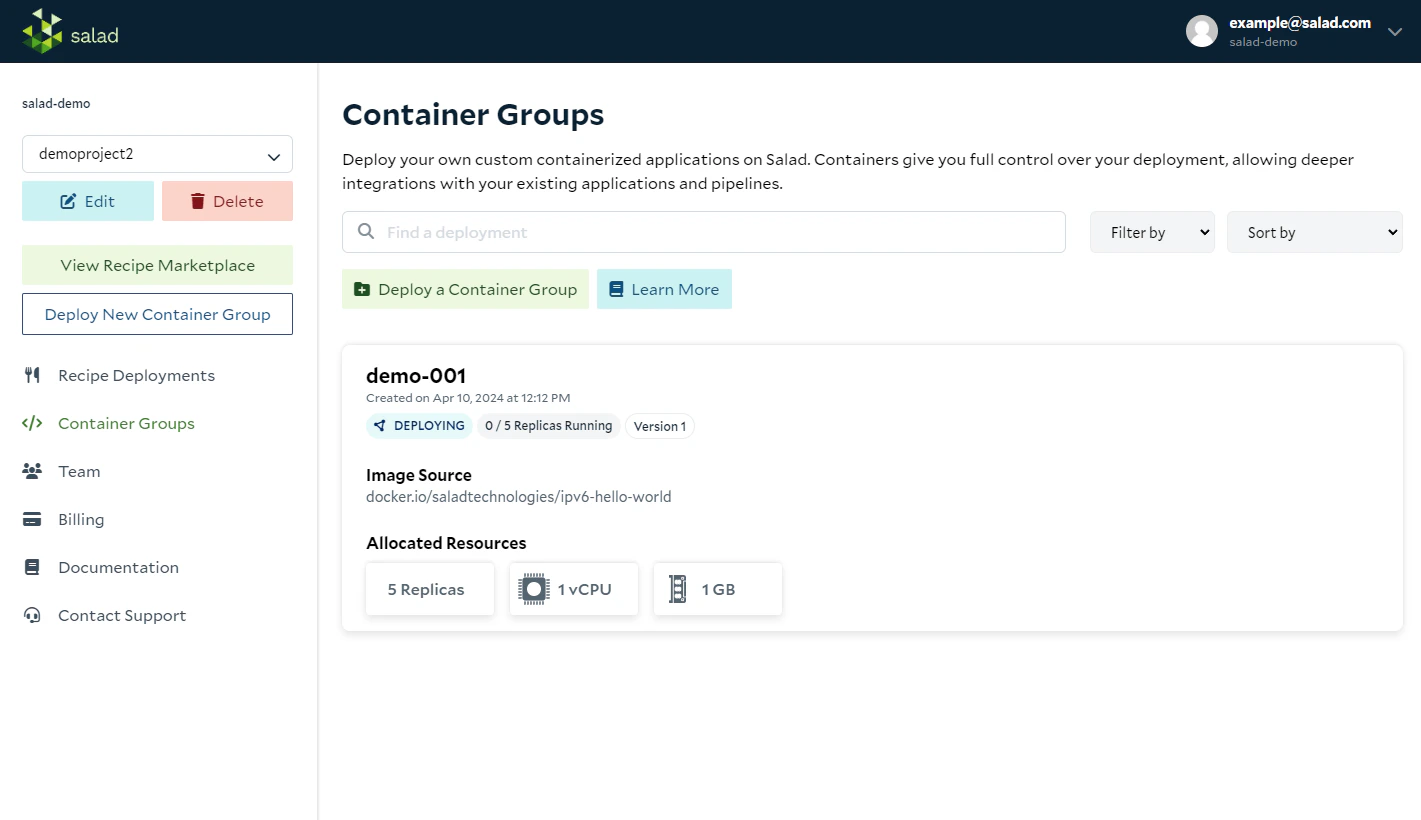
In the SaladCloud Portal, you're able to see your deployments for each project on the Container Deployments List page.
This page shows a high-level view for each of the container groups within the project, including:
* Name of the deployment
* Date created
* [Deployment status (Preparing, Stopped, Deploying, Running, Failed)](/container-engine/explanation/container-groups/deployment-lifecycle)
* Replicas running
* Version
* Container Gateway details (if enabled)
* Image source
* Allocated resources (total desired replica count and vCPUs, RAM and GPU(s) allocated to each replica)
 ### Managing a Container Deployment
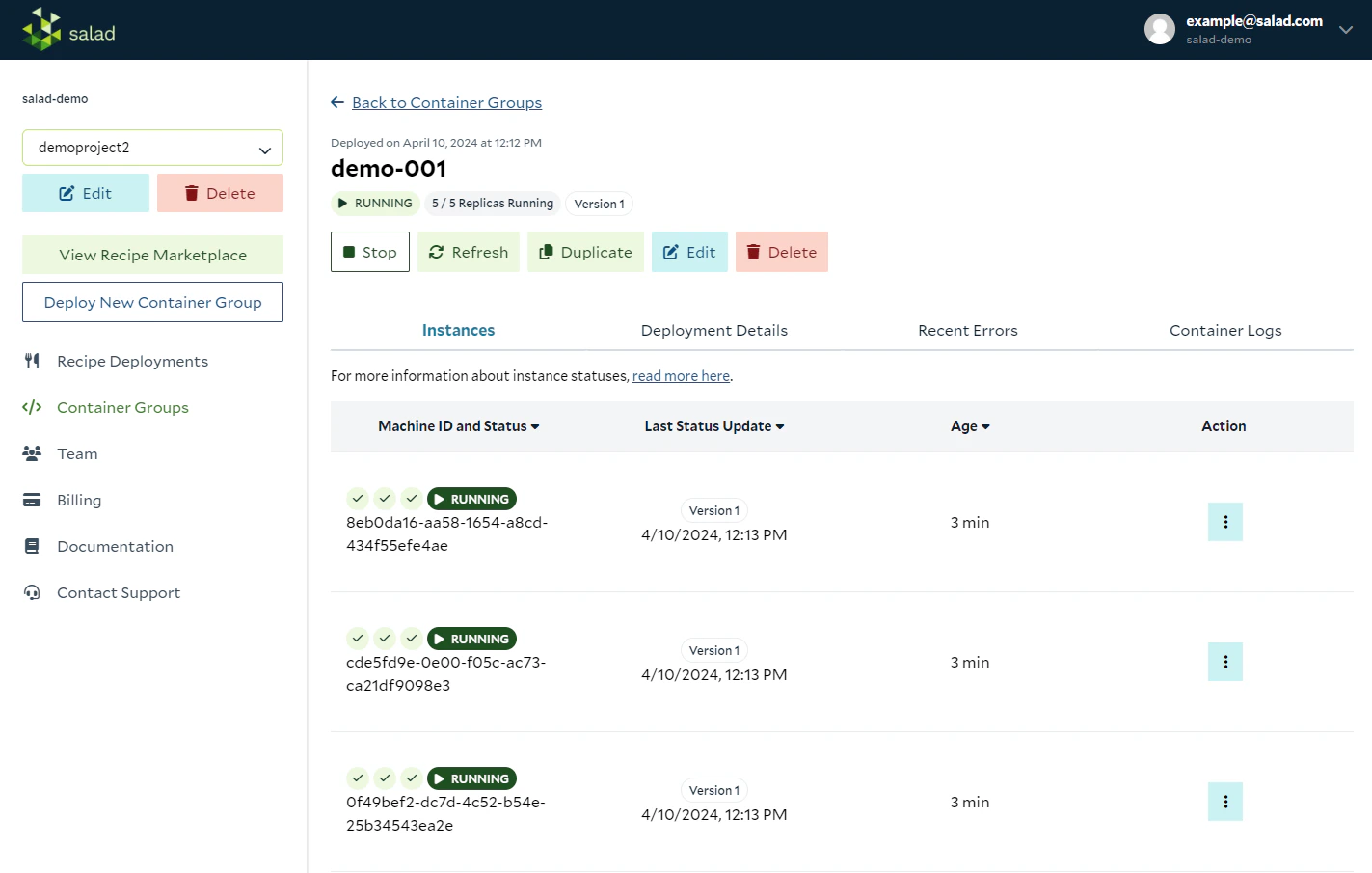
Click on any of your deployments to drill down to the Container Deployment Detail page. From here, you can start, stop,
and delete your deployment, as well as edit the display name, replica count, image source, resource requirements, and
other configuration settings
### Managing a Container Deployment
Click on any of your deployments to drill down to the Container Deployment Detail page. From here, you can start, stop,
and delete your deployment, as well as edit the display name, replica count, image source, resource requirements, and
other configuration settings
 ### Managing Container Instances
On this page, you can also see a table of all instances of your container that have been allocated, are running,
stopping, or failed. You can also manage these instances by clicking the action button next to an entry in the list of
running instances.
You can perform the following actions:
**Restart a container instance** Occasionally, a workload may run for awhile on your node and then some part of the
application might hang. In these cases, it's typically faster to get back up and running by restarting the container on
the same node, rather than searching for a new one. The **Restart** option allows you to restart your container on the
node, with all settings and downloaded data intact.
**Recreate a container instance** For a harder reset, the **Recreate** option allows you to rebuild the container from
scratch on the node. These features are accessible from the actions dropdown next to each node on the container group
detail page.
**Reallocate a container instance** If a workload fails to run, SaladCloud will automatically reallocate your container
to a new node that matches the requirements you specified. However, in some rare cases, a node has trouble running a
container replica but doesn't outright *fail*. If this happens, it's helpful to be able to manually trigger a
reallocation of the workload to a new node.
**View Container Logs** Use this link to open the Container Logs tab with the Machine ID filter pre-filled.
### Failures
If container images exit with a 0 exit code, they may be restarted on the same node. If container images exit with a
non-0 exit code, they will be blocked from the current node and reallocated to another node. Customization of this
behavior is coming soon.
### Editing Your Container Group Deployment
Inside the "Edit" option on the Managing Deployments page in Salad, you have the flexibility to modify key parameters of
your Container Group deployment.
* You can change the Display Name to make deployments more descriptive and easily identifiable. Note: the Container
Group Name, set upon creation, cannot be edited.
* You can update the Image Source URL. For private registries, re-enter authentication details. You'll see the first 12
characters of the image digest hash after saving.
* You can adjust the replica count to scale your application up or down as needed.
* You can modify hardware resource requirements, such as the number of vCPUs, Memory (RAM), GPUs, and
[Disk Space](/container-engine/explanation/container-groups/disk-space).
* You can edit the [Health Check Probes](/container-engine/explanation/infrastructure-platform/health-probes) (Startup,
and Liveness).
* You can edit the [Command](/container-engine/how-to-guides/specifying-a-command).
* If enabled, you can edit the [Container Gateway](/container-engine/explanation/infrastructure-platform/networking)
Port. Note: the edit Container Group functionality doesn't allow for the Container Gateway to be disabled, enabled, or
authentication to be changed.
* You can modify or enable/disable the
[External Logging](/container-engine/explanation/infrastructure-platform/external-logging) Services.
* You can edit the [Environment Variables](/container-engine/how-to-guides/environment-variables).
This editing functionality lets you update your container images, change hardware requirements, adjust configuration
aspects, and utilize new features that SaladCloud may release. As you make changes, you will see the predicted cost
associated with those choices updated in real-time.
**Runtime changes restart replicas when required**
* When you save any change that produces a new container version—such as adjustments to the image, command, health
probes, environment variables, or gateway settings—SaladCloud restarts every replica so the new configuration is
applied consistently. If the update references a new image, the platform pulls the image first and then restarts the
replicas when the download completes.
* Updating CPU, RAM, GPU class, or disk space settings keeps existing replicas running if their current nodes still
satisfy the new requirements. Replicas that fall outside the updated limits are reallocated to compliant nodes, so
only those instances restart.
* Display name edits, replica count adjustments, and autoscaler configuration updates apply without forcing a restart.
* Because restarts happen right away, plan rollouts carefully and consult
[Deployment Strategies on SaladCloud](/container-engine/how-to-guides/deployment-strategies) for approaches that
maintain availability during updates.
If you are updating the Image Source, you will not be able to make additional edits until the new image is done
preparing/pulling. To avoid confusion the “Edit” button will be disabled until this process is complete.
### Managing Container Instances
On this page, you can also see a table of all instances of your container that have been allocated, are running,
stopping, or failed. You can also manage these instances by clicking the action button next to an entry in the list of
running instances.
You can perform the following actions:
**Restart a container instance** Occasionally, a workload may run for awhile on your node and then some part of the
application might hang. In these cases, it's typically faster to get back up and running by restarting the container on
the same node, rather than searching for a new one. The **Restart** option allows you to restart your container on the
node, with all settings and downloaded data intact.
**Recreate a container instance** For a harder reset, the **Recreate** option allows you to rebuild the container from
scratch on the node. These features are accessible from the actions dropdown next to each node on the container group
detail page.
**Reallocate a container instance** If a workload fails to run, SaladCloud will automatically reallocate your container
to a new node that matches the requirements you specified. However, in some rare cases, a node has trouble running a
container replica but doesn't outright *fail*. If this happens, it's helpful to be able to manually trigger a
reallocation of the workload to a new node.
**View Container Logs** Use this link to open the Container Logs tab with the Machine ID filter pre-filled.
### Failures
If container images exit with a 0 exit code, they may be restarted on the same node. If container images exit with a
non-0 exit code, they will be blocked from the current node and reallocated to another node. Customization of this
behavior is coming soon.
### Editing Your Container Group Deployment
Inside the "Edit" option on the Managing Deployments page in Salad, you have the flexibility to modify key parameters of
your Container Group deployment.
* You can change the Display Name to make deployments more descriptive and easily identifiable. Note: the Container
Group Name, set upon creation, cannot be edited.
* You can update the Image Source URL. For private registries, re-enter authentication details. You'll see the first 12
characters of the image digest hash after saving.
* You can adjust the replica count to scale your application up or down as needed.
* You can modify hardware resource requirements, such as the number of vCPUs, Memory (RAM), GPUs, and
[Disk Space](/container-engine/explanation/container-groups/disk-space).
* You can edit the [Health Check Probes](/container-engine/explanation/infrastructure-platform/health-probes) (Startup,
and Liveness).
* You can edit the [Command](/container-engine/how-to-guides/specifying-a-command).
* If enabled, you can edit the [Container Gateway](/container-engine/explanation/infrastructure-platform/networking)
Port. Note: the edit Container Group functionality doesn't allow for the Container Gateway to be disabled, enabled, or
authentication to be changed.
* You can modify or enable/disable the
[External Logging](/container-engine/explanation/infrastructure-platform/external-logging) Services.
* You can edit the [Environment Variables](/container-engine/how-to-guides/environment-variables).
This editing functionality lets you update your container images, change hardware requirements, adjust configuration
aspects, and utilize new features that SaladCloud may release. As you make changes, you will see the predicted cost
associated with those choices updated in real-time.
**Runtime changes restart replicas when required**
* When you save any change that produces a new container version—such as adjustments to the image, command, health
probes, environment variables, or gateway settings—SaladCloud restarts every replica so the new configuration is
applied consistently. If the update references a new image, the platform pulls the image first and then restarts the
replicas when the download completes.
* Updating CPU, RAM, GPU class, or disk space settings keeps existing replicas running if their current nodes still
satisfy the new requirements. Replicas that fall outside the updated limits are reallocated to compliant nodes, so
only those instances restart.
* Display name edits, replica count adjustments, and autoscaler configuration updates apply without forcing a restart.
* Because restarts happen right away, plan rollouts carefully and consult
[Deployment Strategies on SaladCloud](/container-engine/how-to-guides/deployment-strategies) for approaches that
maintain availability during updates.
If you are updating the Image Source, you will not be able to make additional edits until the new image is done
preparing/pulling. To avoid confusion the “Edit” button will be disabled until this process is complete.

 To access the editing options for your Container Group deployment, simply navigate to the SaladCloud dashboard, locate
your deployment, and select the "Edit" option. To access the Reallocate option after edits resulting in a new container
version, locate the container instance (on the Container Group detail page) expand the menu in the Actions column, and
select "Reallocate".
To access the editing options for your Container Group deployment, simply navigate to the SaladCloud dashboard, locate
your deployment, and select the "Edit" option. To access the Reallocate option after edits resulting in a new container
version, locate the container instance (on the Container Group detail page) expand the menu in the Actions column, and
select "Reallocate".