> ## Documentation Index
> Fetch the complete documentation index at: https://docs.salad.com/llms.txt
> Use this file to discover all available pages before exploring further.
# Splunk
*Last Updated: October 15, 2024*
Splunk is a software platform for searching, monitoring, and analyzing machine-generated data. User need to generate
credentials from Splunk cloud and provide it to SCE.
To enable external logging service using Splunk, please follow the steps.
### Step 1: Generate Credentials of Splunk
1. Visit [Splunk Cloud](https://www.splunk.com/en_us/products/splunk-cloud-platform.html) and login to the portal
Logging in to the Splunk Cloud portal using your credentials. If you don't have an account, sign up to get started.
2. Visit a setting section and click on Data inputs.
3. Select the Http Event Collector in the Local inputs section.
4. Configure the Global settings enable(SSL and All tokens).
5. Click on “New Token”, provide name, source name and description.
6. Click on “Next”, will be prompted with “Token Value” and “Start searching” option.
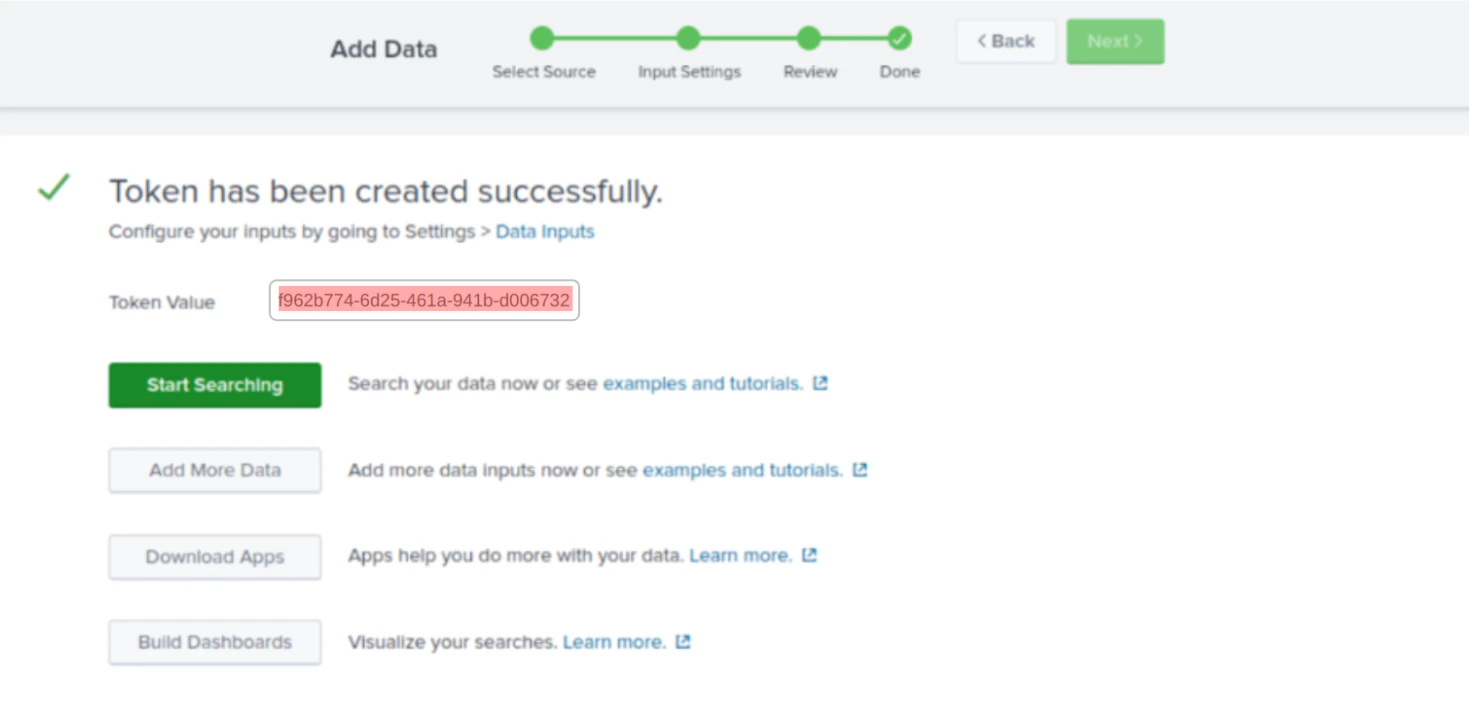 *Note: For additional information regarding HEC, tokens, and host URLs, please refer to the
[Splunk official documentation](https://docs.splunk.com/Documentation/Splunk/9.1.0/Data/UsetheHTTPEventCollector). Once
you have obtained the token and
[host URL](https://docs.splunk.com/Documentation/Splunk/9.1.0/Data/UsetheHTTPEventCollector#:~:text=Splunk%20Dev%20Portal.-,Send%20data%20to%20HTTP%20Event%20Collector%20on%20Splunk%20Cloud%20Platform,-You%20must%20send),
you can proceed to create container group on [SaladCloud portal](https://portal.salad.com/).*
### Step 2: Configure credentials for SaladCloud Container
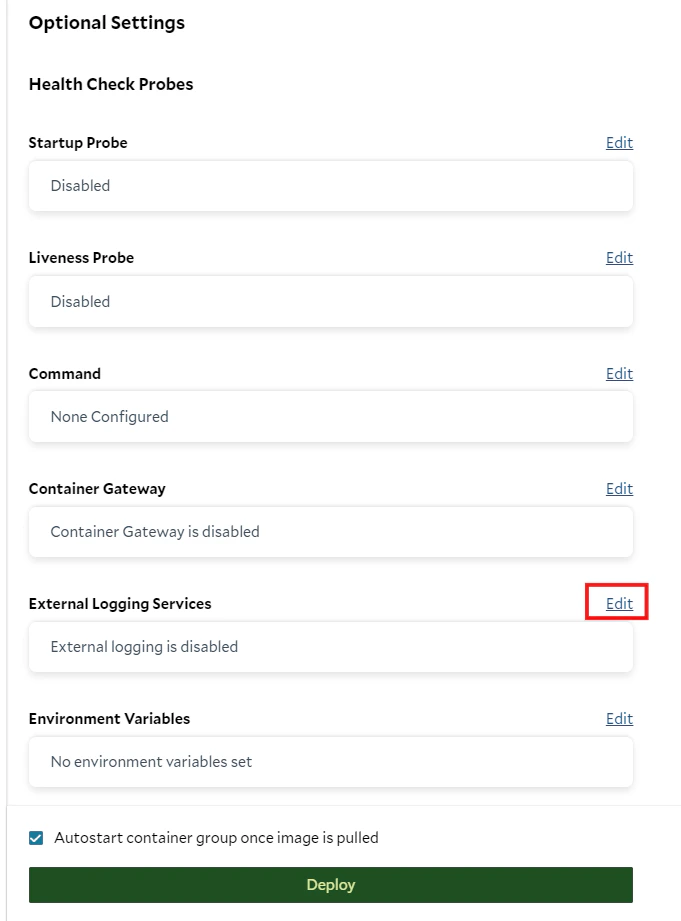
while container group creation or configuration process, locate the "External Logging Services" section in Optional
Settings and click on the "Edit" button.
1. Click “Edit” on External Logging Services.
*Note: For additional information regarding HEC, tokens, and host URLs, please refer to the
[Splunk official documentation](https://docs.splunk.com/Documentation/Splunk/9.1.0/Data/UsetheHTTPEventCollector). Once
you have obtained the token and
[host URL](https://docs.splunk.com/Documentation/Splunk/9.1.0/Data/UsetheHTTPEventCollector#:~:text=Splunk%20Dev%20Portal.-,Send%20data%20to%20HTTP%20Event%20Collector%20on%20Splunk%20Cloud%20Platform,-You%20must%20send),
you can proceed to create container group on [SaladCloud portal](https://portal.salad.com/).*
### Step 2: Configure credentials for SaladCloud Container
while container group creation or configuration process, locate the "External Logging Services" section in Optional
Settings and click on the "Edit" button.
1. Click “Edit” on External Logging Services.
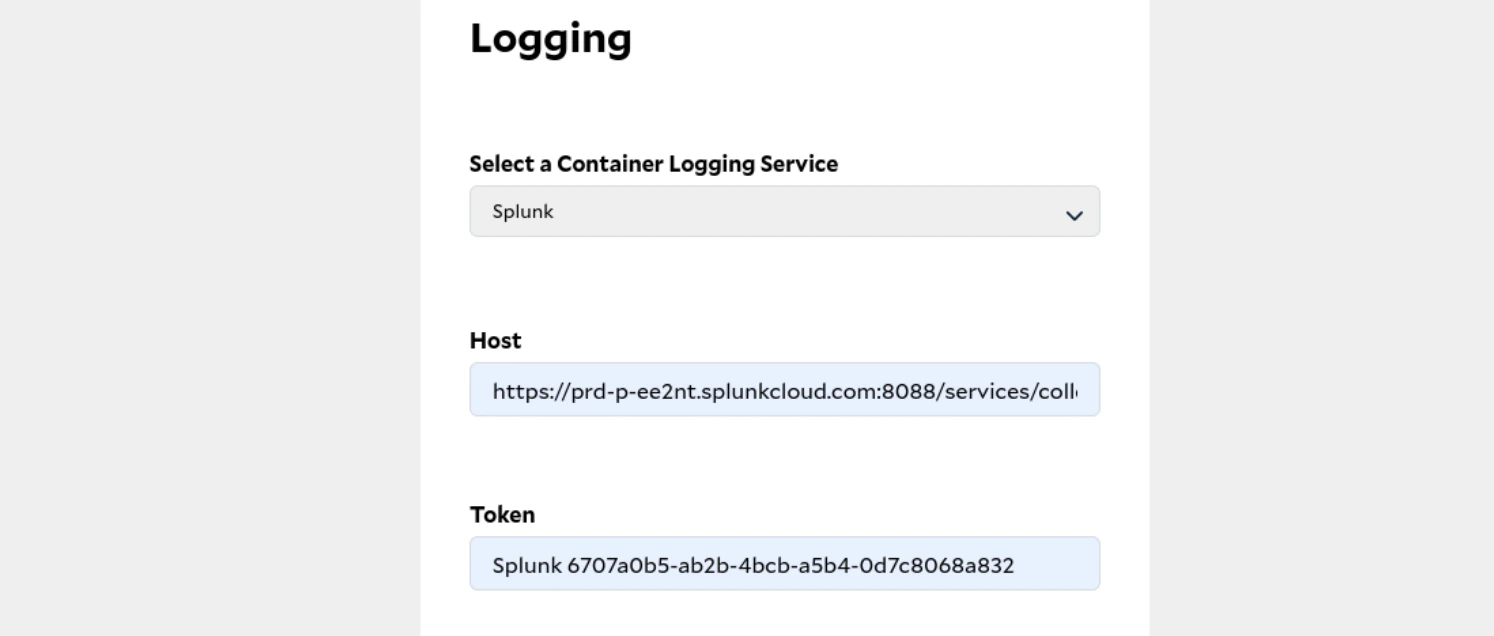
 2. In the sidebar appears at right, click on "**Splunk**" under the option of “Select a Container Logging Service”.
Finally past the Host URL and token that we generated from Splunk and simple click on “Configure”.
2. In the sidebar appears at right, click on "**Splunk**" under the option of “Select a Container Logging Service”.
Finally past the Host URL and token that we generated from Splunk and simple click on “Configure”.
 ### Step 3: Run Your Container
Once the container is configured, you can deploy it by clicking on button “Deploy” and "Start".
Once you've started the container and it comes in \_running \_ state, the logs will be seamlessly transmitted to the
Splunk portal. Monitor your container's status to ensure it's in the running state, and then head to the Splunk portal
to see your SaladCloud Container logs in action.
### Step 3: Run Your Container
Once the container is configured, you can deploy it by clicking on button “Deploy” and "Start".
Once you've started the container and it comes in \_running \_ state, the logs will be seamlessly transmitted to the
Splunk portal. Monitor your container's status to ensure it's in the running state, and then head to the Splunk portal
to see your SaladCloud Container logs in action.