> ## Documentation Index
> Fetch the complete documentation index at: https://docs.salad.com/llms.txt
> Use this file to discover all available pages before exploring further.
# New Relic
*Last Updated: October 15, 2024*
[New Relic](https://newrelic.com/) is a popular observability platform that you can get started with for free.
To connect your SaladCloud Container Group to New Relic, you'll need 2 pieces of information:
1. Host: This refers to which New Relic endpoint to send your logs to. There are two options:
1. [https://log-api.newrelic.com/log/v1](https://log-api.newrelic.com/log/v1) - Use this if you have elected to have
your data hosted in New Relic's NA data center.
2. [https://log-api.eu.newrelic.com/log/v1](https://log-api.eu.newrelic.com/log/v1) - Use this if you have elected to
have your data hosted in New Relic's EU data center.
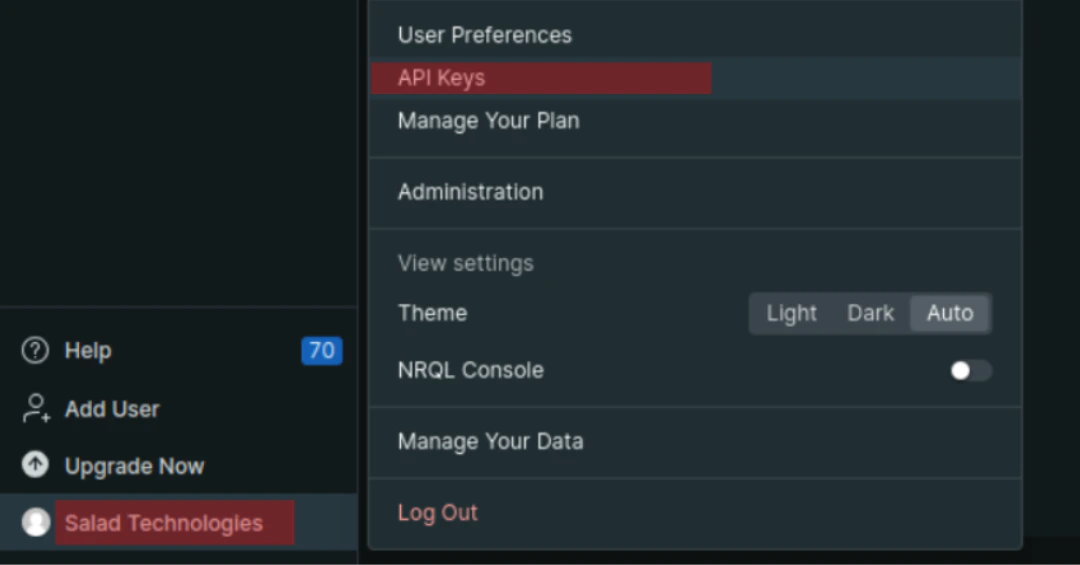
2. Ingestion Key: This is long random string used to securely connect your SaladCloud containers to New Relic. You can
find this key by clicking your name in the lower left hand corner of the screen (1). This opens a menu, where you
will see an option for "API Keys"(2)
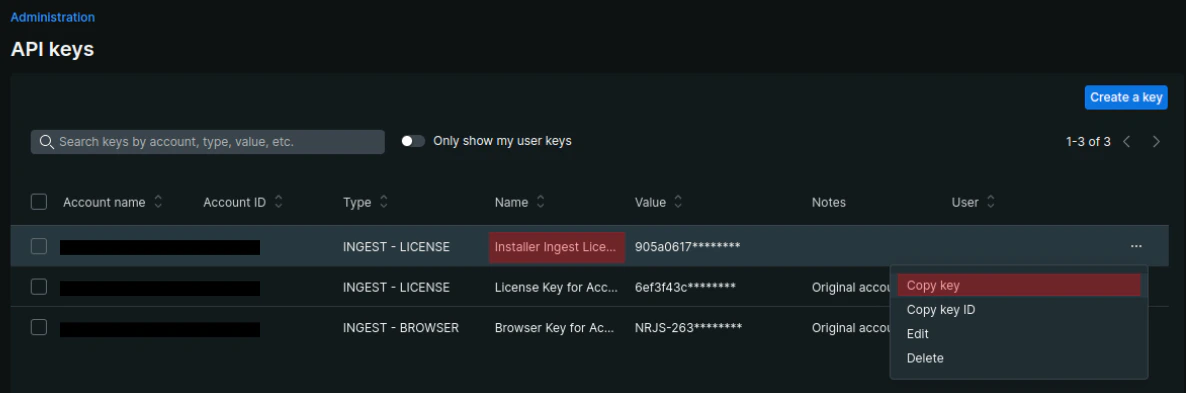
 From there, identify the key named "Installer Ingest License Key" (1). Open the `...` menu on the right-hand side of
that row (2), and select "Copy Key" from the menu (3). This copies the key value to your clipboard.
From there, identify the key named "Installer Ingest License Key" (1). Open the `...` menu on the right-hand side of
that row (2), and select "Copy Key" from the menu (3). This copies the key value to your clipboard.
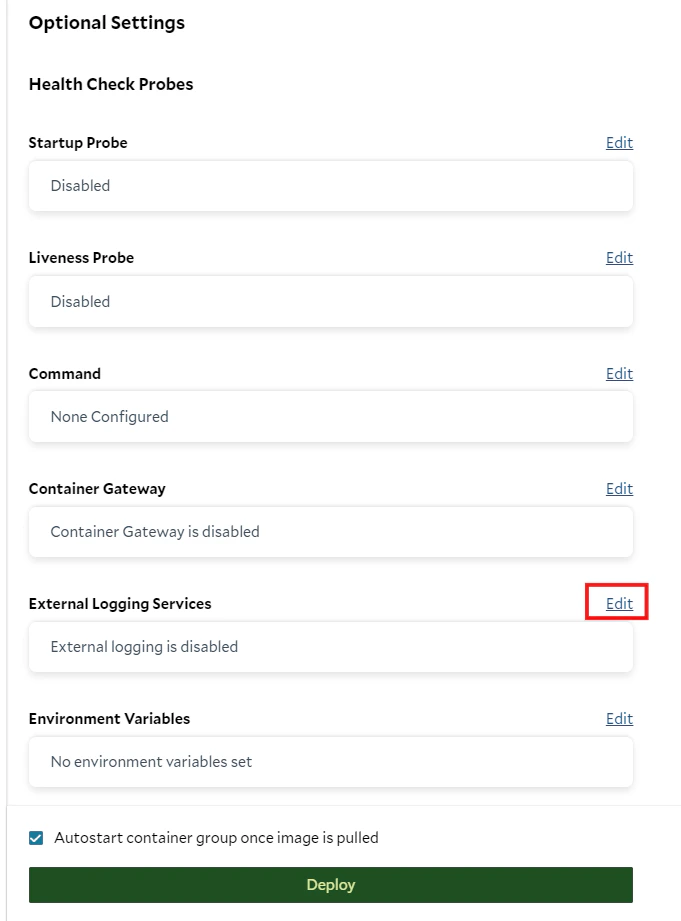
 Armed with this information, you're ready to set up your Container Group in SaladCloud. On the "Create Container Group"
page in the [portal](https://portal.salad.com), find the "External Logging Services" options.
Armed with this information, you're ready to set up your Container Group in SaladCloud. On the "Create Container Group"
page in the [portal](https://portal.salad.com), find the "External Logging Services" options.
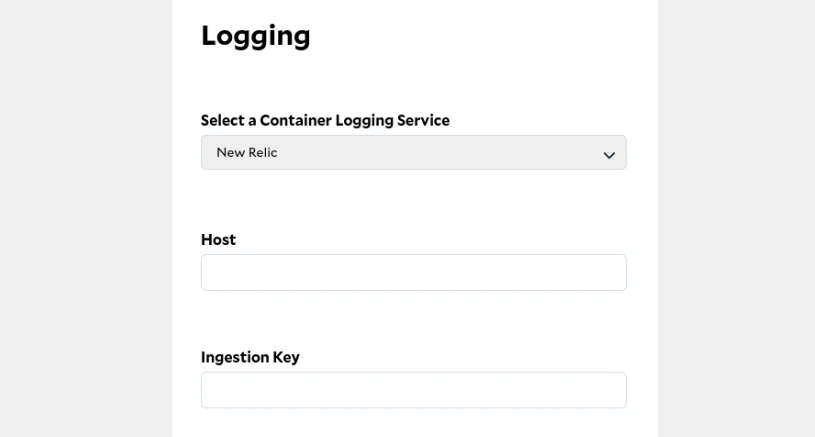
 Select "New Relic" from the "Select a Container Logging Service" menu. Fill in the fields with the information gathered
above, and hit the "Configure" button at the bottom.
Select "New Relic" from the "Select a Container Logging Service" menu. Fill in the fields with the information gathered
above, and hit the "Configure" button at the bottom.
 Finish setting up the rest of your container group settings, and deploy it! Once your container is running and logging
something, those logs will start appearing in the logging panel of New Relic
Finish setting up the rest of your container group settings, and deploy it! Once your container is running and logging
something, those logs will start appearing in the logging panel of New Relic