> ## Documentation Index
> Fetch the complete documentation index at: https://docs.salad.com/llms.txt
> Use this file to discover all available pages before exploring further.
# Datadog
*Last Updated: October 15, 2024*
Datadog is a platform for searching, monitoring, and analyzing machine-generated data. User need to generate credentials
from [Datadog](https://www.datadoghq.com/) and provide it to SCE.
To enable external logging service using Datadog, please follow the steps.
### **Step 1 : Create a Datadog Account**
Go to the [Datadog website](https://www.datadoghq.com/) and sign up for a Datadog account if you don't have one already.
You can select a plan that suits your needs, and Datadog typically offers a free trial period.
### **Step 2 :Enable Log Integration**
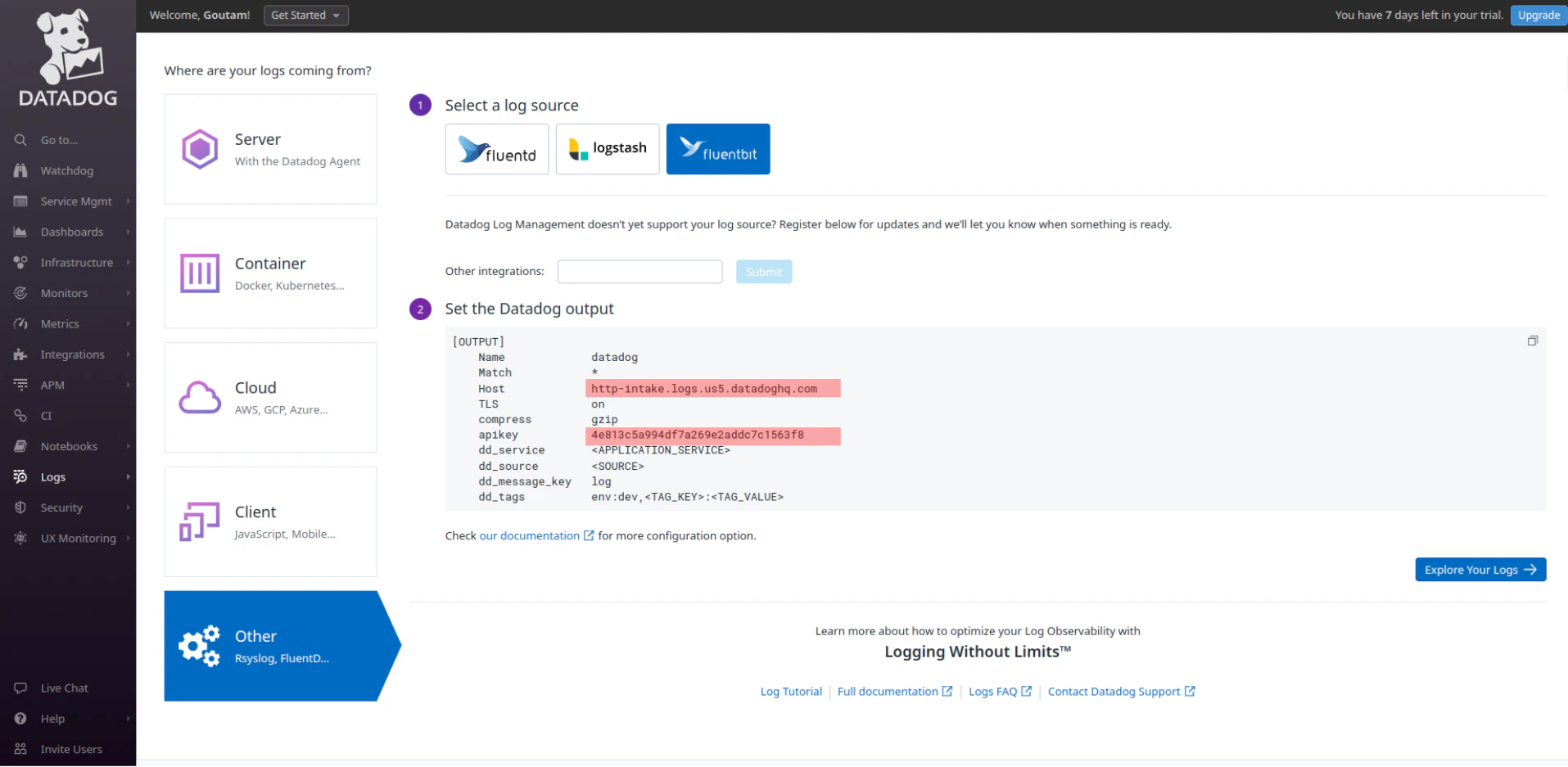
* In the Datadog portal, navigate to the [Log section ](https://us5.datadoghq.com/logs/onboarding/other)in the right
tab.
* Inside the Log section, select the "Other" integration and choose "Fluentbit."
* Copy the Host and API key.
 ### **Step 3 : Provide API Key and Host Information to SCE**:
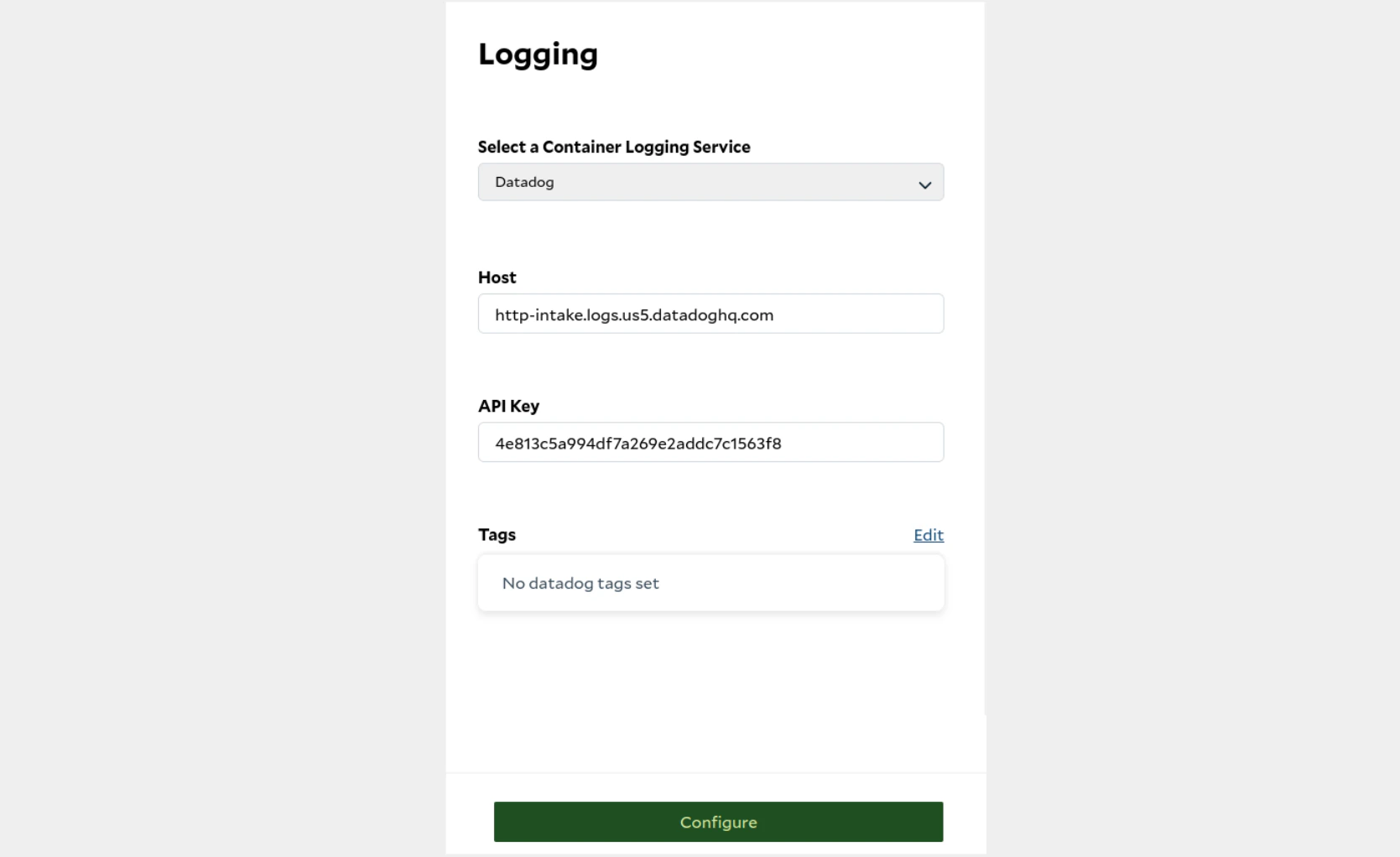
while container group creation or configuration process at SaladCloud portal, locate the "External Logging Services"
section in Optional Settings.
* Click “Edit” on External Logging Services.
* In the sidebar appears at right, click on "**Datadog**" under the option of “Select a Container Logging Service”.
Finally past the Host URL and API key that we generated from Datadog and simple click on “Configure”.
### **Step 3 : Provide API Key and Host Information to SCE**:
while container group creation or configuration process at SaladCloud portal, locate the "External Logging Services"
section in Optional Settings.
* Click “Edit” on External Logging Services.
* In the sidebar appears at right, click on "**Datadog**" under the option of “Select a Container Logging Service”.
Finally past the Host URL and API key that we generated from Datadog and simple click on “Configure”.
 ### **Step 4 : Complete Configuration**:
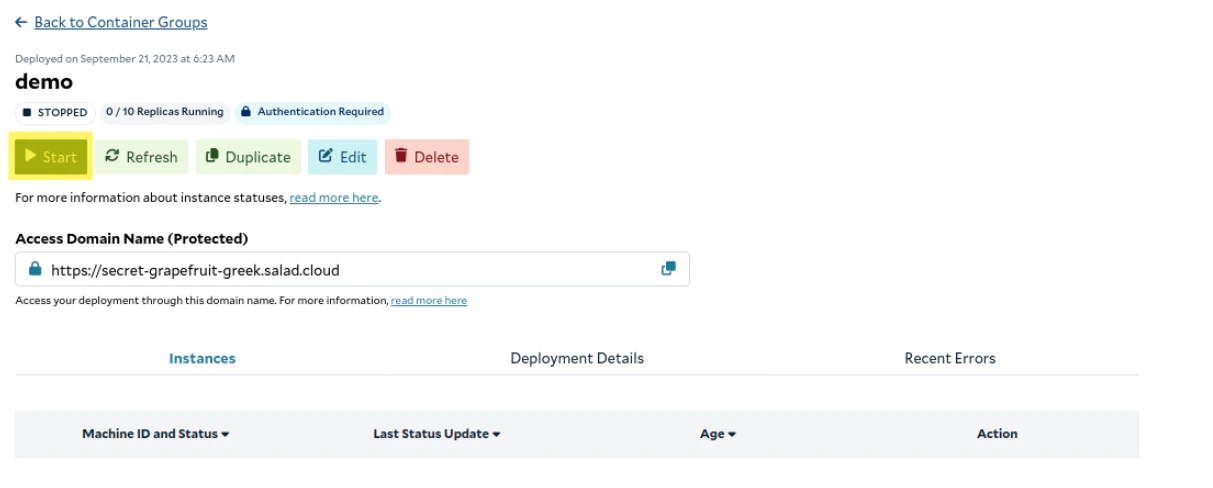
Once the container is configured, you can deploy it by clicking on button “Deploy” and "Start".
### **Step 4 : Complete Configuration**:
Once the container is configured, you can deploy it by clicking on button “Deploy” and "Start".
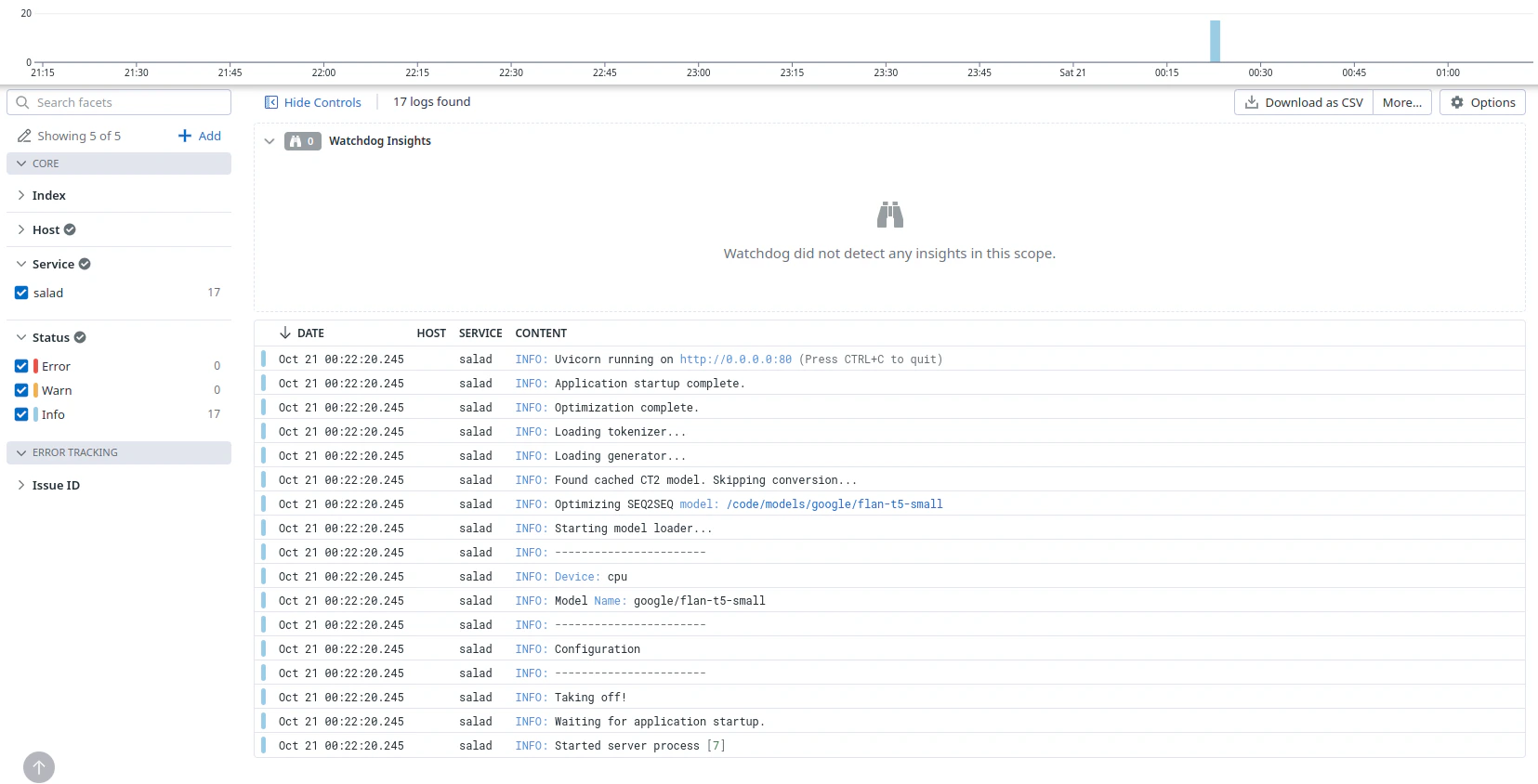
 Once you've started the container and it comes in \_running \_ state, the logs will be seamlessly transmitted to the
Datadog portal and you can view the logs at [Log dashboard](https://us5.datadoghq.com/logs).
Once you've started the container and it comes in \_running \_ state, the logs will be seamlessly transmitted to the
Datadog portal and you can view the logs at [Log dashboard](https://us5.datadoghq.com/logs).
 > 👍 Congratulations!
>
> You have successfully enabled the external logging service using Datadog.
> 👍 Congratulations!
>
> You have successfully enabled the external logging service using Datadog.