> ## Documentation Index
> Fetch the complete documentation index at: https://docs.salad.com/llms.txt
> Use this file to discover all available pages before exploring further.
# Using Environment Variables
*Last Updated: September 03, 2025*
Environment variables are key-value pairs that can be used to configure and customize the behavior of server running
inside a container. These variables are accessible to processes running within the container and are commonly used to
store configuration settings, credentials, and other runtime information.
In SaladCloud Portal, you can set environment variables for your containers by providing a key-value pair. The "**key**"
represents the name of the environment variable, and the "**value**" represents its associated data.
## Default Environment Variables
Note that there are several environment variables that are set by Salad and always available to the container:
* `HOSTNAME`: Defaults to the Instance ID, but can be overridden by the user.
* `SALAD_ORGANIZATION_NAME`: The name of the organization the container is running under.
* `SALAD_ORGANIZATION_ID`: The ID of the organization the container is running under.
* `SALAD_PROJECT_NAME`: The name of the project the container is part of.
* `SALAD_PROJECT_ID`: The ID of the project the container is part of.
* `SALAD_CONTAINER_GROUP_NAME`: The name of the container group the container is part of.
* `SALAD_CONTAINER_GROUP_ID`: The ID of the entire container group.
* `SALAD_INSTANCE_ID`: The ID of the specific container instance. This is unique to each time a container is started.
* `SALAD_MACHINE_ID`: The ID of the machine the particular container instance is running on.
## **Using Environment Variables in SaladCloud Portal**
To use environment variables in SaladCloud Portal, follow these steps:
### Step 1: **Deploy a New Container**
If you haven't already, create a new container group. Please refer to our separate documentation on
"[How to Create a Container](/container-engine/explanation/container-groups/container-groups)" for detailed instructions
on this step.
### Step 2: Configure Environment Variables
In the container group creation or configuration process, locate the "Environment Variables" section in Optional
Settings and click on the "Edit" button.
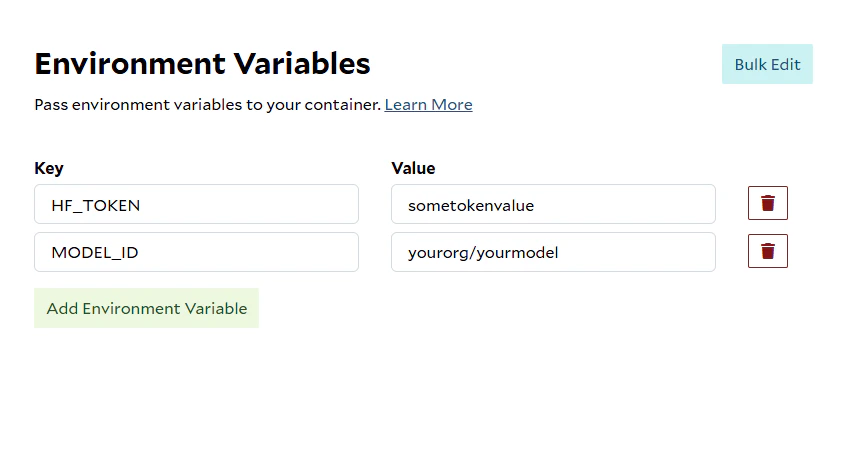
 Enter the **key** and **value** for the environment variable you want to set and click the "Configure" button to confirm
the environment variable. Example: **Key:** HF\_TOKEN and **Value:** sometokenvalue.
Enter the **key** and **value** for the environment variable you want to set and click the "Configure" button to confirm
the environment variable. Example: **Key:** HF\_TOKEN and **Value:** sometokenvalue.
 ### Step 3 : Run Your Container
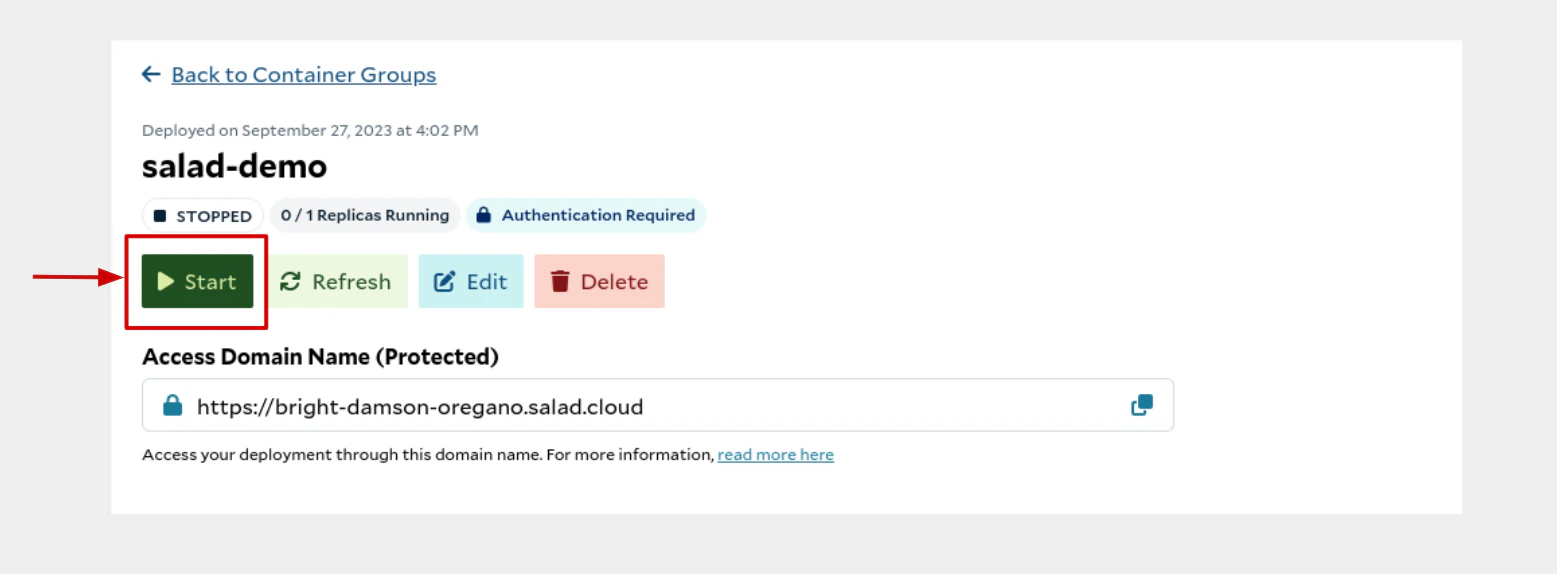
Once the container is configured, you can deploy it by clicking on button “Deploy”. SaladCloud Portal will deploy the
container group and you can start the container by click on "Start" button.
### Step 3 : Run Your Container
Once the container is configured, you can deploy it by clicking on button “Deploy”. SaladCloud Portal will deploy the
container group and you can start the container by click on "Start" button.
 > 👍 Congratulations!
>
> Your container is now running and utilize environment variables to customize the behavior of your containers in Salad
> Portal. If you have any questions or need further assistance, please refer to our support resources or contact our
> [customer support team](mailto:cloud@salad.com).
> 👍 Congratulations!
>
> Your container is now running and utilize environment variables to customize the behavior of your containers in Salad
> Portal. If you have any questions or need further assistance, please refer to our support resources or contact our
> [customer support team](mailto:cloud@salad.com).