> ## Documentation Index
> Fetch the complete documentation index at: https://docs.salad.com/llms.txt
> Use this file to discover all available pages before exploring further.
# Image Captioning with Vision Language Models
> How to deploy a Vision Language Model for image captioning using SaladCloud
*Last Updated: March 27, 2025*
This guide is available [as a Recipe!](/container-engine/reference/recipes/tgi)
## Introduction
Image captioning and labeling plays an important role in many AI and ML training workloads, and until fairly recently,
has been limited in effectiveness both by available technology and cost. This guide will show you how to deploy a
Vision-Language Model (VLM) for image captioning using SaladCloud. Vision-Language models provide substantial
improvements over previous-generation solutions based on CLIP and BLIP. The ability to include a text prompt along with
your image gives you a great deal of control as to the style and content of the returned captions. For the model, we
will be using [Qwen 2.5 VL 7B Instruct](https://huggingface.co/Qwen/Qwen2.5-VL-7B-Instruct), an Apache 2.0 licensed
model from Alibaba that excels at visual understanding, including reading text. We will use
[🤗 Text Generation Inference (TGI)](https://huggingface.co/docs/text-generation-inference/index) as an inference
server. Any [TGI-compatible VLM](https://huggingface.co/docs/text-generation-inference/supported_models) can be
substituted.
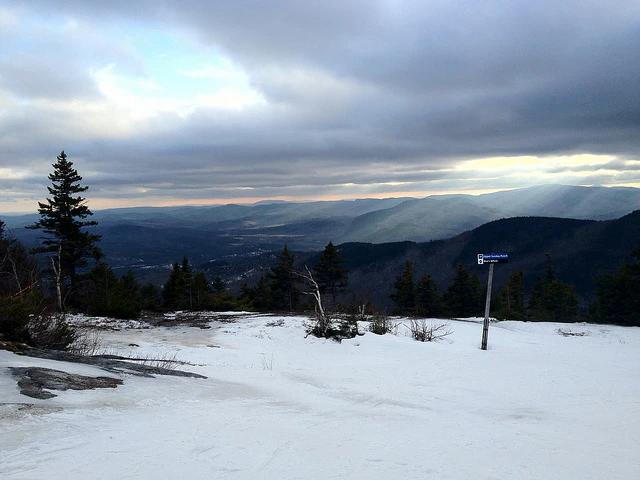
**Prompt: What is in this image? Include details.**
 ## Build A Docker Image
It is actually possible to deploy this model using just the base TGI docker image, but that method will cause the model
weights to be downloaded at runtime. Since SaladCloud does not bill for the time the container image downloads, but it
does bill once the container starts running, we can save costs by building a custom Docker image with the model weights
pre-downloaded.
First, we're going to download the model weights and configuration files. We will do this using the TGI docker image,
and mounting a local directory to `/data` in the container.
```bash theme={null}
docker run -it --rm --name tgi-downloader \
--env 'MODEL_ID=Qwen/Qwen2.5-VL-7B-Instruct' \
--env 'PORT=3000' \
-p 3000:3000 \
-v $(pwd)/data:/data \
--gpus all \
ghcr.io/huggingface/text-generation-inference:3.2.1
```
By downloading the model weights outside of the docker build, we can avoid the need to re-download the weights any time
we want to change something else in our docker image. The model is quite large, and this download will take some time.
Once it completes, TGI should start with the model loaded, assuming you are developing on a machine with an adequate
GPU. If you are developing on a machine without a GPU, you can still download the model weights, but the server likely
won't start locally.
Next, we will create a Dockerfile to build a custom image with the model weights pre-downloaded. Create a new file
called `Dockerfile` in the same directory as the `data` directory, and add the following content:
```dockerfile theme={null}
FROM ghcr.io/huggingface/text-generation-inference:3.2.1
# Copy the model weights and configuration files
COPY data /data
ENV MODEL_ID="Qwen/Qwen2.5-VL-7B-Instruct"
ENV PORT=3000
```
Now, build the Docker image, changing the image name and tag to suit your needs:
```bash theme={null}
docker build -t saladtechnologies/text-generation-inference:3.2.1-qwen2.5-vl-7b-instruct .
```
This will also take some time, as the model weights are quite large. Once it completes, you can push the image to a
container registry of your choice.
```bash theme={null}
docker push saladtechnologies/text-generation-inference:3.2.1-qwen2.5-vl-7b-instruct
```
## Deploy To SaladCloud
You can deploy your container group either using [the Portal](https://portal.salad.cloud) or the
[SaladCloud API](http://localhost:3000/reference/saladcloud-api/container-groups/create-container-group).
Here is an example of a container group configuration that you can use to deploy this:
```json theme={null}
{
"name": "tgi-qwen2-5-vl-7b-instruct",
"display_name": "tgi-qwen2-5-vl-7b-instruct",
"container": {
"image": "saladtechnologies/text-generation-inference:3.2.0-qwen-2.5-vl-7b-instruct",
"resources": {
"cpu": 4,
"memory": 30720,
"gpu_classes": ["a5db5c50-cbcb-4596-ae80-6a0c8090d80f"]
},
"command": [],
"priority": "high",
"environment_variables": {
"HOSTNAME": "::"
},
"image_caching": true
},
"autostart_policy": true,
"restart_policy": "always",
"replicas": 3,
"networking": {
"protocol": "http",
"port": 3000,
"auth": false,
"load_balancer": "least_number_of_connections",
"single_connection_limit": false,
"client_request_timeout": 100000,
"server_response_timeout": 100000
},
"startup_probe": {
"http": {
"path": "/health",
"port": 3000,
"scheme": "http",
"headers": []
},
"initial_delay_seconds": 0,
"period_seconds": 3,
"timeout_seconds": 10,
"success_threshold": 1,
"failure_threshold": 50
}
}
```
This configuration will deploy three replicas of the TGI server, each with 4 CPUs, 30GB of memory, and an RTX 3090 with
24GB of VRAM. The server will be accessible via HTTP on port 3000, and will be load balanced using the least number of
connections algorithm. Of particular note, the environment variable `HOSTNAME` is set to `::`, which allows the server
to listen on ipv6 interfaces, as required by SaladCloud. The above example does not enable authentication, but you can
by setting `.networking.auth` to `true`.
Save the above configuration to a file `container-group.json`, and submit it to the SaladCloud API to deploy your
container group.
```bash theme={null}
curl --request POST \
--url "https://api.salad.com/api/public/organizations/${organization_name}/projects/${project_name}/containers" \
--header 'Content-Type: application/json' \
--header 'Salad-Api-Key: ' \
--data @container-group.json
```
It will take some time for your container group to become "running." It first must pull your container image into our
internal cache, and then download the image to three compatible nodes. Once the container group is running, you can
access the TGI server at the "Access Domain Name" provided in the response from the API, or via the SaladCloud Portal.
## Using The Model
Once the container group is running, you can access swagger documentation at `/docs`. This will show you the available
API endpoints and how to interact with them. We will be using the OpenAI-compatible `/v1/chat/completions` endpoint to
generate image captions.
To generate a caption for an image, it needs to be downloadable via a URL. This can be accomplished with just about any
cloud storage provider, and can also be done with [Salad's S4 service](/reference/s4/upload-a-file). Here is an example
of how to generate a caption for an image using the TGI server:
```bash theme={null}
curl -X 'POST' \
'https://some-random-prefix.salad.cloud/v1/chat/completions' \
-H 'accept: application/json' \
-H 'Content-Type: application/json' \
-d '{
"max_tokens": 256,
"messages":[
{
"role": "user",
"content": [
{
"type": "text",
"text": "What is in this image? Include details."
},
{
"type": "image_url",
"image_url": {
"url": "https://salad-benchmark-assets.download/coco2017/train2017/000000000094.jpg"
}
}
]
}
],
"stream": false
}'
```
This will return a JSON response with the generated caption. You can adjust the `max_tokens` parameter to control the
length of the generated caption. The `image_url` parameter should be a URL to the image you want to generate a caption
for.
## Conclusion
In this guide, we have shown you how to deploy a Vision-Language Model for image captioning using SaladCloud. This model
provides state-of-the-art performance in image captioning tasks, and can be easily deployed using SaladCloud. By
building a custom Docker image with the model weights pre-downloaded, you can save costs and improve performance. We
have also shown you how to interact with the model using the TGI server's API endpoints.
## Build A Docker Image
It is actually possible to deploy this model using just the base TGI docker image, but that method will cause the model
weights to be downloaded at runtime. Since SaladCloud does not bill for the time the container image downloads, but it
does bill once the container starts running, we can save costs by building a custom Docker image with the model weights
pre-downloaded.
First, we're going to download the model weights and configuration files. We will do this using the TGI docker image,
and mounting a local directory to `/data` in the container.
```bash theme={null}
docker run -it --rm --name tgi-downloader \
--env 'MODEL_ID=Qwen/Qwen2.5-VL-7B-Instruct' \
--env 'PORT=3000' \
-p 3000:3000 \
-v $(pwd)/data:/data \
--gpus all \
ghcr.io/huggingface/text-generation-inference:3.2.1
```
By downloading the model weights outside of the docker build, we can avoid the need to re-download the weights any time
we want to change something else in our docker image. The model is quite large, and this download will take some time.
Once it completes, TGI should start with the model loaded, assuming you are developing on a machine with an adequate
GPU. If you are developing on a machine without a GPU, you can still download the model weights, but the server likely
won't start locally.
Next, we will create a Dockerfile to build a custom image with the model weights pre-downloaded. Create a new file
called `Dockerfile` in the same directory as the `data` directory, and add the following content:
```dockerfile theme={null}
FROM ghcr.io/huggingface/text-generation-inference:3.2.1
# Copy the model weights and configuration files
COPY data /data
ENV MODEL_ID="Qwen/Qwen2.5-VL-7B-Instruct"
ENV PORT=3000
```
Now, build the Docker image, changing the image name and tag to suit your needs:
```bash theme={null}
docker build -t saladtechnologies/text-generation-inference:3.2.1-qwen2.5-vl-7b-instruct .
```
This will also take some time, as the model weights are quite large. Once it completes, you can push the image to a
container registry of your choice.
```bash theme={null}
docker push saladtechnologies/text-generation-inference:3.2.1-qwen2.5-vl-7b-instruct
```
## Deploy To SaladCloud
You can deploy your container group either using [the Portal](https://portal.salad.cloud) or the
[SaladCloud API](http://localhost:3000/reference/saladcloud-api/container-groups/create-container-group).
Here is an example of a container group configuration that you can use to deploy this:
```json theme={null}
{
"name": "tgi-qwen2-5-vl-7b-instruct",
"display_name": "tgi-qwen2-5-vl-7b-instruct",
"container": {
"image": "saladtechnologies/text-generation-inference:3.2.0-qwen-2.5-vl-7b-instruct",
"resources": {
"cpu": 4,
"memory": 30720,
"gpu_classes": ["a5db5c50-cbcb-4596-ae80-6a0c8090d80f"]
},
"command": [],
"priority": "high",
"environment_variables": {
"HOSTNAME": "::"
},
"image_caching": true
},
"autostart_policy": true,
"restart_policy": "always",
"replicas": 3,
"networking": {
"protocol": "http",
"port": 3000,
"auth": false,
"load_balancer": "least_number_of_connections",
"single_connection_limit": false,
"client_request_timeout": 100000,
"server_response_timeout": 100000
},
"startup_probe": {
"http": {
"path": "/health",
"port": 3000,
"scheme": "http",
"headers": []
},
"initial_delay_seconds": 0,
"period_seconds": 3,
"timeout_seconds": 10,
"success_threshold": 1,
"failure_threshold": 50
}
}
```
This configuration will deploy three replicas of the TGI server, each with 4 CPUs, 30GB of memory, and an RTX 3090 with
24GB of VRAM. The server will be accessible via HTTP on port 3000, and will be load balanced using the least number of
connections algorithm. Of particular note, the environment variable `HOSTNAME` is set to `::`, which allows the server
to listen on ipv6 interfaces, as required by SaladCloud. The above example does not enable authentication, but you can
by setting `.networking.auth` to `true`.
Save the above configuration to a file `container-group.json`, and submit it to the SaladCloud API to deploy your
container group.
```bash theme={null}
curl --request POST \
--url "https://api.salad.com/api/public/organizations/${organization_name}/projects/${project_name}/containers" \
--header 'Content-Type: application/json' \
--header 'Salad-Api-Key: ' \
--data @container-group.json
```
It will take some time for your container group to become "running." It first must pull your container image into our
internal cache, and then download the image to three compatible nodes. Once the container group is running, you can
access the TGI server at the "Access Domain Name" provided in the response from the API, or via the SaladCloud Portal.
## Using The Model
Once the container group is running, you can access swagger documentation at `/docs`. This will show you the available
API endpoints and how to interact with them. We will be using the OpenAI-compatible `/v1/chat/completions` endpoint to
generate image captions.
To generate a caption for an image, it needs to be downloadable via a URL. This can be accomplished with just about any
cloud storage provider, and can also be done with [Salad's S4 service](/reference/s4/upload-a-file). Here is an example
of how to generate a caption for an image using the TGI server:
```bash theme={null}
curl -X 'POST' \
'https://some-random-prefix.salad.cloud/v1/chat/completions' \
-H 'accept: application/json' \
-H 'Content-Type: application/json' \
-d '{
"max_tokens": 256,
"messages":[
{
"role": "user",
"content": [
{
"type": "text",
"text": "What is in this image? Include details."
},
{
"type": "image_url",
"image_url": {
"url": "https://salad-benchmark-assets.download/coco2017/train2017/000000000094.jpg"
}
}
]
}
],
"stream": false
}'
```
This will return a JSON response with the generated caption. You can adjust the `max_tokens` parameter to control the
length of the generated caption. The `image_url` parameter should be a URL to the image you want to generate a caption
for.
## Conclusion
In this guide, we have shown you how to deploy a Vision-Language Model for image captioning using SaladCloud. This model
provides state-of-the-art performance in image captioning tasks, and can be easily deployed using SaladCloud. By
building a custom Docker image with the model weights pre-downloaded, you can save costs and improve performance. We
have also shown you how to interact with the model using the TGI server's API endpoints.