> ## Documentation Index
> Fetch the complete documentation index at: https://docs.salad.com/llms.txt
> Use this file to discover all available pages before exploring further.
# SSH & Terminal Access
*Last Updated: January 30, 2026*
SaladCloud provides two ways to access a shell inside your running container instances: a web-based terminal directly in
the Portal, and SSH access for connecting from your local machine or other SSH clients.
## SSH Access
Use SSH to open a shell on a running container instance after adding your public key in the SaladCloud Portal.
### 1. Create or Obtain an SSH Key
If you already have an SSH key pair, you can skip this step. To check for existing keys:
```bash theme={null}
ls -la ~/.ssh/
```
Look for files named `id_ed25519.pub`, `id_rsa.pub`, or similar `.pub` files.
To create a new SSH key:
```bash theme={null}
ssh-keygen -t ed25519 -C "you@example.com"
```
This creates `~/.ssh/id_ed25519` (private key) and `~/.ssh/id_ed25519.pub` (public key). Your public key will look
similar to this:
```
ssh-ed25519 AAAAC3NzaC1lZDI1NTE5AAAAIHKz8vGk9XpFmEqTcvN7LMfPxWkR5yJQ2nBdW1cLmK4p you@example.com
```
### 2. Copy Your Public Key
```bash theme={null}
cat ~/.ssh/id_ed25519.pub
```
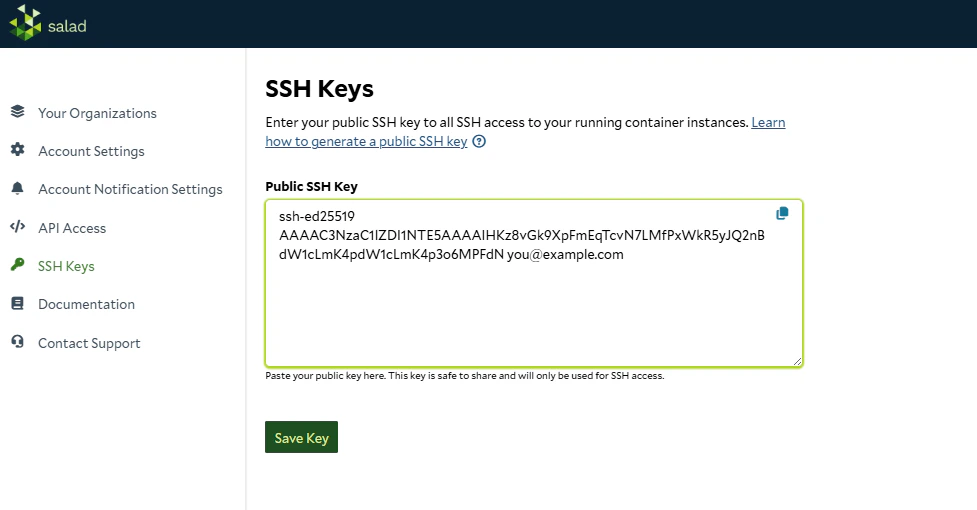
### 3. Add the Key in the Portal
There are two ways to access the SSH key settings:
* Click your username in the upper-right corner and select **SSH Keys**, or
* Click **SSH Keys** in the left sidebar menu
Paste your public key into the field and save it.
 ### 4. Connect to a Container Instance
1. Open your container group in the Portal and click on a running instance.
2. You will see an SSH command displayed in a text box above the terminal. Command will look something like this:
```bash theme={null}
ssh root@ -p
```
3. Copy the command and paste it into your terminal.
4. The Portal also displays the key fingerprint for verification, so you can confirm you're connecting with the correct
key.
SSH automatically tries default key files from `~/.ssh/` (such as `id_ed25519`, `id_rsa`, `id_ecdsa`), so the command
shown in the Portal works without modification for most users.
If your key has a custom name or is stored in a non-standard location, add the `-i` flag to specify your key name and
location:
```bash theme={null}
ssh -i ~/.ssh/my_custom_key root@ -p
```
## Terminal Access
The web-based terminal provides quick access directly from your browser without any SSH setup.
1. Open the [SaladCloud Portal](https://portal.salad.com) and navigate to your container group.
2. Click on a running instance.
3. Click on the **Terminal** tab to open an interactive shell.
### 4. Connect to a Container Instance
1. Open your container group in the Portal and click on a running instance.
2. You will see an SSH command displayed in a text box above the terminal. Command will look something like this:
```bash theme={null}
ssh root@ -p
```
3. Copy the command and paste it into your terminal.
4. The Portal also displays the key fingerprint for verification, so you can confirm you're connecting with the correct
key.
SSH automatically tries default key files from `~/.ssh/` (such as `id_ed25519`, `id_rsa`, `id_ecdsa`), so the command
shown in the Portal works without modification for most users.
If your key has a custom name or is stored in a non-standard location, add the `-i` flag to specify your key name and
location:
```bash theme={null}
ssh -i ~/.ssh/my_custom_key root@ -p
```
## Terminal Access
The web-based terminal provides quick access directly from your browser without any SSH setup.
1. Open the [SaladCloud Portal](https://portal.salad.com) and navigate to your container group.
2. Click on a running instance.
3. Click on the **Terminal** tab to open an interactive shell.